
The Prebuilt Blocks Panel in Pixe Builder allows you to quickly access and reuse pre-designed content blocks across your site.
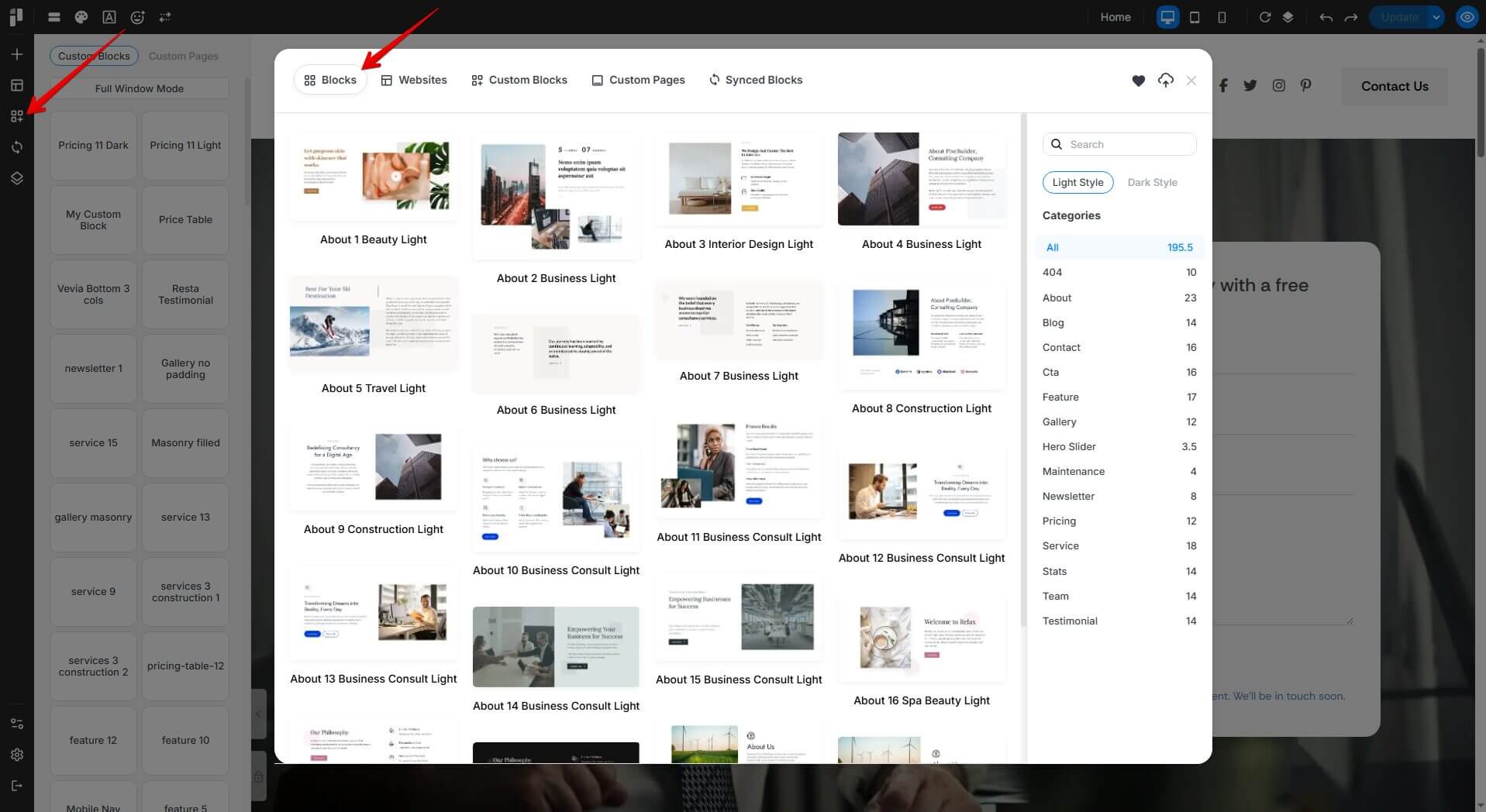
Light Style
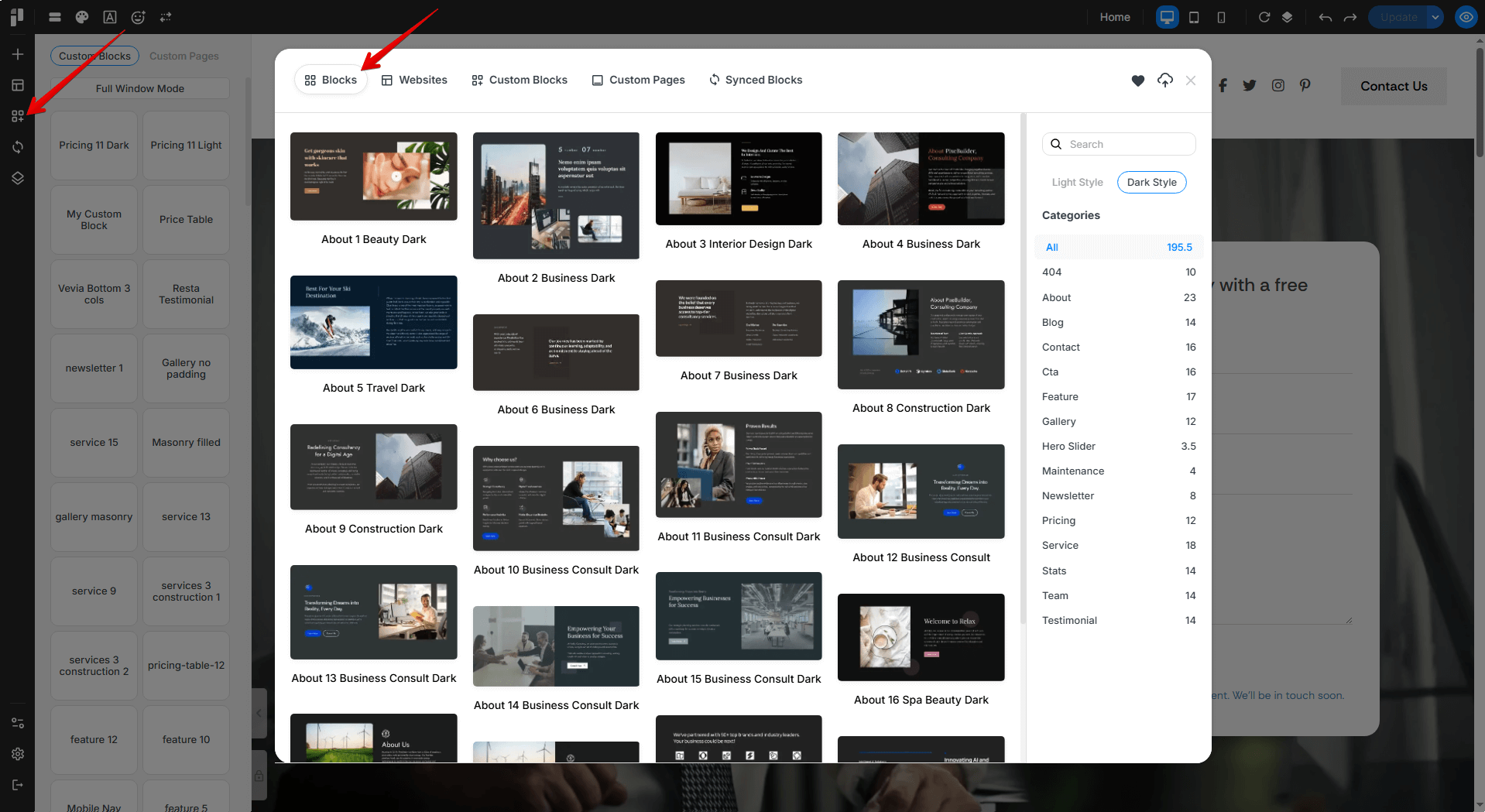
Dark Style
How to Access:
-
Click the block icon in the left sidebar (highlighted by the red arrow in the screenshot).
-
This opens the Blocks tab.
Blocks Tab:
This section contains a library of reusable elements like:
-
Contact forms
-
Testimonials
-
Gallery layouts
-
Call-to-actions (CTAs)
You can drag and drop these blocks directly into your layout.
Key Features:
-
Search and preview blocks easily
-
Full Window Mode helps you view and browse prebuilt blocks more easily by expanding the block selection area, making it more convenient to find the right layout.
-
Quick switch between Custom Blocks and Custom Pages tabs
Best For:
-
Beginners who want to save time
-
Creating consistent layouts site-wide
-
Non-technical users who prefer ready-made designs
Use the Custom Blocks Panel to build faster with consistency and ease, no coding required!