
The Favorites feature in PixeBuilder allows you to bookmark your most-used prebuilt blocks and full website templates for rapid access. By saving items to your personal library, you can streamline your workflow and maintain design consistency across multiple projects without searching the entire library.
Adding to Favorites
You can add any prebuilt block or website template to your favorites using two primary methods within the editor:
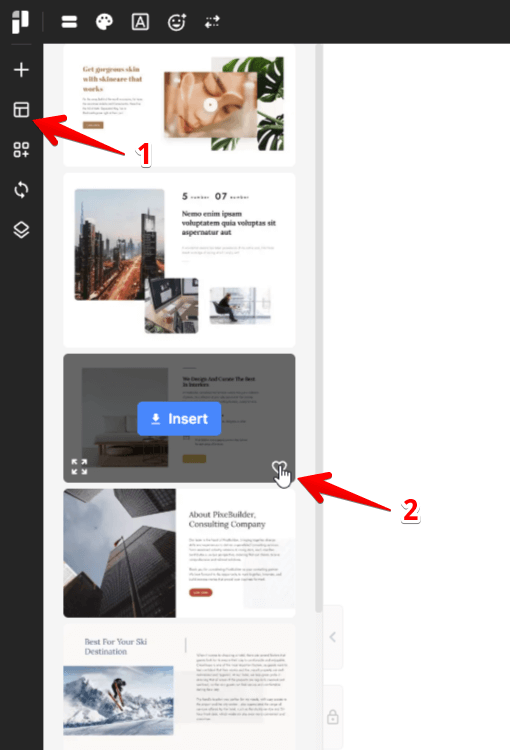
From the Sidebar
-
Click the Block icon in the left-hand sidebar to open the prebuilt library.
-
Hover over the block or website you want to save.
-
Click the heart icon that appears in the bottom right corner of the item's preview image.
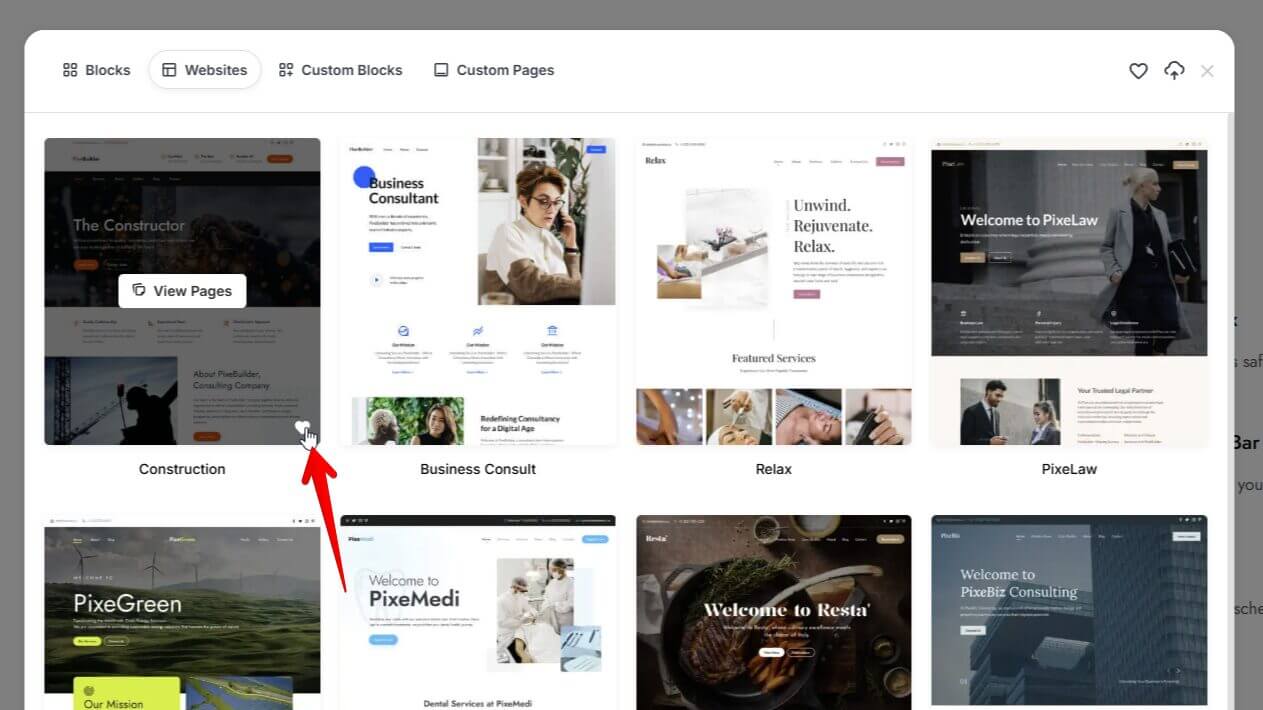
From Full Window Mode
-
Open the library in Full Window Mode to browse items more comfortably.
-
Locate the desired block or website and click the heart icon in the bottom right corner of its thumbnail.
Accessing Your Favorites
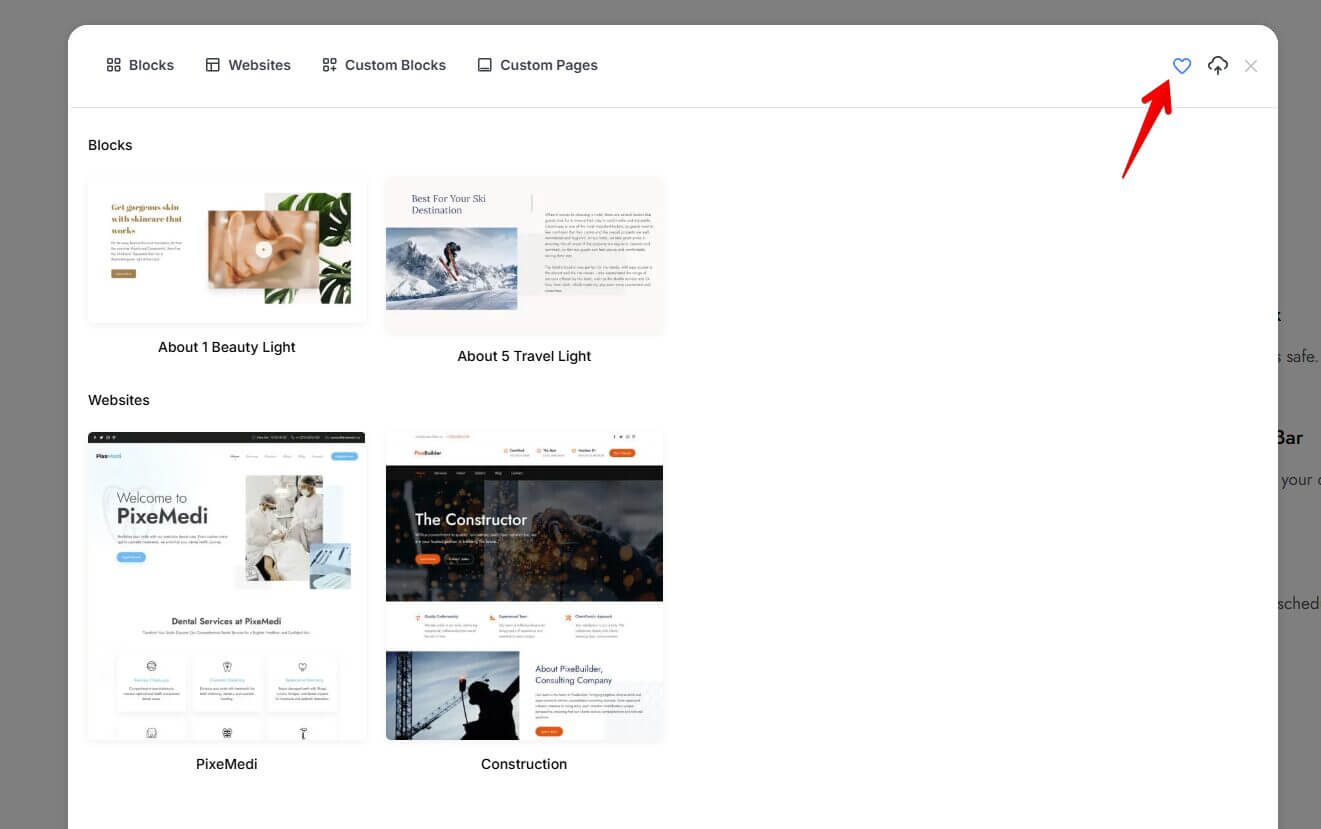
Once items have been favorited, they are stored in a centralized location for quick retrieval:
-
Enter Full Window Mode from the sidebar library.
-
Click the heart icon located in the top right corner of the window.
-
This will filter the view to display only your bookmarked Blocks and Websites.
Removing from Favorites
To remove an item from your library, simply click the heart icon again on the specific block or website. The icon will deselect, and the item will no longer appear in your filtered Favorites view.