
Synced Blocks in PixeBuilder are reusable global components that allow you to maintain design consistency across your entire website effortlessly.
When you create a Synced Block, you can insert it into multiple pages; any subsequent update made to that block will automatically reflect across all other pages where it is used.
Create Sync Blocks
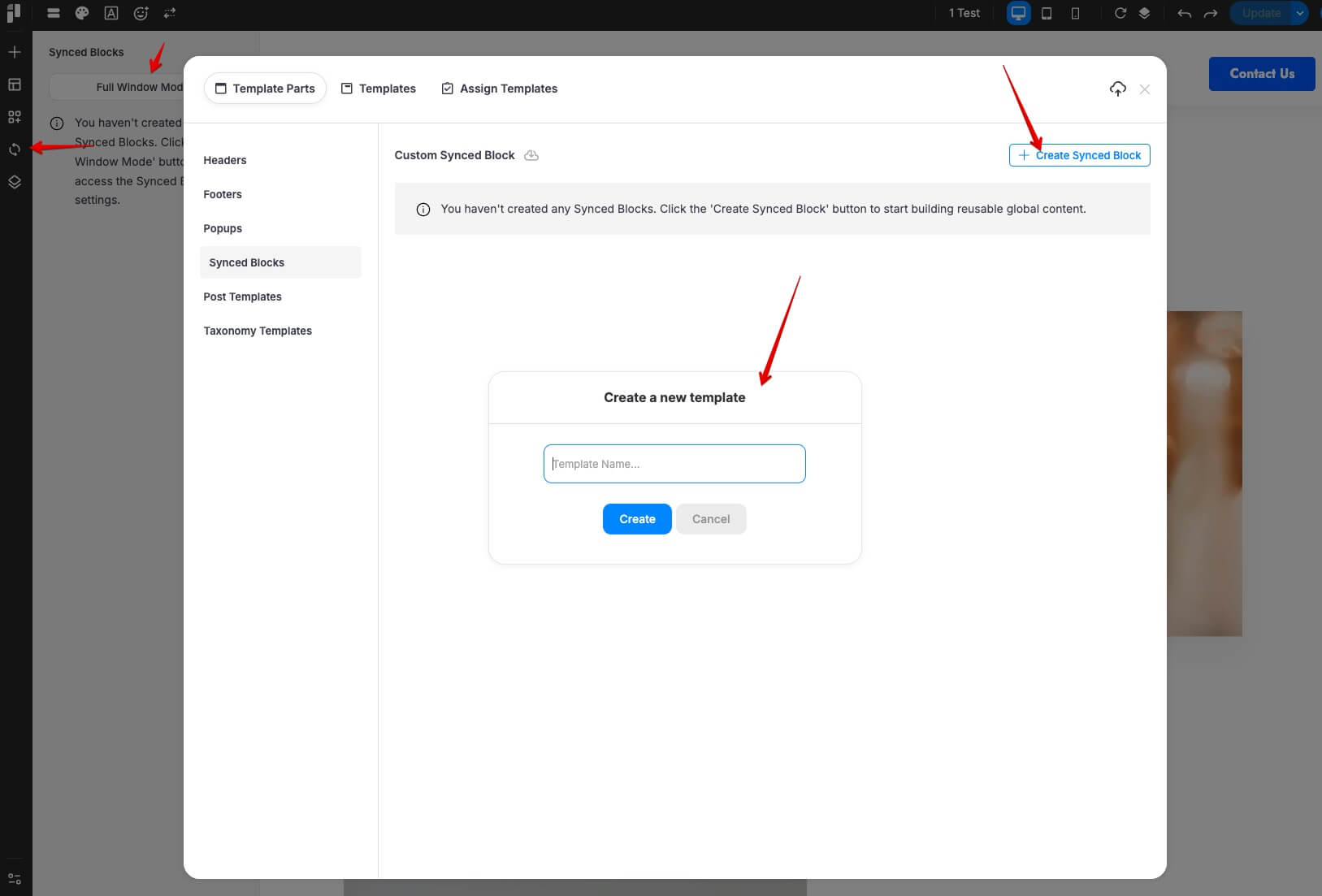
From the Editor:
- Click the Synced Blocks icon (indicated by circular arrows) in the left-hand sidebar.
- Select the Full Window Mode button.
- Click + Create Synced Block, enter a template name, and click Create to begin designing your global content.
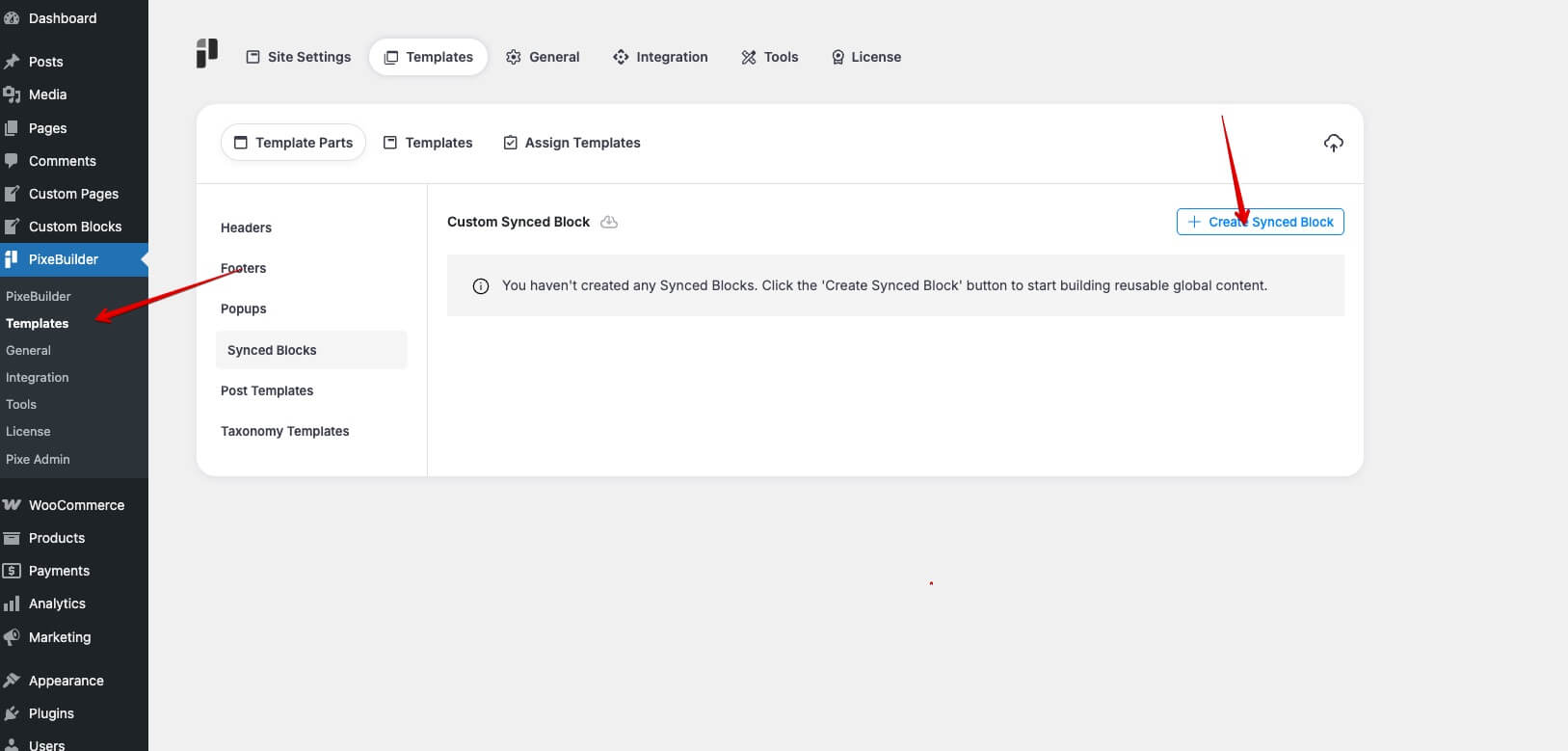
From the Dashboard:
- Navigate to PixeBuilder > Templates in your WordPress admin menu.
- Select the Synced Blocks category from the sidebar.
- Click the + Create Synced Block button in the top right corner to start a new reusable block.
How to Use Synced Blocks
Once created, your global blocks are stored in a dedicated library for easy access.
-
Navigate to the page where you want to add the content and click Edit with PixeBuilder.
-
Click the Synced Blocks icon (indicated by the circular arrows) in the left-hand sidebar.
-
Browse your library and add the desired synced block to your page.
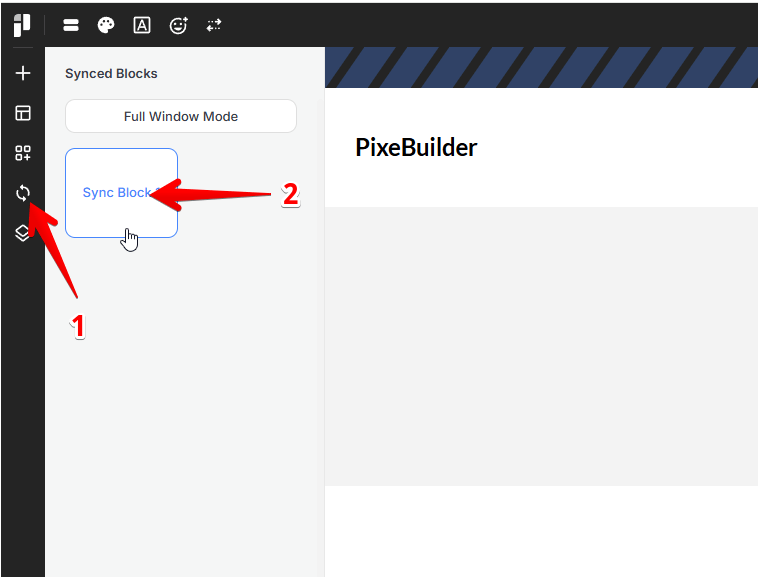
Managing Your Synced Blocks Library
Click the Full Window Mode button in the Synced Blocks sidebar to manage your synced blocks or create new ones.
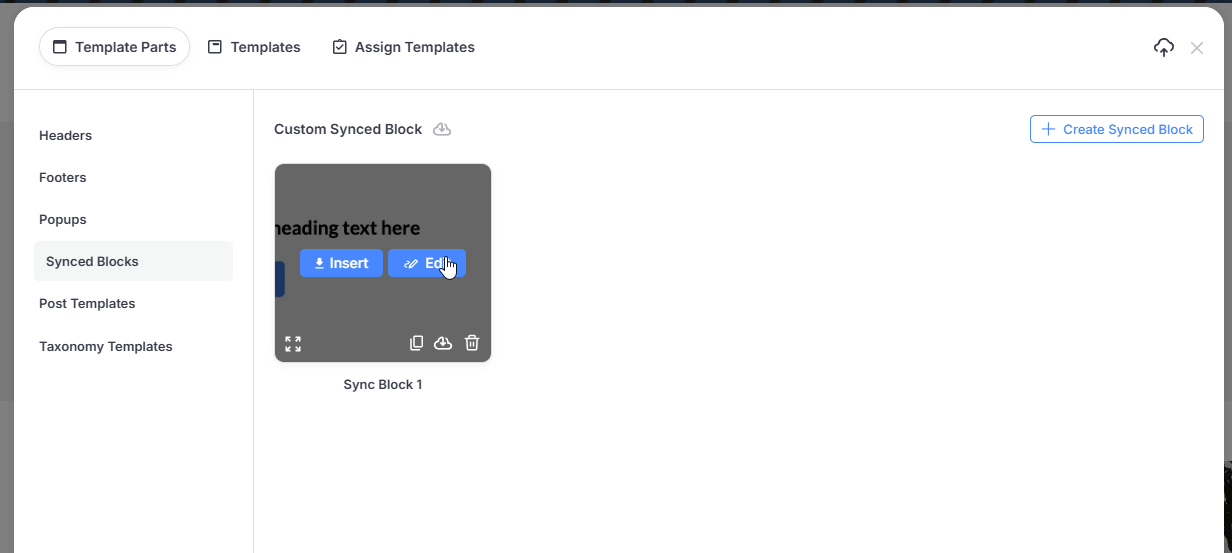
Practical Use Cases
Synced Blocks are ideal for content that needs to remain identical across various parts of your site. Examples include:
-
Call-to-Action (CTA) Sections: Use a "Schedule a Consultation" or "Join our Newsletter" block at the bottom of every service page. If your link or offer changes, you only have to update it once.
-
Testimonial Sliders: Keep a consistent set of customer reviews across your Home and Service pages.
-
Pricing Tables: If you update your subscription rates, a Synced Block ensures the new pricing is reflected site-wide instantly.
-
Contact Information Strips: Maintain a consistent phone number, email, and address in a custom footer-top section or on various landing pages.
-
Brand Logos/Partner Grids: Update your list of "As Seen On" or "Our Partners" logos in one place to reflect new collaborations across all pages.