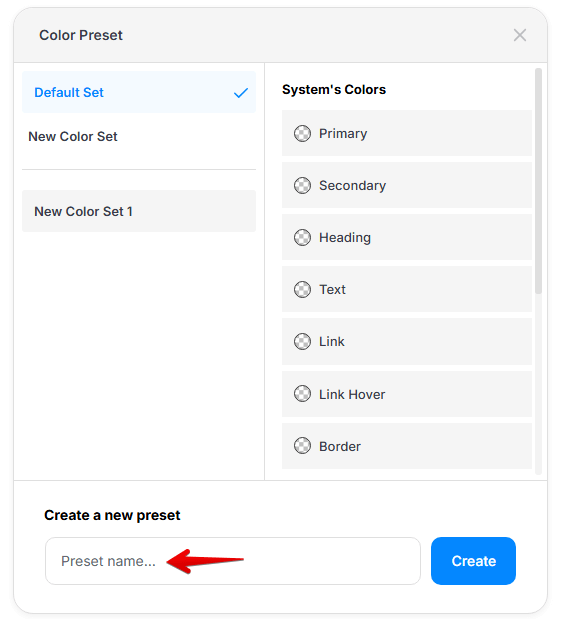
Color presets help you manage and apply consistent colors across your site.
What You Can Do:
Create color presets to manage and control all colors from a single place.
Each preset includes system colors like:
-
-
Primary, Secondary
-
Heading, Text
-
Link, Link Hover
-
Border
-
-
Click the pencil icon
 to edit or the trash to delete a preset.
 -
Create a new preset by entering a name and clicking Create.
 to edit or the trash
  to delete a preset.
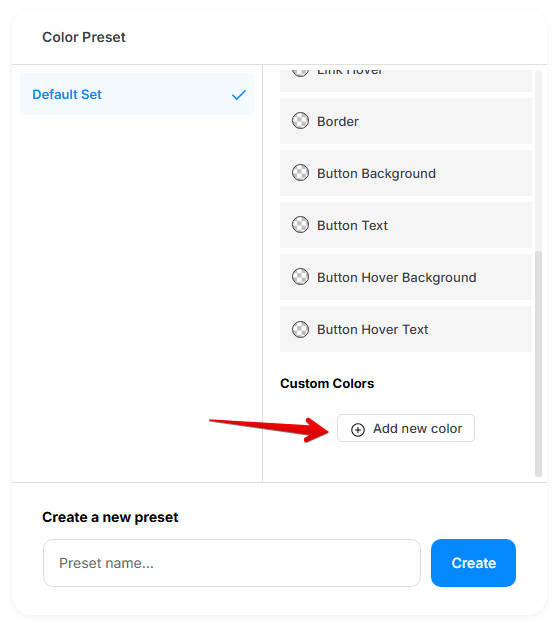
Create Color
- Select the Color Preset on the left side (Default Set in this case).
- Click Add New Color.
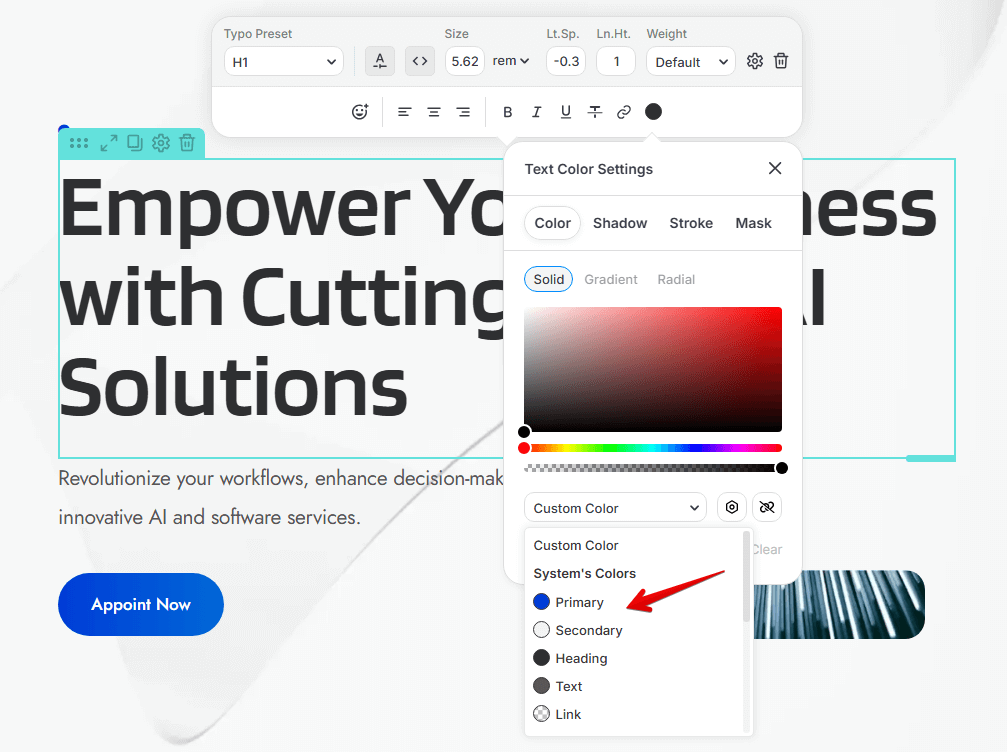
Assign Color
- Select an element on any page or block.
- Click the color icon.
- Select a color from the Custom Color dropdown.
Create a new preset
- Add a preset name
- Click Create button
- Add System's Colors or Add New Color