
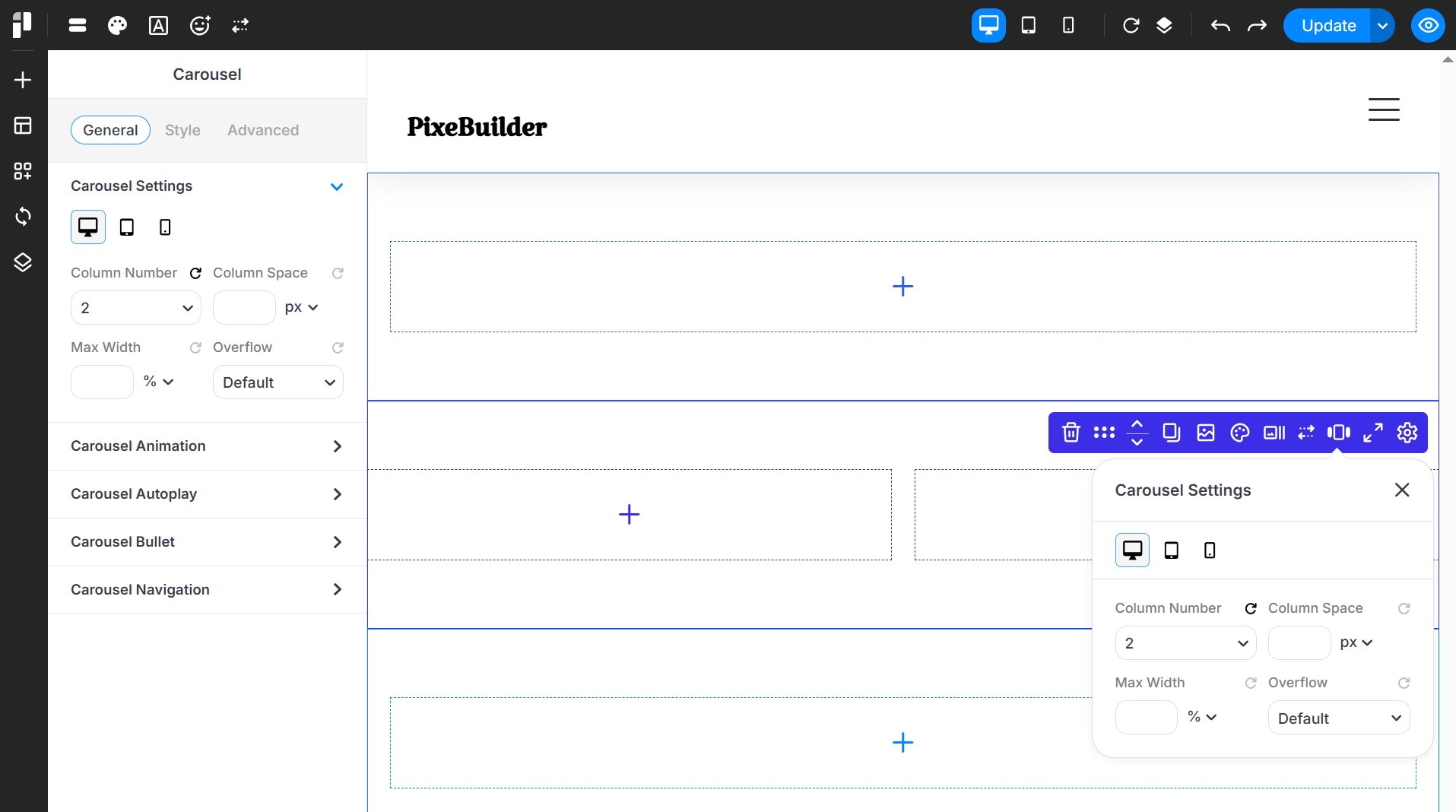
The Carousel in Pixe Builder lets you create a sliding layout that displays content in a rotating, scrollable format, perfect for showcasing testimonials, products, services, or image galleries.
All of these can be adjusted easily in Carousel > General tab inside Pixe Builder. No coding required, just click, set, and publish! Perfect for beginners or non-tech users building modern, interactive web layouts.
When using Carousel Container in a Post Template, make sure the Fetch Items value matches the number of slides in the slider or carousel to ensure the layout displays correctly.
Carousel Slide Settings
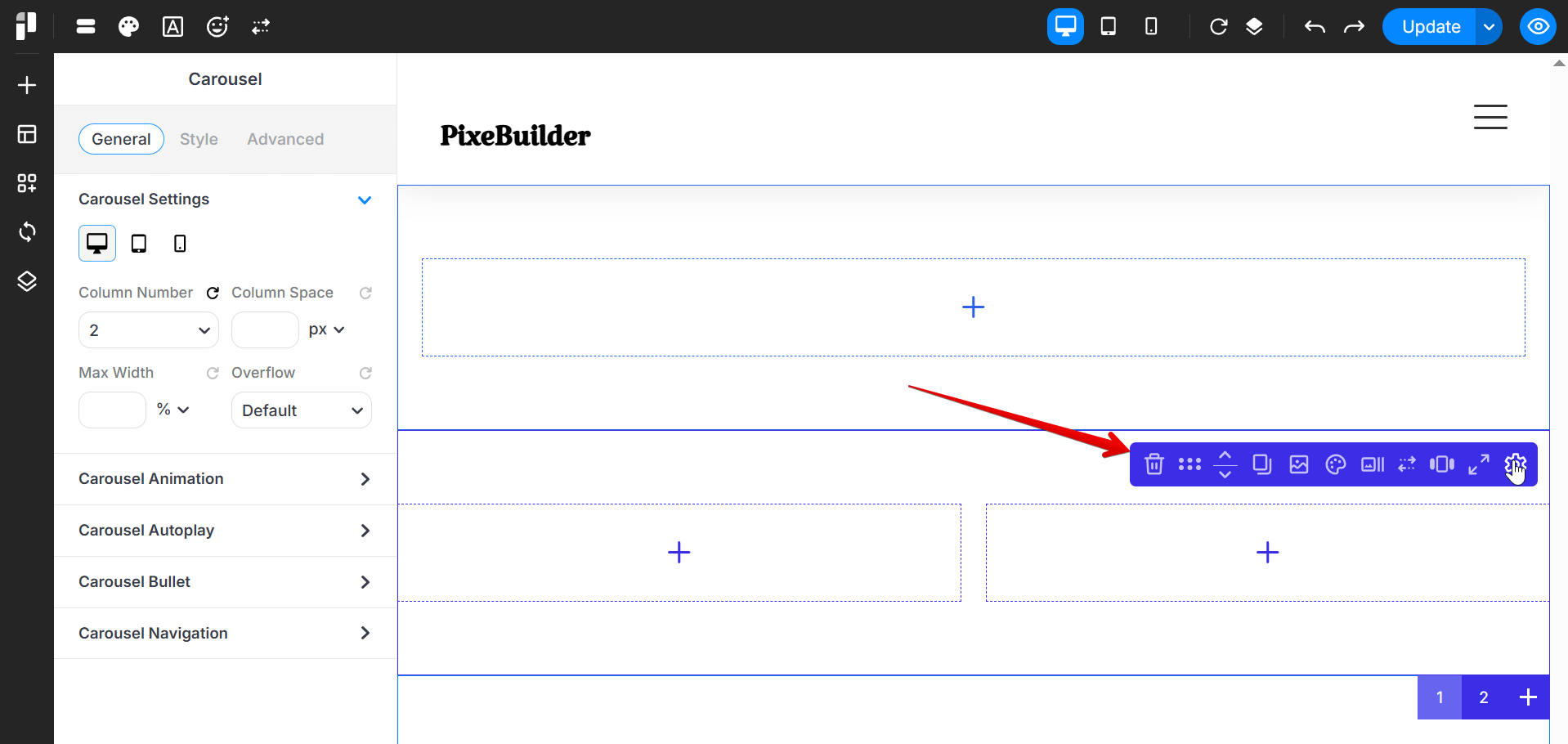
We will break down the Carousel Slide Toolbar icons from left to right below.
Delete Slide
- Removes the carousel.
- Allows you to rearrange the order of carousel container with other items.
- Creates an exact copy of the whole carousel.
- Very helpful for quickly reusing carousel layouts or animations to other places.
- Opens background media settings (image, video).
- Set unique backgrounds for the whole carousel slide to create a storytelling flow.
- Open settings for adding color, border, shadow and mask.
- Set the carousel slide time, carousel slide speed
- Set the start carousel slide and item to carousel slide
- Set autoplay options, fade overflow item including enabling/disabling pause on hover for the inner carousel slider.
- Enable bullets or navigation controls for the entire carousel.
- Control the responsive/ device available for carousel
- Set the column number, column space
- Set the max width and overflow for carousel
- Control the spacing of the slider by adjusting its padding and margin.
Carousel Sub Slide Settings
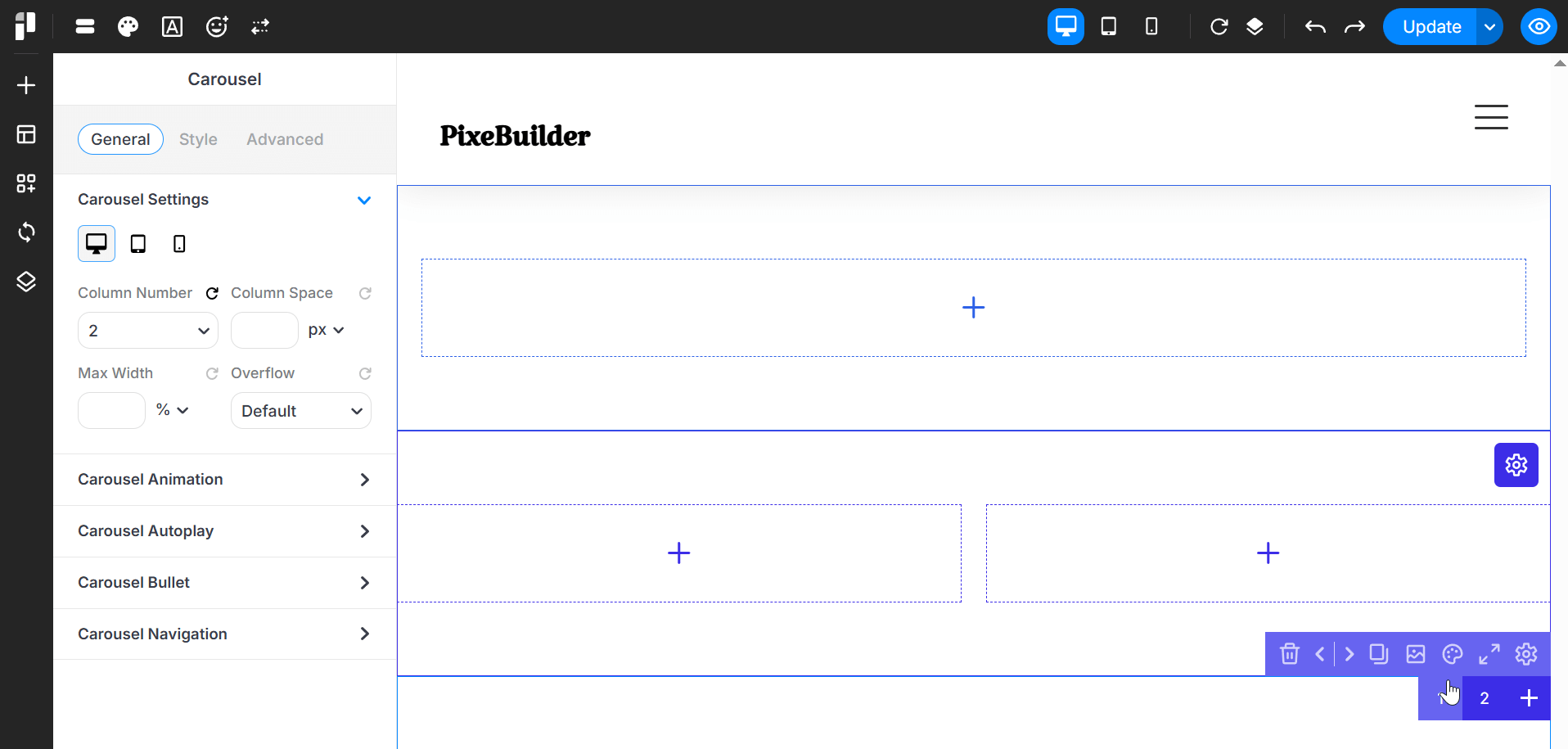
We will break down the Carousel Sub Slide Toolbar icons from left to right below.
Please note: the carousel sub slide settings will override the main slider settings.
Delete Slide
- Removes the single carousel.
- Allows you to rearrange the order of single carousel slide with other carousel slide.
- Creates an exact copy of the single carousel.
- Very helpful for quickly reusing carousel layouts or animations to other single carousel slide.
- Opens background media settings (image, video).
- Set unique backgrounds for the single carousel slide to create a storytelling flow.
- The background media will become visible only after you add content elements to the carousel column.
- Open settings for adding color, border, shadow and mask.
- Control the spacing of the slider by adjusting its padding and margin.