Manage your PixeBuilder subscription, payment methods, and invoices directly from your account dashboard at account.pixebuilder.com.
Managing Your Subscription
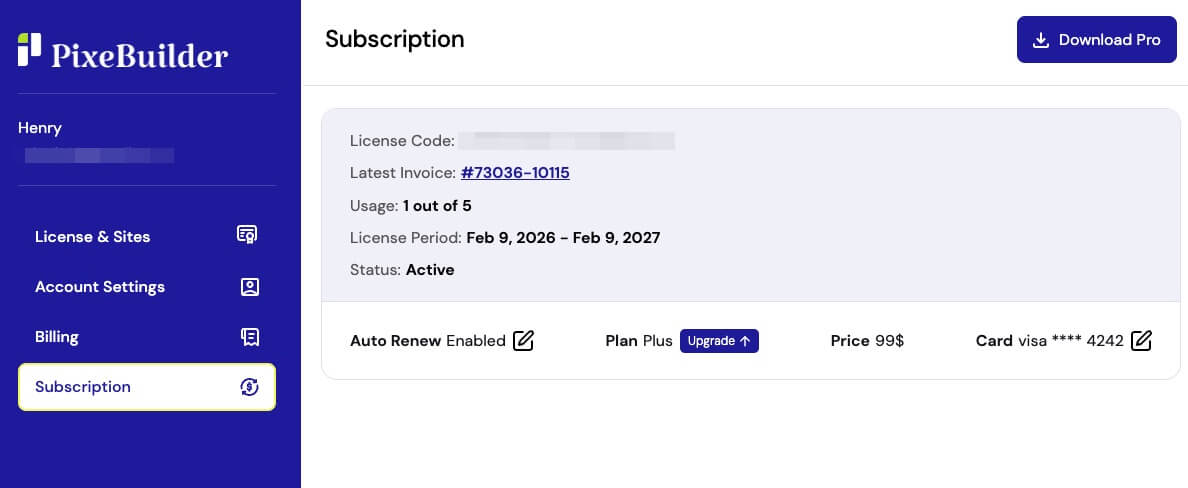
Navigate to the Subscription menu to view your license details, usage limits, and current plan status. From this menu, you can quickly adjust your account:
- Manage Auto Renew: Click the edit icon next to Auto Renew to easily enable or disable automatic subscription payments.
- Upgrade Plan: Click the Upgrade button next to your current plan to choose a higher tier.
- Update Payment Method: Click the edit icon next to your Card details to change the credit card associated with your account.
Viewing and Updating Invoices
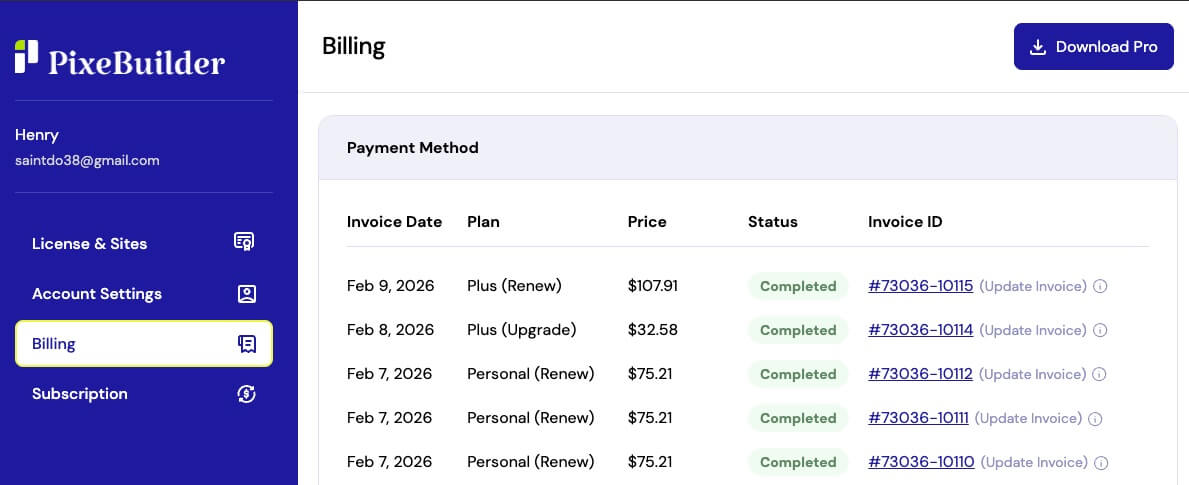
Navigate to the Billing menu to view a complete history of your payments and manage your invoices.
Download an Invoice: To save a copy for your records, simply click directly on the blue Invoice ID link (e.g., #73036-10115).
Update an Invoice: If you need to modify the billing details on a past receipt, click the (Update Invoice) link located to the right of the Invoice ID.
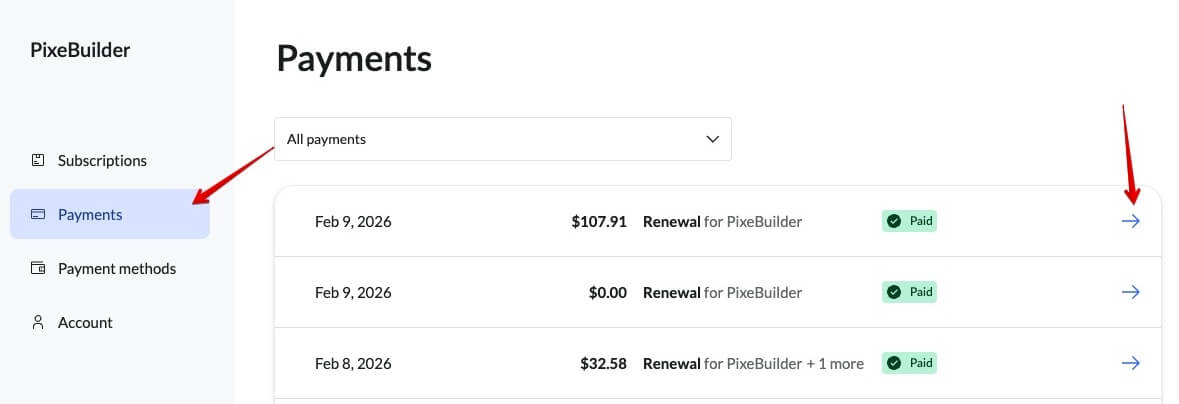
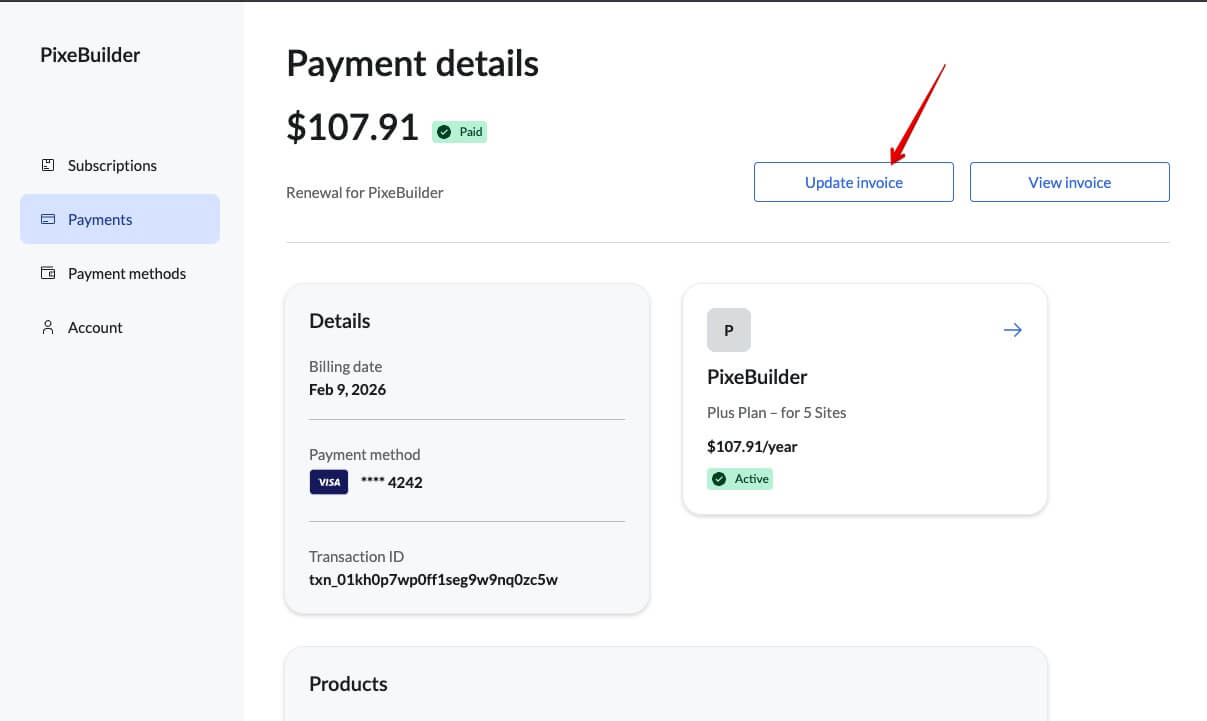
Note: Clicking this link will open Paddle. Go to Payments on the left-hand side, select the specific transaction, and click the Update Invoice button at the top right. You can only update an invoice once.