Speed and efficiency are at the core of the PixeBuilder experience. While the toolbar provides visual controls, mastering the Context Menu (right-click) and Keyboard Shortcuts can significantly accelerate your design process. This guide covers how to manage elements quickly without ever leaving the canvas.
The Power of the Right-Click
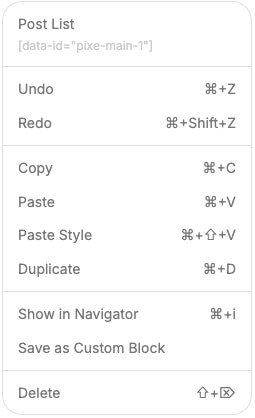
When you right-click on any element (Block, Column, or Item) within the editor, you trigger a context-sensitive menu designed to keep your most-used tools within reach.
Here is a breakdown of the key functions available in the menu:
-
History Controls (Undo/Redo): Quickly step back or forward through your recent changes without hunting for interface buttons.
- Clipboard Management:
- Copy & Paste: Standard functions to move content around.
-
Paste Style: A powerful feature that lets you copy only the design settings (colors, fonts, padding, borders) from one element and apply them to another, leaving the actual content intact.
-
Duplicate: Instantly create a clone of the selected element immediately below the original.
-
Navigation & Organization:
- Show in Navigator: Instantly highlights the current element within the Navigator tree, helpful for complex layouts.
-
Save as Custom Block: Allows you to save your configured element to your library for reuse on other pages.
-
Delete: Removes the element from the canvas.
Keyboard Shortcuts Cheat Sheet
For the ultimate speed boost, keep your hands on the keyboard. PixeBuilder supports standard operating system shortcuts along with specific workflow commands.
| Action | Shortcut (Mac) | Shortcut (Windows) |
| Save Changes | Cmd + S | Ctrl + S |
| Undo | Cmd + Z | Ctrl + Z |
| Redo | Cmd + Shift + Z | Ctrl + Shift + Z |
| Copy | Cmd + C | Ctrl + C |
| Paste | Cmd + V | Ctrl + V |
| Paste Style | Cmd + Shift + V | Ctrl + Shift + V |
| Duplicate | Cmd + D | Ctrl + D |
| Show in Navigator | Cmd + i | Ctrl + i |
| Delete Element | Shift + Backspace | Shift + Backspace |
| Preview | Cmd + E | Ctrl + E |
Pro Tip: Using Paste Style (Cmd + Shift + V) is the fastest way to maintain design consistency across your page. Simply style one button or header perfectly, copy it, and paste the style onto all other similar elements instantly.
Disabling the Custom Right-Click Menu
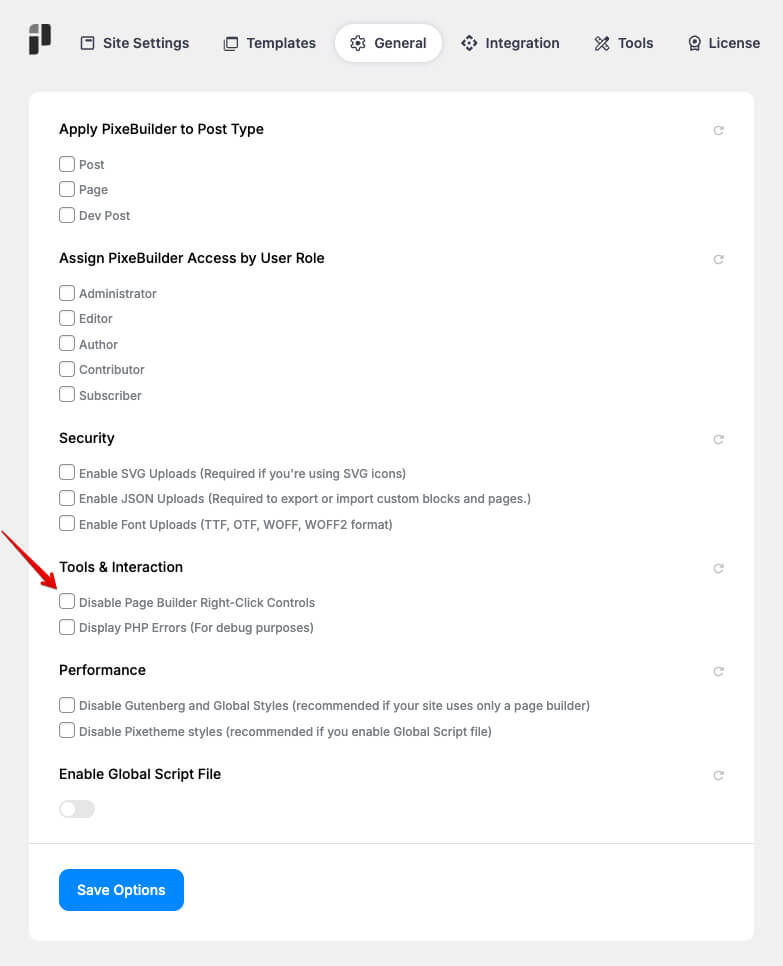
If you prefer to use your browser's native context menu instead of PixeBuilder's custom controls, you can disable this feature in the settings.
-
Navigate to the PixeBuilder settings from the WordPress dashboard.
-
Click on the General tab.
-
Scroll down to the Tools & Interaction section.
-
Check the box for "Disable Page Builder Right-Click Controls".
-
Click Save Options.
Once disabled, right-clicking on elements will no longer open the PixeBuilder shortcuts menu.