
The AI Writing Assistant in PixeBuilder allows you to generate, refine, and optimize your website copy directly within the editor using artificial intelligence. This tool helps you overcome writer's block and create professional, engaging content for your site without leaving the PixeBuilder interface.
API Setup Required: To use the AI Writing Assistant, you must first configure your API key. For detailed instructions, please refer to the AI Integration & API Key Management guide.
Where to Access the AI Writing Assistant
The AI Writing Assistant is available for elements that focus on text content:
-
Heading: Use AI to craft catchy titles and subheadings.
-
Text Box: Use AI to write longer paragraphs, descriptions, or service details.
To access the tool:
-
Select a Heading or Text Box element.
-
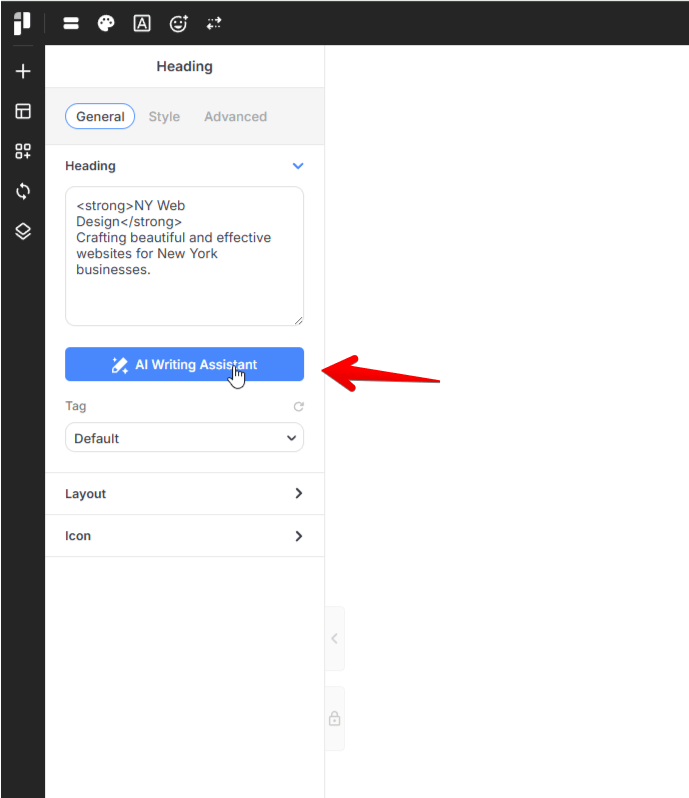
In the sidebar settings under the General tab, click the AI Writing Assistant button located below the content editor.
-
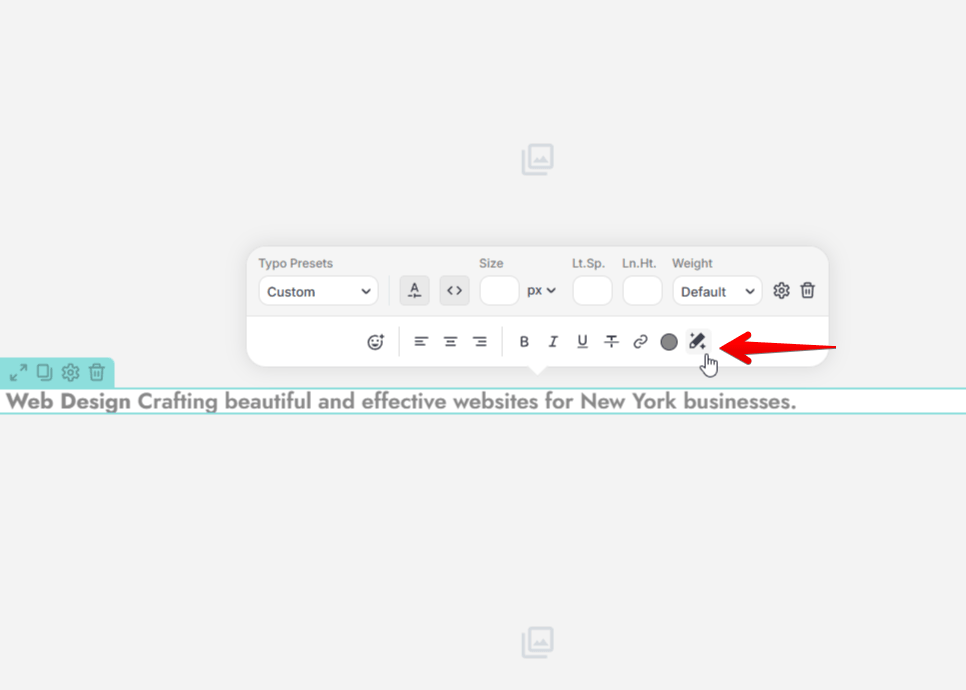
Alternatively, you can access it directly from the floating toolbar by clicking the Sparkle/Pen icon.
Generating and Inserting Text
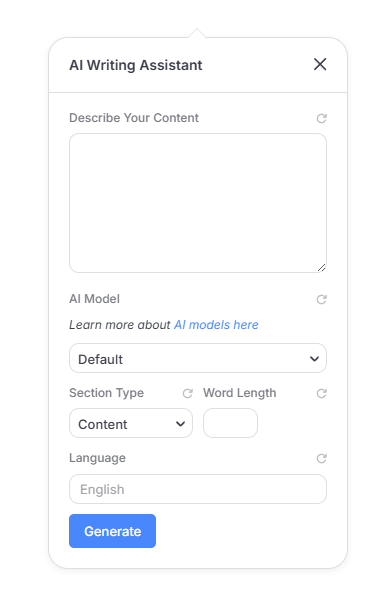
Once the AI interface is open, you can configure your request to generate custom content:
-
Describe Your Content: Enter a detailed description or topic to guide the AI in drafting your text.
-
Section Type: Choose the specific context for your content from the following options: Content, Hero, Features and Services, Benefits, Problem and Solution, Testimonials, Use Cases, Call To Action and FAQ
-
Word Length: Set a specific word count to ensure the generated text fits your layout perfectly.
-
Language: Specify the language for the generated content.
-
AI Model: Select your preferred AI model from the dropdown menu.
After clicking Generate, the AI-generated text will be inserted into your element.
Content Guidelines
The AI Writing Assistant is built for website copy, such as headlines, descriptions and calls to action. To keep generated content safe and appropriate, it will not:
- Give medical, legal, financial or tax advice
- Produce sexual or adult content
- Produce hateful, discriminatory, violent or harassing content, or help with illegal activity
- Write as a real or famous person, quote them, or claim their endorsement. Testimonials and quotes are written in your business's own voice instead.
Your AI provider (Google Gemini, OpenAI or Anthropic) also applies its own usage policies to every request. Please review generated text before publishing it.