
How PixeBuilder Chooses the Layout of a Page
A page gets its header and footer from one of these places:
- No template assigned (default): the page uses your theme's layout, so the header and footer come from your theme.
- A template assigned to Pages: every page uses that PixeBuilder template, with the PixeBuilder header and footer. See Assign Templates below.
- A template chosen on one page: only that page uses it. This choice wins over the assigned template.
- None chosen on one page: that page uses your theme's layout, even when a template is assigned to Pages.
One page template is enough for all your single pages, such as About or Contact. You do not need a new template for each page.
Create Custom Page Template
Here are a few simple steps to create a page template:
- Go to PixeBuilder > Templates
- Open the Templates tab
- Click Create Template
- Enter a Template Name and click Create
-
Design your custom page template (3 parts)
- Setup Header: https://docs.pixebuilder.com/header-builder/
- Setup Footer: https://docs.pixebuilder.com/footer-builder/
- Setup the Post Content element
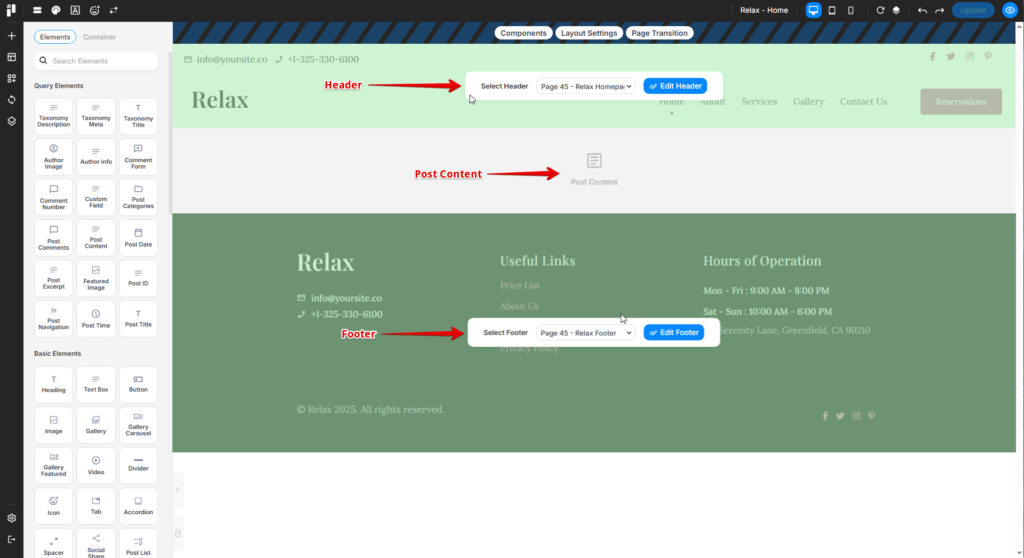
Template Components
Click Components at the top of the template editor to choose the Header, Tablet Header, Mobile Header, Footer, Tablet Footer and Mobile Footer that this template uses.
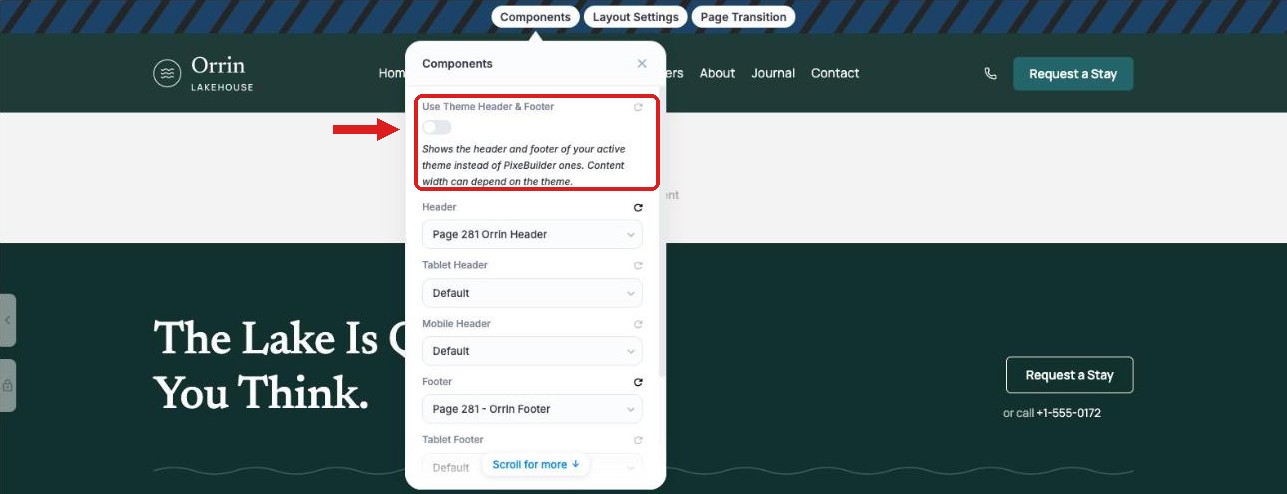
Use Your Theme's Header & Footer
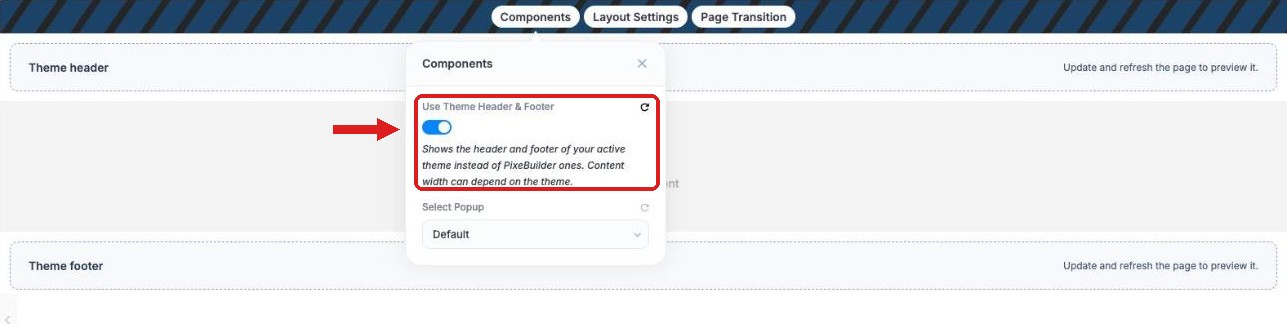
Turn on Use Theme Header & Footer to show your active theme's header and footer instead of PixeBuilder ones. PixeBuilder then builds only the area between them.
- Available with classic (non-block) themes.
- The editor shows Theme header and Theme footer placeholders. Click Update and refresh the page to preview them.
- Content width can depend on your theme.
Assign Templates
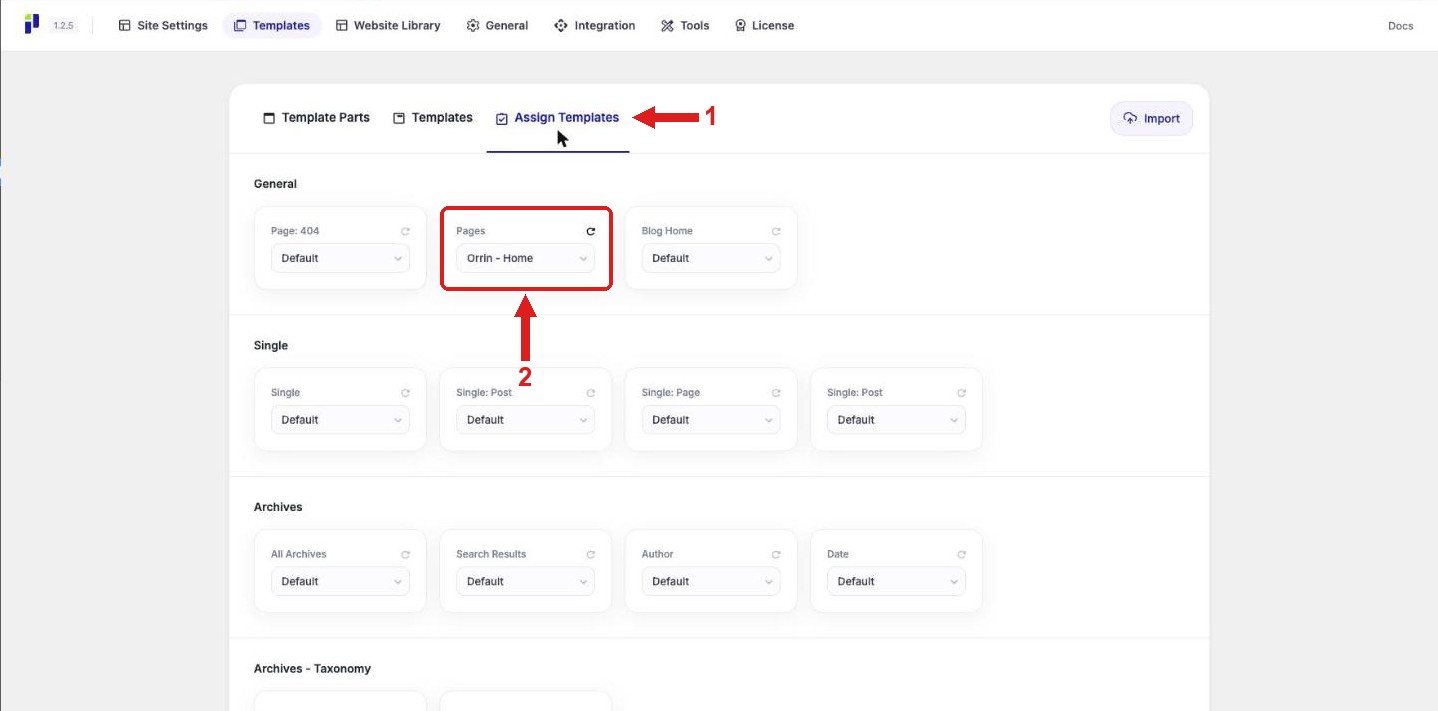
Here are a few simple steps to assign a custom page template:
- Go to PixeBuilder > Templates
- Open Assign Templates
- Under General > Pages, select the template you created
Use the Ready-made Page Template
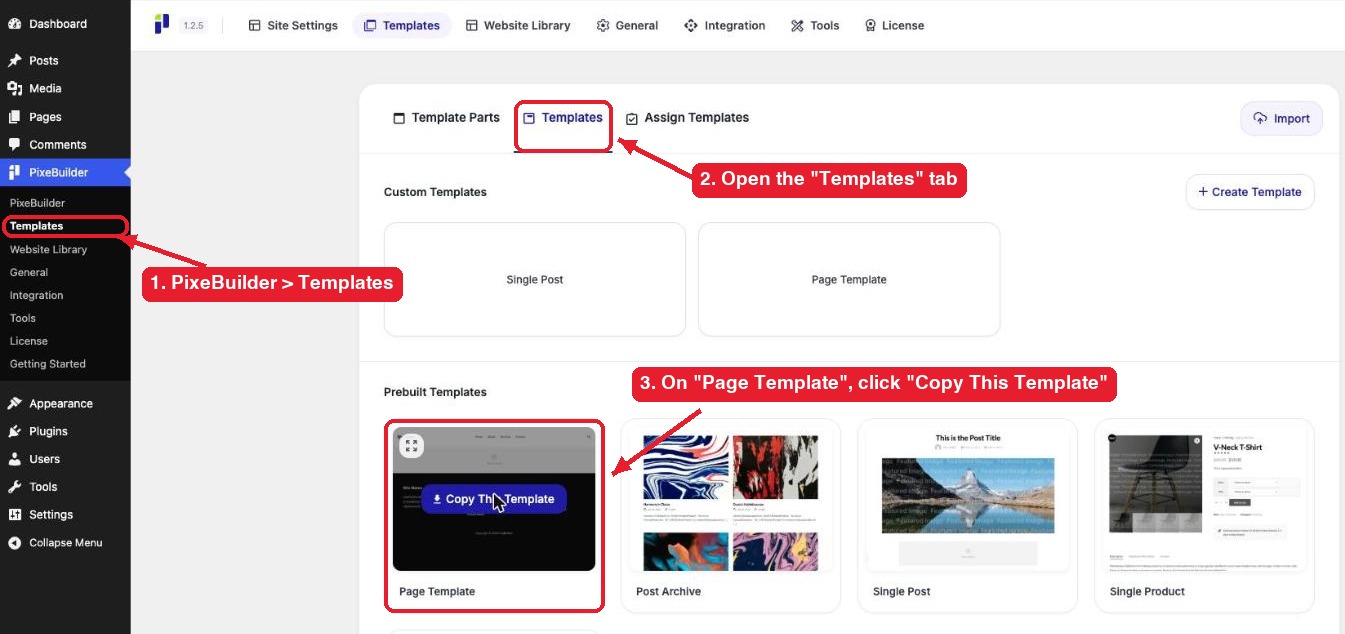
PixeBuilder comes with a ready-made Page Template that contains a header, the Post Content element and a footer. If you do not see it under Custom Templates, or you removed it, you can copy it again:
- Go to PixeBuilder > Templates
- Open the Templates tab
- Under Prebuilt Templates, hover Page Template and click Copy This Template
- Assign it under Assign Templates > General > Pages, or choose it on a single page
Use a Different Template on One Page
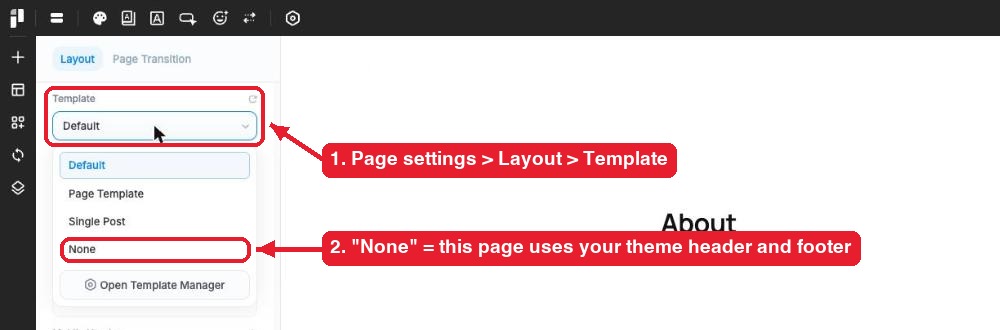
In the page editor, open Layout (the icon at the bottom of the left bar) and pick a Template. When the page uses a PixeBuilder template, you can also override its Header and Footer for each device (Pro).
Choose None to use your theme's layout on this page, even when a template is assigned to Pages. When the page uses your theme's layout, the Header and Footer options in this tab are turned off.
Select Popup
In the Layout tab of a page, Select Popup lets you choose popups to load on that page, for example a mobile menu or a search bar. A popup opens from a button or a link that points to it. See the Popup Builder guide to create one.