
Support Center

PixeBuilder Support Center
Getting Started
Using PixelBuilder
Elements & Items
Layout
Templates
Customization & Settings
Troubleshooting
Integrations
WooCommerce(Ecommerce)
Account Management
FAQ
Support Center>Using PixelBuilder>Adding and Customizing Elements
Updated On: April 6, 2026

Adding and Customizing Elements

This article will show you the basics and foundations of Pixebuilder

Create a New Page or Post

Navigate to your WordPress Dashboard. Create a new page or post, then click on the "Edit With PixeBuilder" button at the top.

Add Elements to a Page

On the left side, click the + icon or drag and drop the desired element into the page builder area.
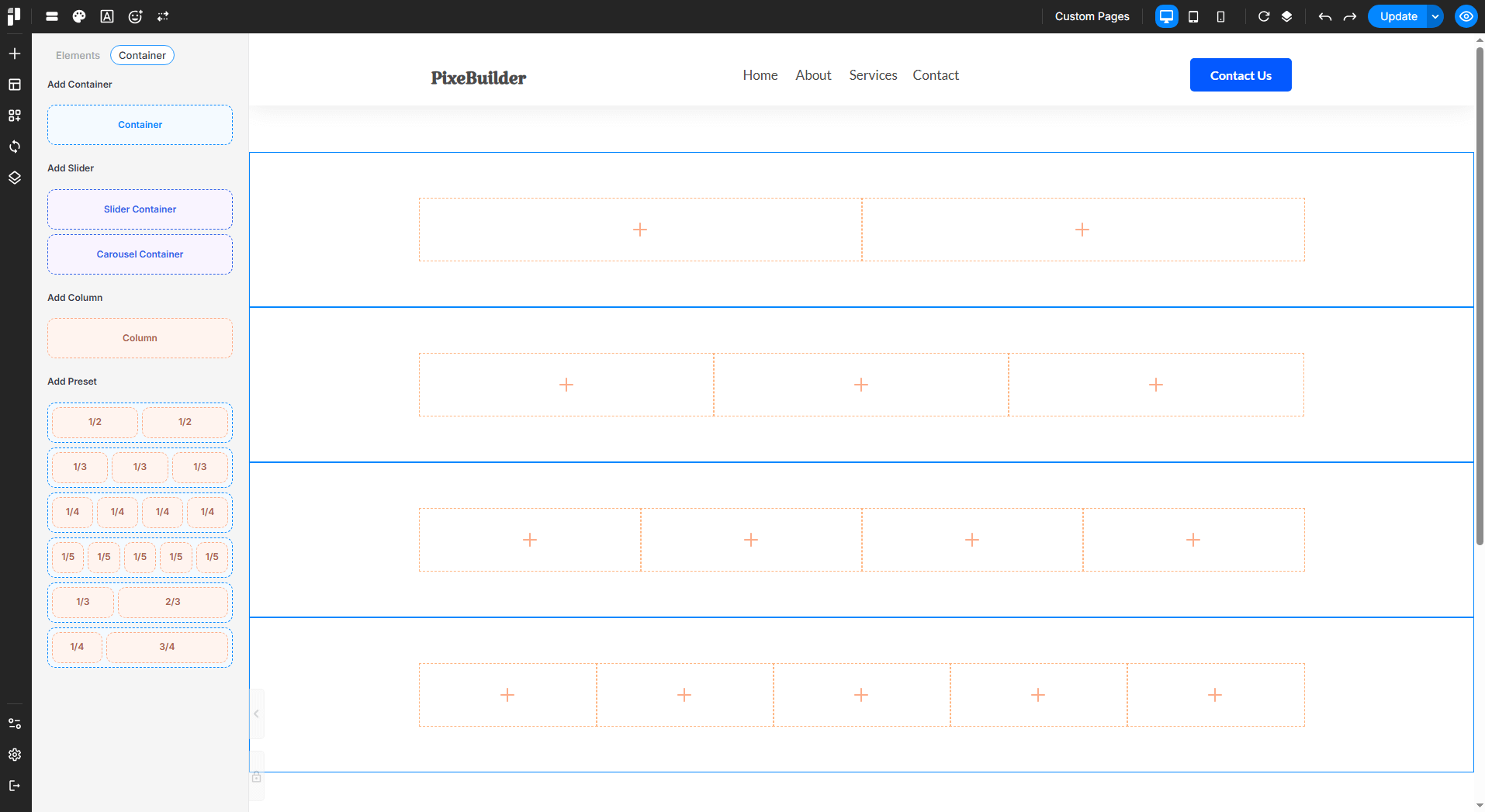
Customizing Elements

You can customize elements by arranging containers, editing headings, and adjusting colors, text sizes, fonts, and more.

Is This Article Helpful?

We value your feedback! Let us know if this article helped you:

Still need help? Contact Us for further assistance.

Table Of Contents