
The Popup Builder is a powerful tool designed to help you create, manage, and deploy engaging overlays for your WordPress site. Whether you need a newsletter signup, a promotional banner, or a mobile-specific navigation menu, the Popup Builder provides both ready-made templates and a canvas for custom designs.
Accessing the Popup Builder
Here are a few steps to create new and manage your popups:
-
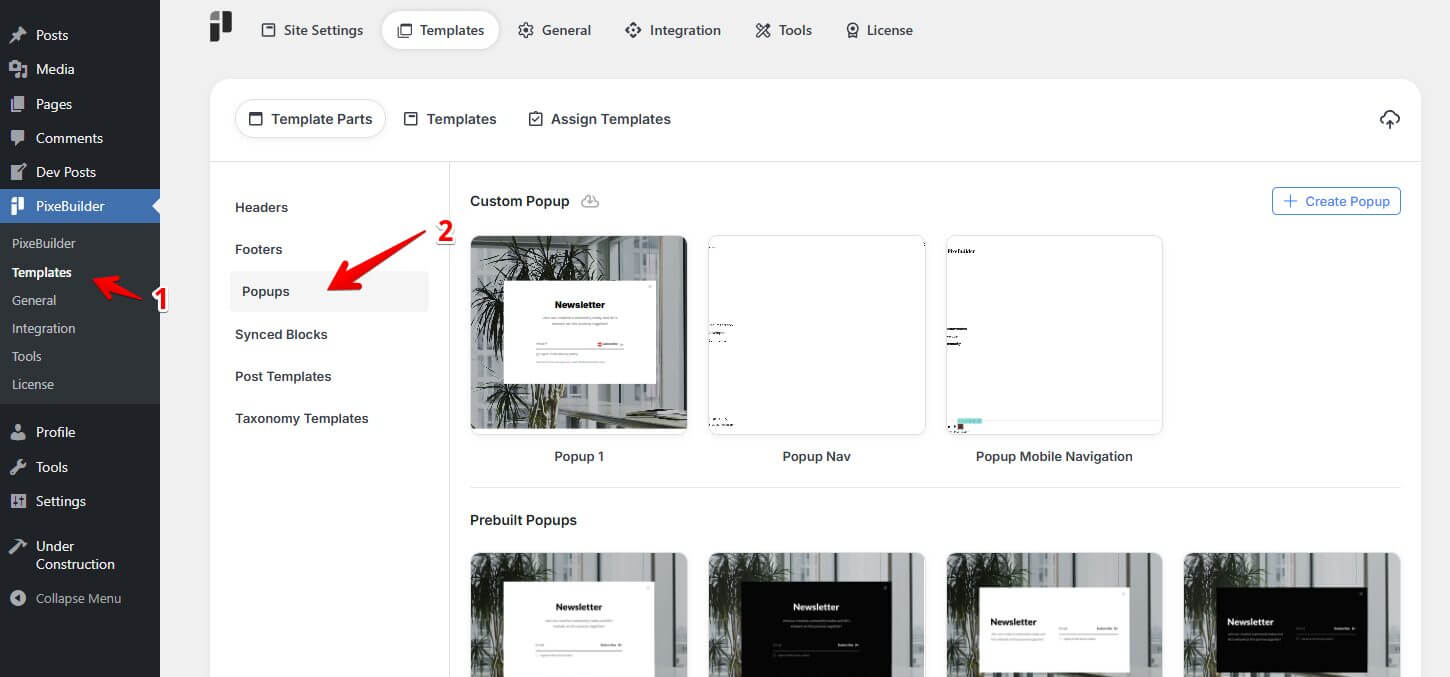
Navigate to the Templates sub-menu under PixeBuilder in the sidebar menu.
-
Choose Popups from the sidebar menu under the Template Parts section.
Creating and Managing Popups
The interface is divided into two main sections: Custom Popups and Prebuilt Popups.
Custom Popups
This section displays all the popups you have created from scratch or modified.
-
Create New: Click the + Create Popup button in the top right corner to start designing a new overlay.
Prebuilt Popups
PixeBuilder comes with a library of professional, high-conversion templates that you can use instantly.
-
Light & Dark Themes: Most templates come in both Light and Dark variations to match your site's aesthetic.
-
Specialized Layouts: Beyond standard newsletters, you can find templates for Side Carts, Search Bars, Mobile Navigation, and Promotional Offers.
Configuration and Styling Popups
PixeBuilder offers granular control over every aspect of your popup's appearance and behavior.
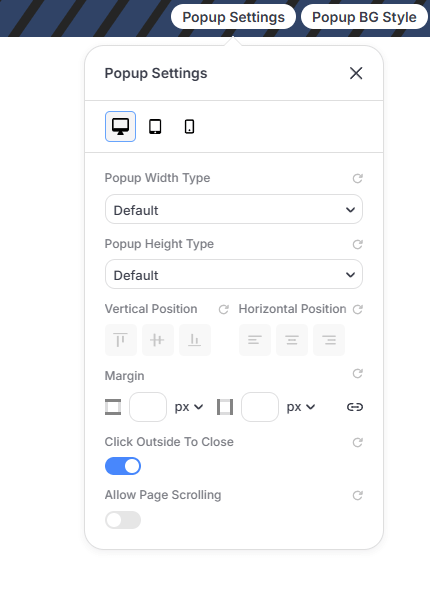
Popup Settings
-
Dimensions: Set Popup Width Type and Height Type to Full Width, Full Height, or custom pixel values.
-
Positioning: Adjust the Vertical and Horizontal Position relative to the screen.
-
Interaction: Toggle Click Outside To Close and Allow Page Scrolling to define the user experience.
Background and Overlay Styling
-
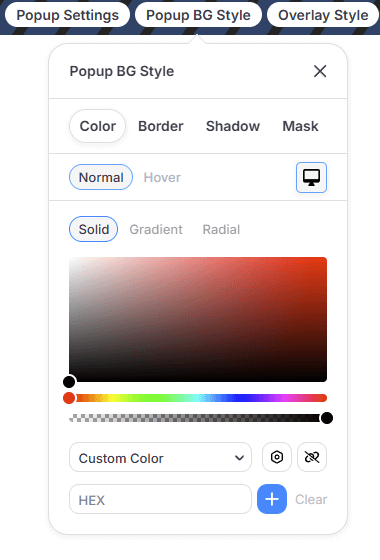
BG Style: Customize the popup container with Color, Border, Shadow, and Mask settings for both Normal and Hover states.
-
Overlay Style: Define the backdrop that appears behind the popup using solid colors, gradients, radials, or images.
-
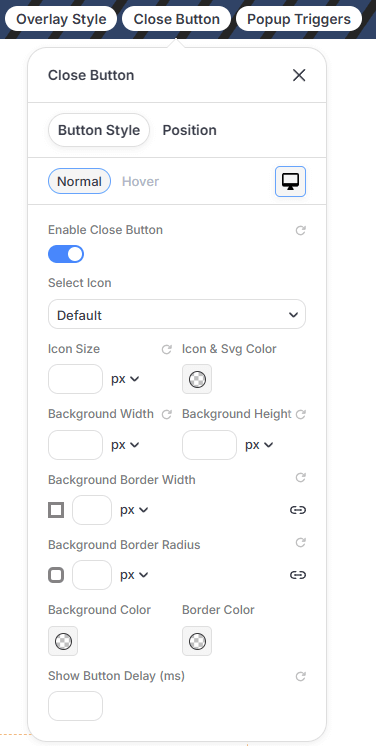
Button Style: Select custom icons, adjust icon size/color, and set the background dimensions.
-
Appearance: Fine-tune the Border Radius, Border Width, and Background Color.
-
Timing: Use Show Button Delay (ms) to keep the close button hidden for a specific duration after the popup appears.
Popup Triggers
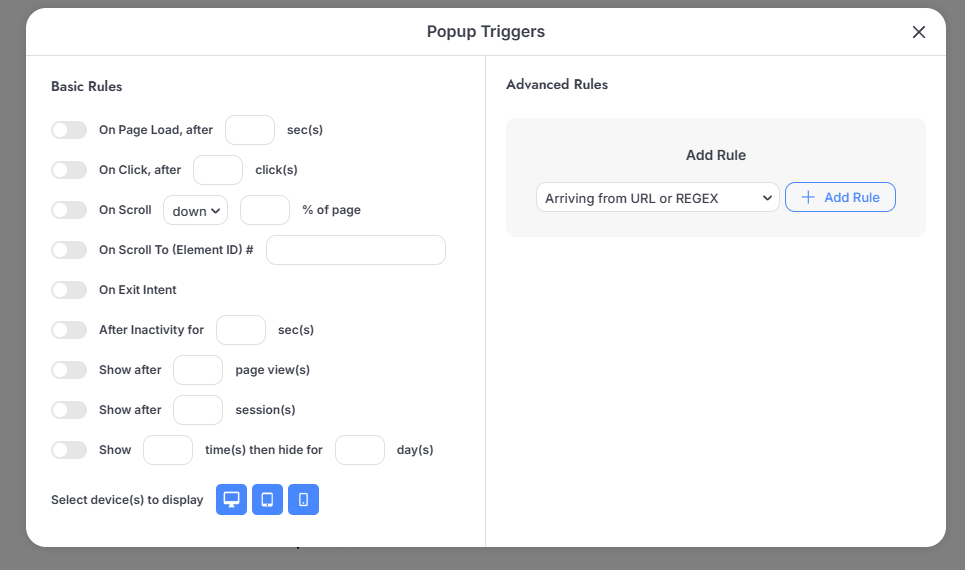
The Popup Triggers panel gives you complete control over when, where, and how often your overlays appear to users. Triggers are divided into Basic Rules, Advanced Rules, and device-specific settings.
Basic Rules
Control the fundamental timing and frequency of your popups:
-
On Page Load: Display the popup after a set number of seconds.
-
On Click: Trigger the popup after a specific number of clicks.
-
On Scroll: Show the popup after a user scrolls down or up a specific percentage of the page.
-
On Scroll To (Element ID): Trigger the popup when the user reaches a specific CSS ID on the page.
-
On Exit Intent: Display the overlay when the user's cursor moves to leave the browser window.
-
After Inactivity: Show the popup after the user has been idle for a specified duration in seconds.
-
Frequency Controls: Limit visibility by setting rules for the number of page views, sessions, or a specific number of times over a set period of days.
Advanced Rules
Use sophisticated targeting to fine-tune your audience and display conditions:
-
Arriving from URL or REGEX: Target users coming from specific referral links or matching complex URL patterns.
-
Hide for logged-in users: Ensure registered users or site members aren't interrupted by generic prompts.
-
Operation System & Browser: Show or hide popups based on the user's software environment.
-
Temporal Targeting: Trigger popups based on the Current date or the user's Last visit.
-
Cookie-Based Rules: Target users based on existing site cookies.
Responsive Display Settings
PixeBuilder allows you to design entirely different popups for different devices to ensure the best user experience.
Use the viewport icons in the settings panel to optimize dimensions, fonts, and spacing for each device type independently.