
The Prebuilt Pages Panel in Pixe Builder are ready-made page templates that help you create beautiful layouts fast, no design skills required! Whether you're building a homepage, about page, or service section, these pages save time and maintain design consistency.
Prebuilt Pages are professionally designed layouts that can be imported and used instantly on your WordPress site using PixeBuilder. You can customize them to fit your brand, content, and structure—no coding needed.
How to Access
You can access the library of prebuilt websites directly from the PixeBuilder interface:
-
-
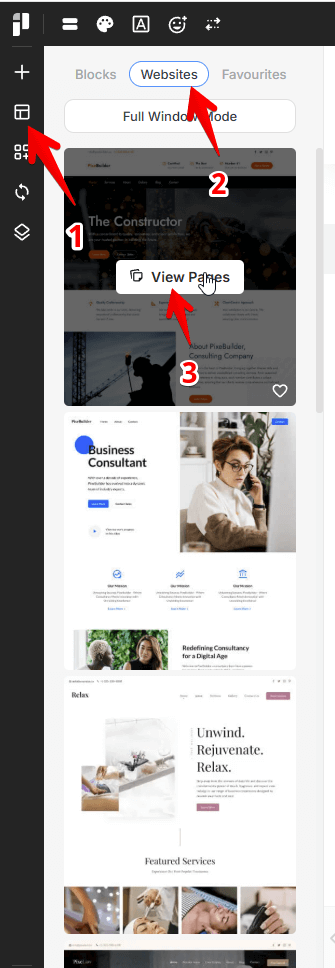
Click the Block icon in the left-hand sidebar.
-
Select the Websites tab at the top of the panel.
-
Click the View Pages button to view all the available pages under a template.
Optionally, use the heart icon to mark a website as a favorite. These will be listed in the Favourites tab at the top.
-
Previewing and Importing
PixeBuilder offers two ways to use these templates: importing a single page or the entire website structure.
Previewing Pages
-
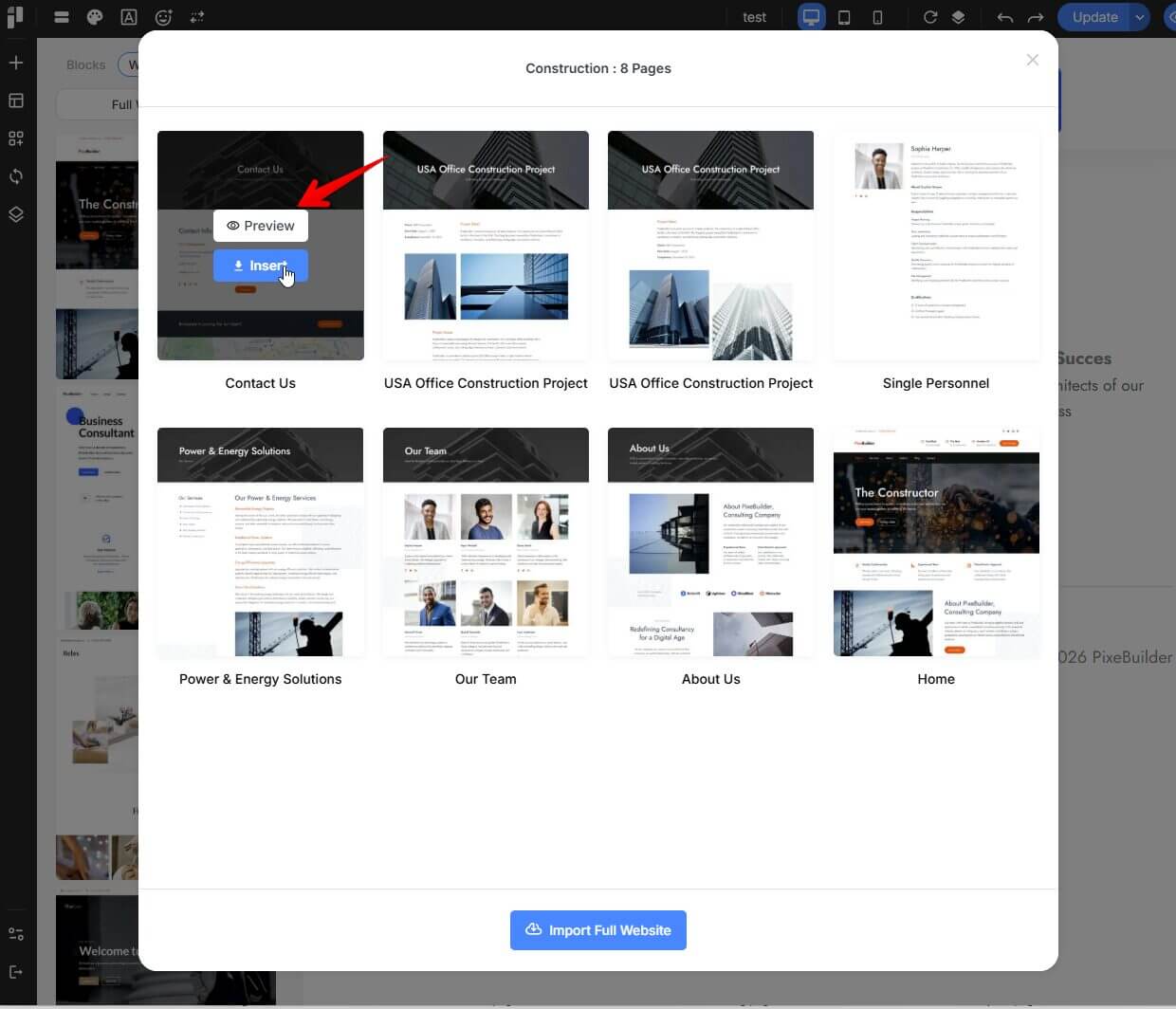
Hover over any website template and click View Pages to see the list of included layouts.
-
Hover over an individual page within that set and click Preview to view it in full-screen mode before importing.
Importing a Single Page
-
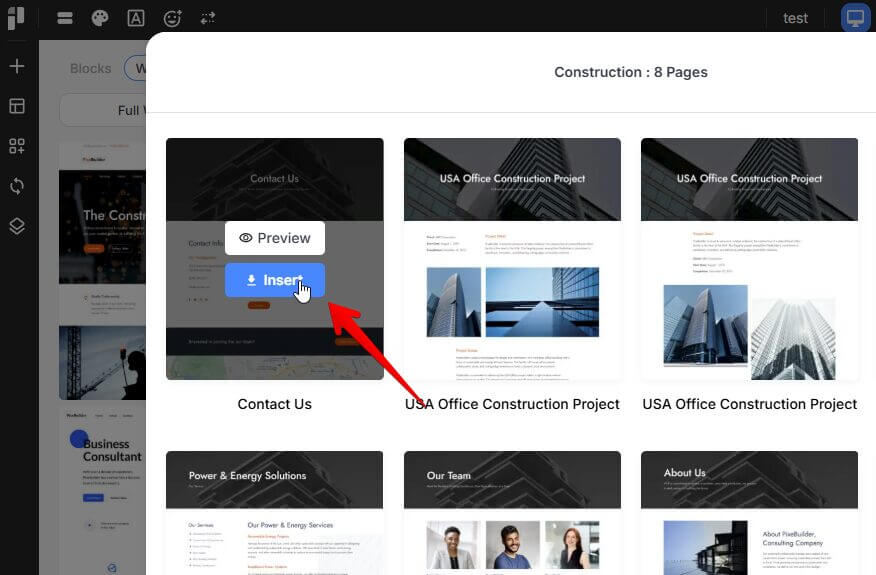
If you only need a specific layout from a template, hover over that page and click the Insert button.
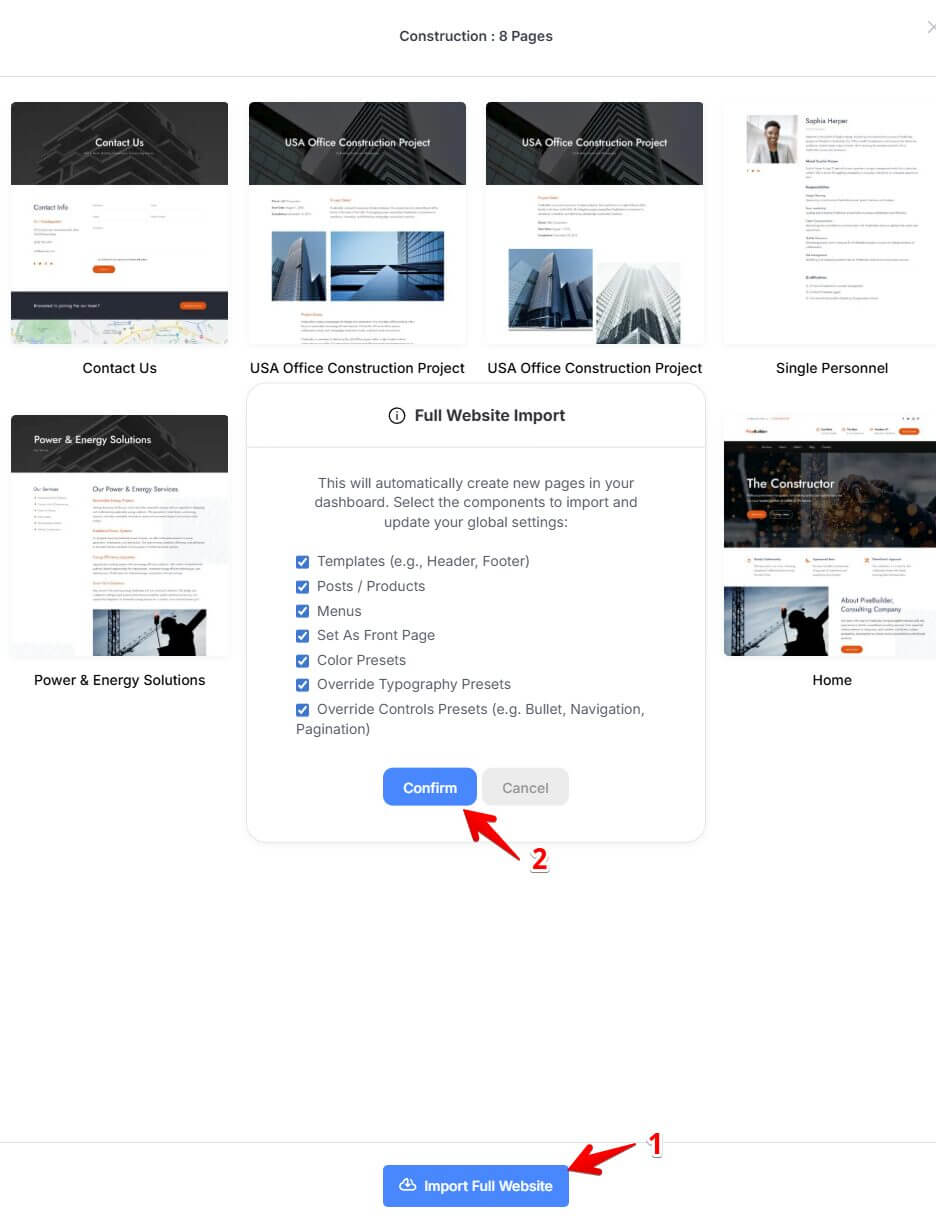
To import the complete template set, click the Import Full Website button at the bottom of the page list. A confirmation dialog will appear, allowing you to choose which components to import:
-
Templates: Imports coordinated Headers and Footers.
-
Posts / Products: Imports demo content for blogs or stores.
-
Menus: Automatically configures your site navigation.
-
Set As Front Page: Automatically sets the template's Home page as your site's landing page.
-
Global Presets: Imports the template's specific Color Presets, Typography Presets, and Controls Presets (e.g., Bullet, Navigation, Pagination).
Important Note: Importing Typography Presets and Control Presets (such as Bullet, Navigation, and Pagination) will completely override your existing settings for these elements. This action cannot be undone. Please ensure you have backed up your current settings before proceeding if you wish to preserve your existing site-wide styles.
Customizing the imported page/website
Once imported, you can tailor the template to your brand without any coding required:
-
Content: Replace all demo text and images with your own.
-
Branding: Adjust global colors and typography using the left settings panel to match your brand identity.
-
Structure: Use the Navigator tool (the stacked squares icon) to easily manage and reorder rows, columns, and widgets.
Tips for Beginners
-
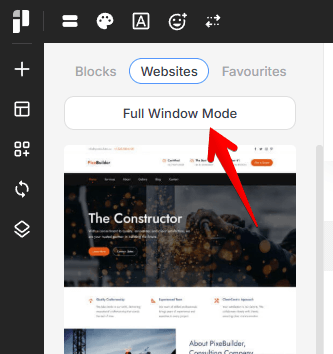
Full Window Mode: Use this mode to expand your workspace and explore prebuilt layouts more comfortably.
-
Mix and Match: You can combine Custom Blocks with Prebuilt Websites for greater design flexibility.
-
Mobile Ready: All templates are mobile-responsive by default, but you can further refine the mobile and tablet views using the dedicated responsive toggles.
-
If you’re replacing pages often, make sure to remove unused elements or duplicate sections