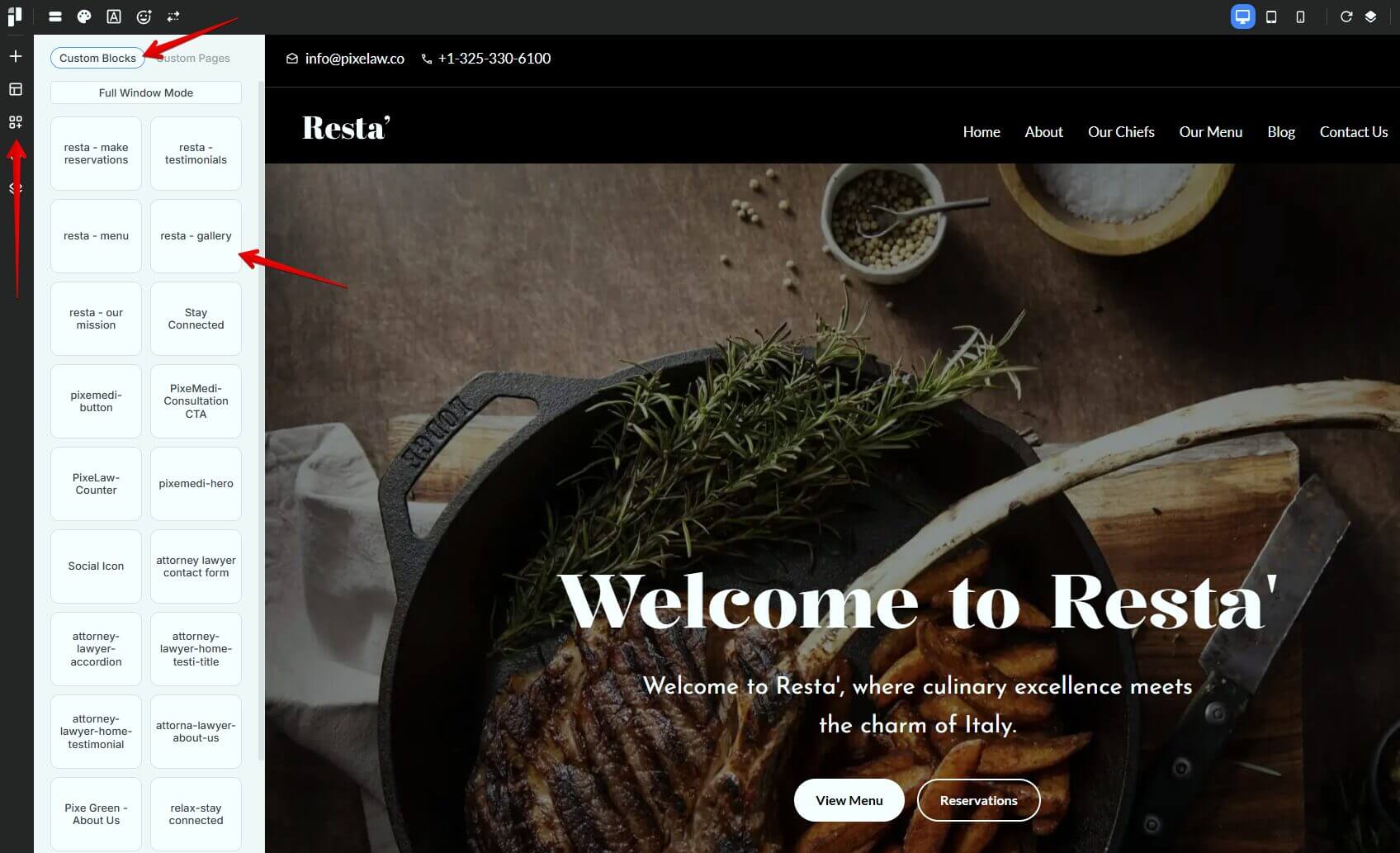
A Custom Block is a user-created content block in Pixe Builder that allows you to design your own layout and content instead of using Prebuilt Blocks.
Custom Blocks are commonly used to save and reuse unique designs created by users (such as banners, CTAs, or special sections) across multiple pages, helping maintain consistency and reduce repetitive work.
Create Custom Blocks
Here are a few simple steps to create a custom block:
-
Go to a page
-
Click to Edit with Pixe Builder
-
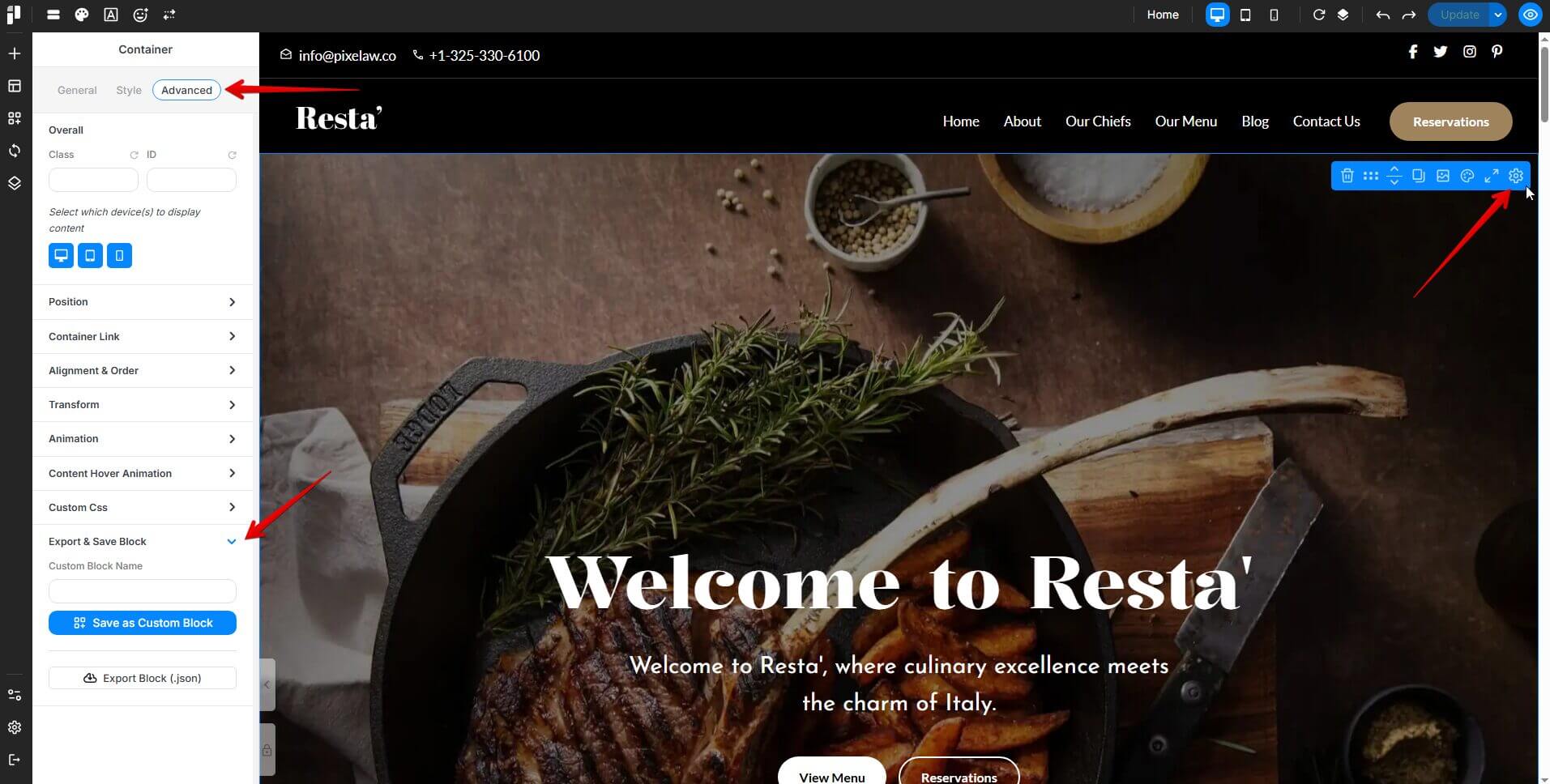
Click to Container Settings
-
Click to Advanced
-
Under Export & Save Block
-
Add your custom block name
-
Click to button Save as Custom Block
Use Custom Blocks
To apply a custom block on a page:
-
Go to the page you want to edit
-
Click "Edit with Pixe Builder"
-
Open the "Custom Blocks" section
-
Choose and add the desired custom block to your page
-
Re-check the layout and make adjustments as needed to fit your design