
Important Notes for Exporting & Importing (Blocks/Pages)
To ensure a smooth transition when moving your designs, please keep the following technical requirements in mind:
-
Enabling JSON Uploads: By default, some servers or WordPress configurations may restrict JSON file uploads. You can enable this built-in capability directly in our settings: navigate to PixeBuilder > General > Security and check the Enable JSON Uploads box.
Security Recommendation: To maintain site security, we strongly recommend disabling this setting immediately after you have finished importing your files.
-
Import Failures: If JSON uploads are blocked by your server and not enabled in the PixeBuilder settings, the import process will fail.
-
Image Handling: When moving designs between different websites, please note that images are not included in the export file. Only the layout content and settings will be transferred; you will need to re-upload or relink your images on the destination site.
Saving to Reuse Within the Site
Purpose: To save a specific section or block so it can be instantly reused across different pages of the same website without downloading any files.
Best For: Maintaining design consistency (e.g., using the same "Contact Us" section) across multiple pages on a single site.
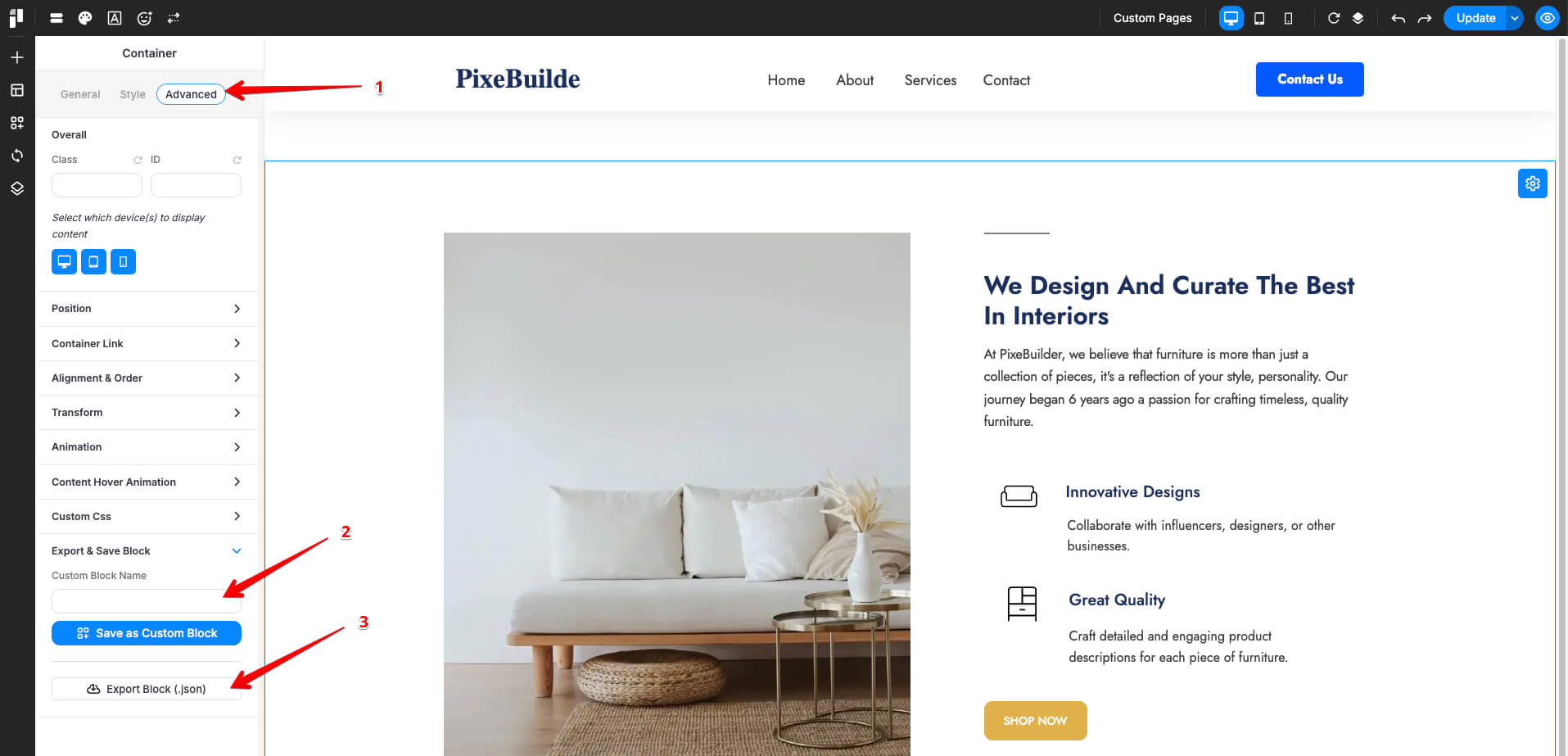
- Click on a page builder element
- Go to Advanced > Export & Save Block
- Enter a Custom Block Name
- Click Save as Custom Block.
- You can also export a JSON file for use on other websites by clicking the 'Export Block' button.
Reuse Within the Site
-
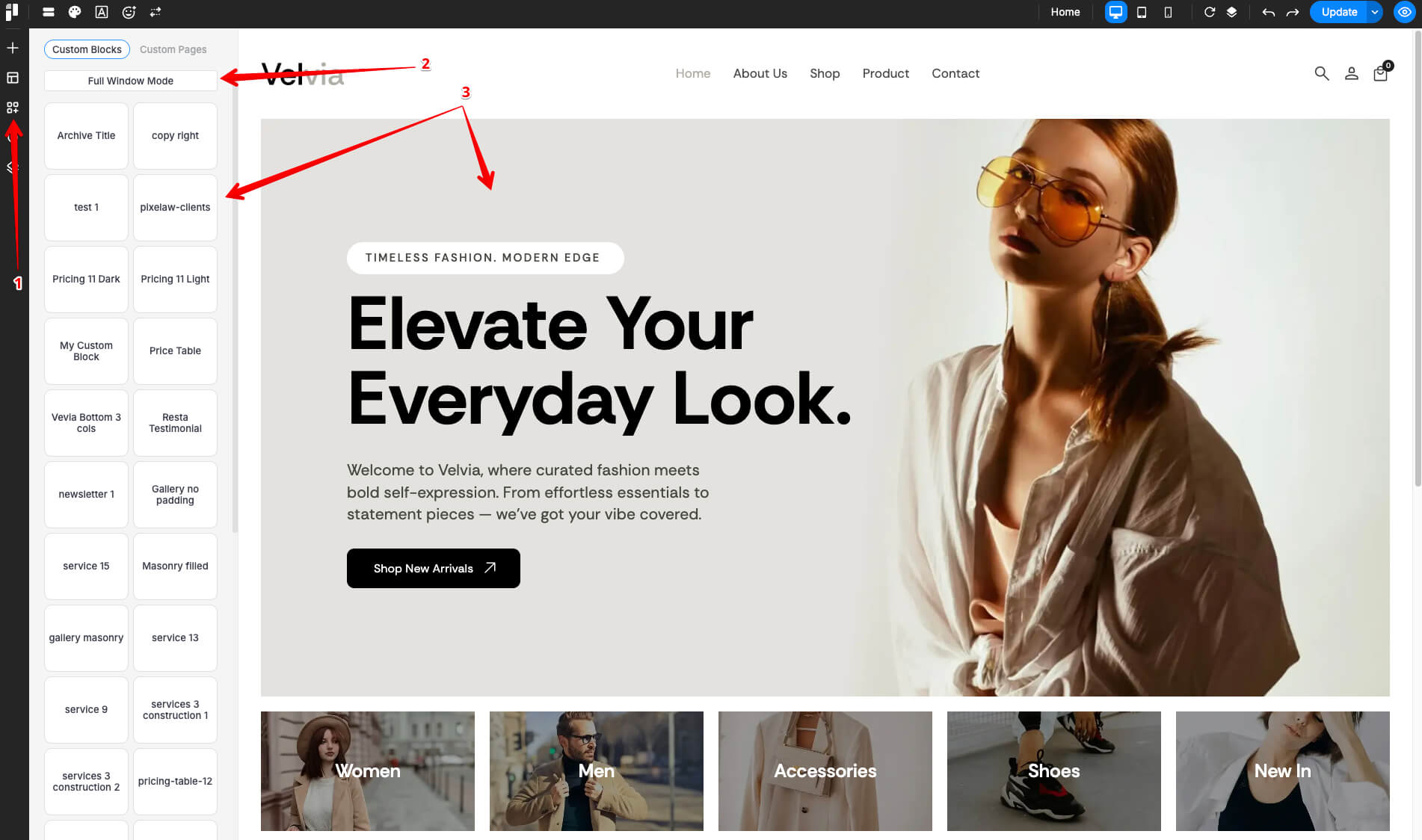
Click the Custom Blocks icon
-
You can view your Custom Blocks or switch to Full Window Mode
-
Click or drag-and-drop a Custom Block onto your current page
Exporting Custom Blocks & Pages
PixeBuilder allows you to export and import both Custom Blocks and Custom Pages as reusable JSON files, making it easy to transfer designs between websites.
Purpose: To download your designs as external files for use on other websites.
Best For: Moving a design from a staging site to a live site or sharing templates with other users.
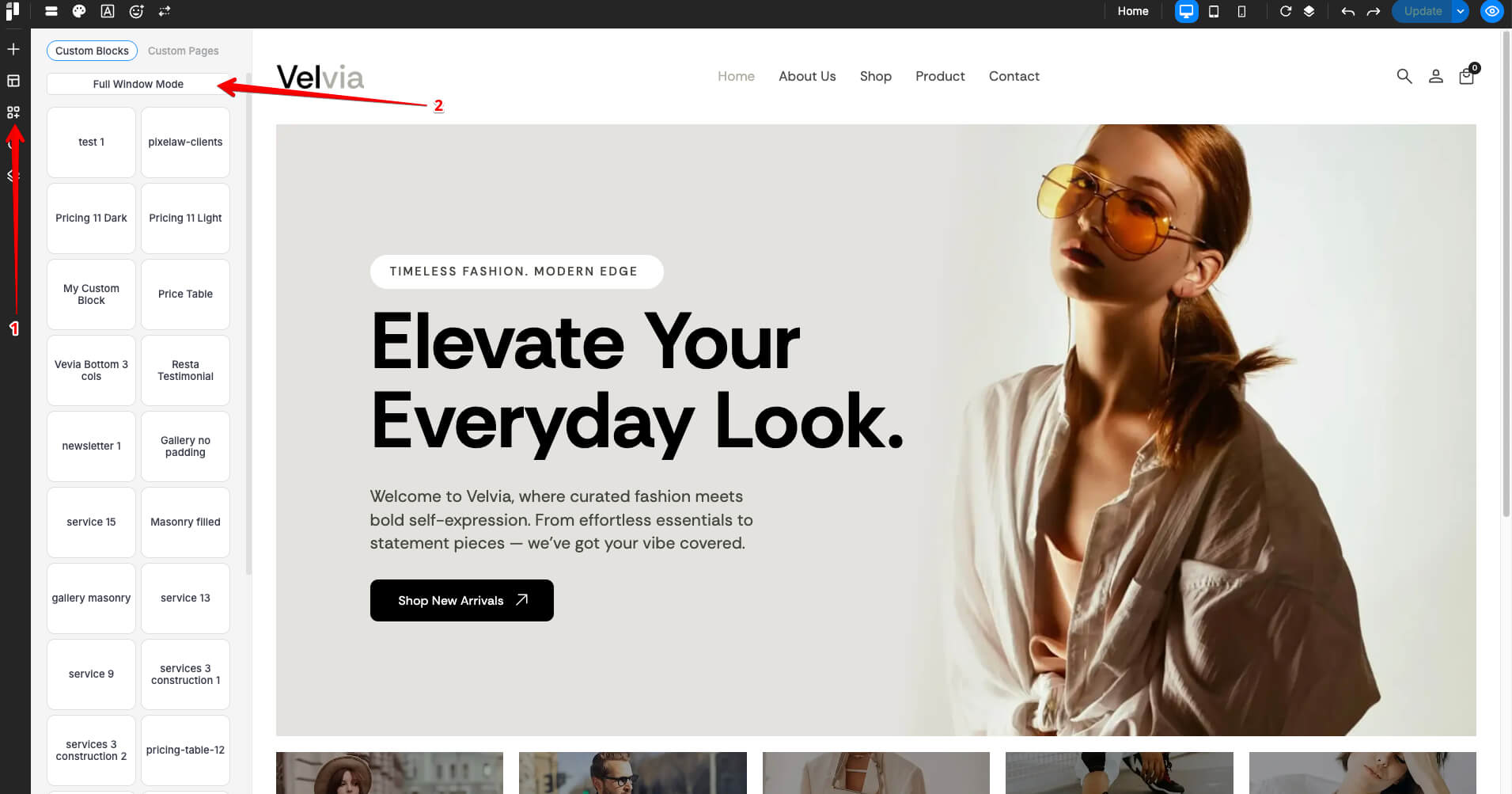
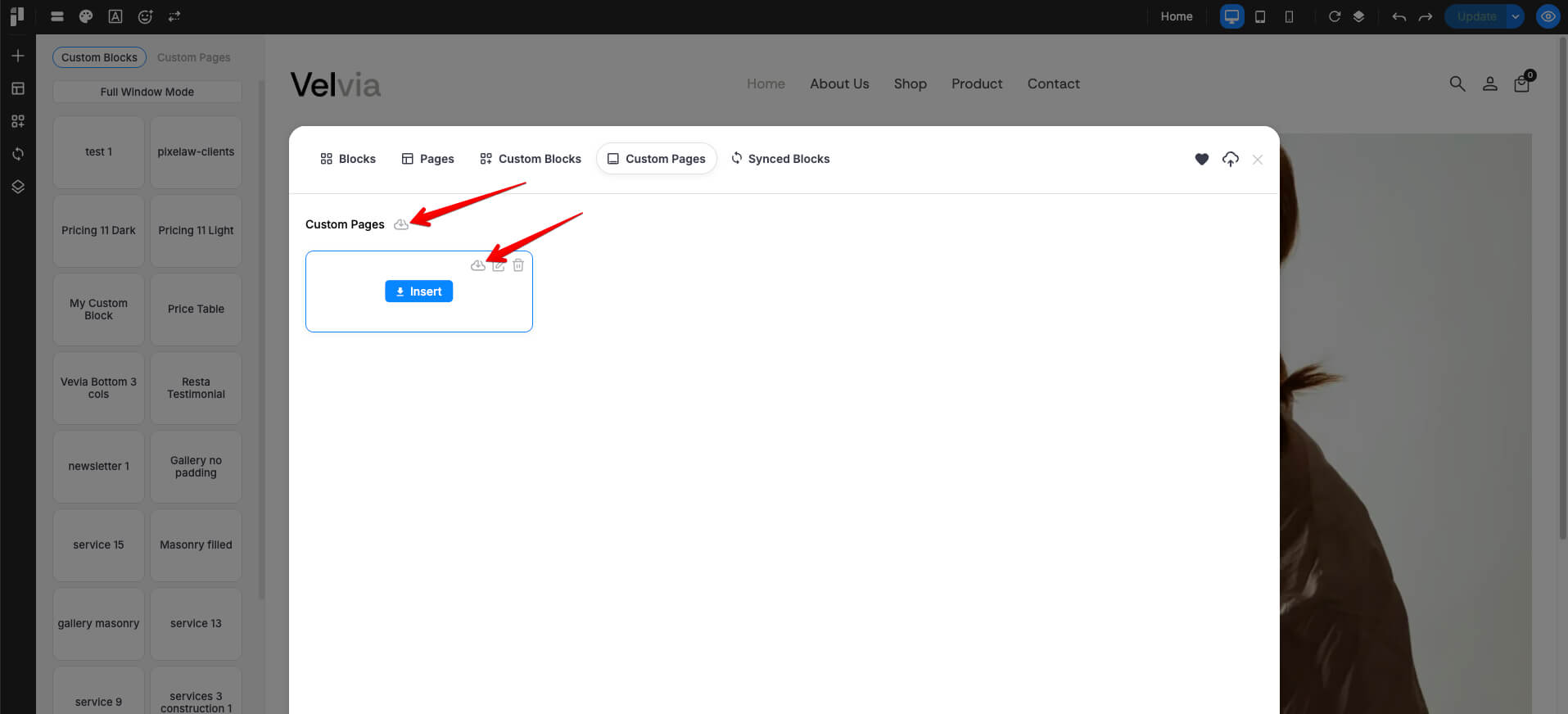
- Click the Custom Blocks icon and switch to Full Window Mode
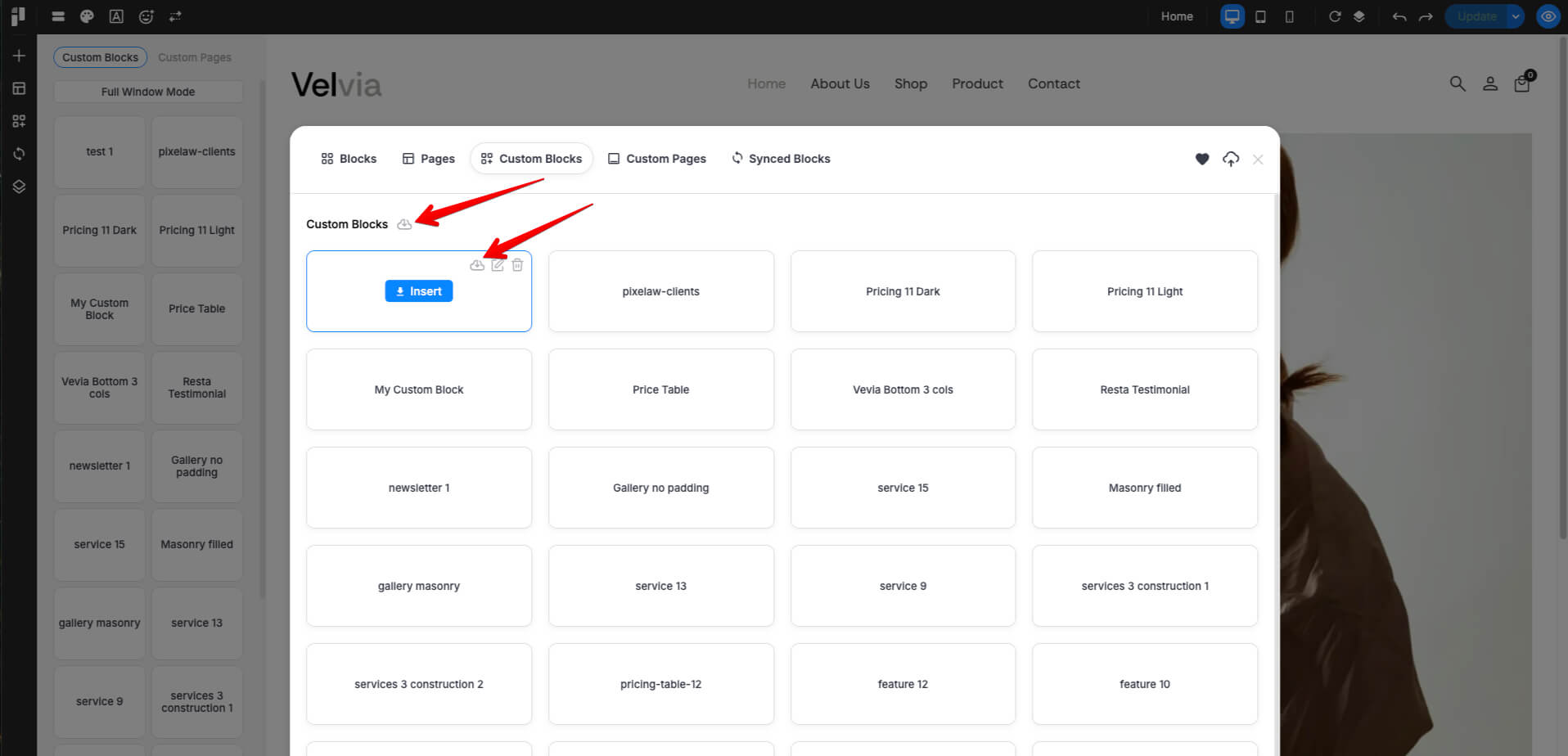
2. Open Custom Blocks or Custom Pages
3. Click the Export icon to export
For Custom Blocks:
For Custom Pages
Importing Custom Blocks & Pages
Purpose: To upload a previously exported JSON file into a new website.
Best For: Quickly setting up a new site using pre-made design templates.
1. Click the Custom Blocks icon and switch to Full Window Mode
2. Select Custom Blocks or Custom Pages
3. Click the Import icon, choose the template file, and upload it
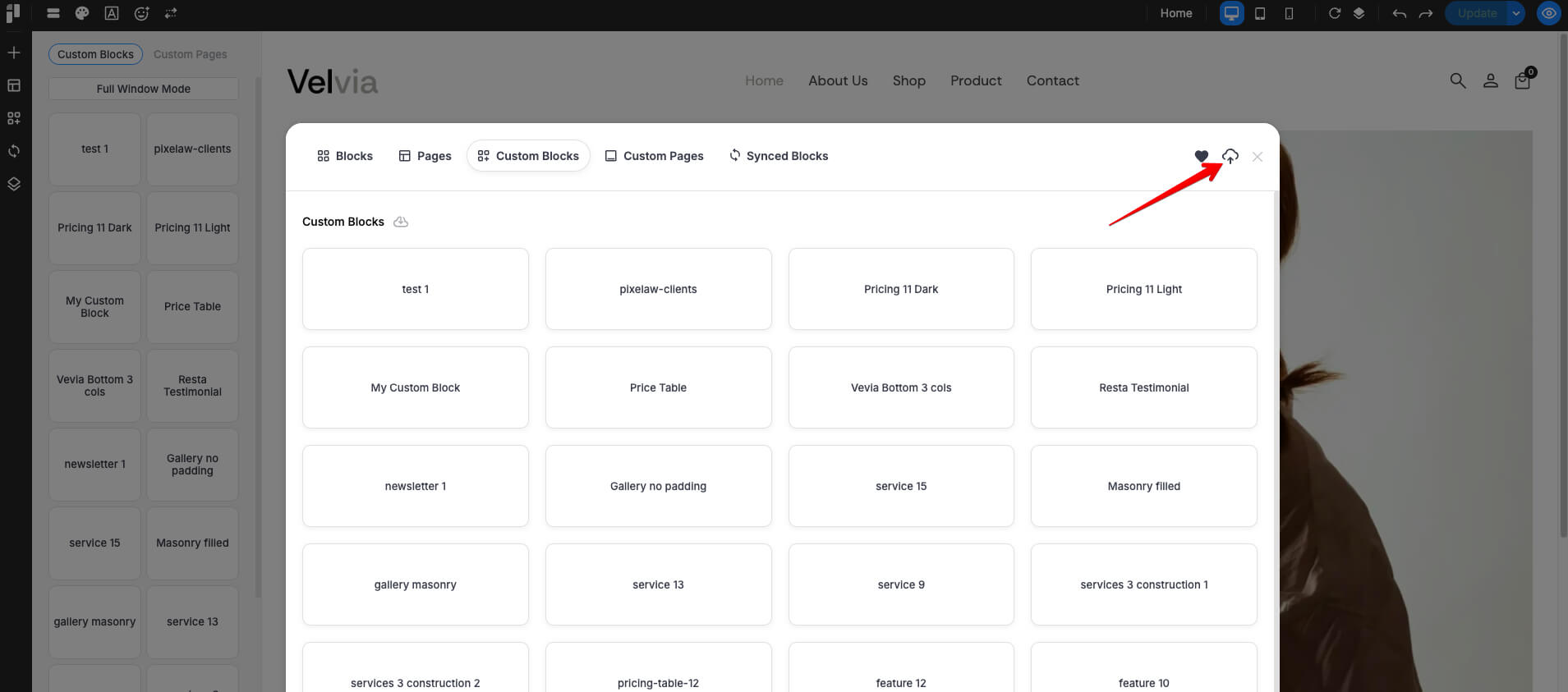
4. After importing Custom Blocks or Custom Pages.
5. Click or drag-and-drop a Custom Block onto your current page, or create a new page to use your Custom Pages.