
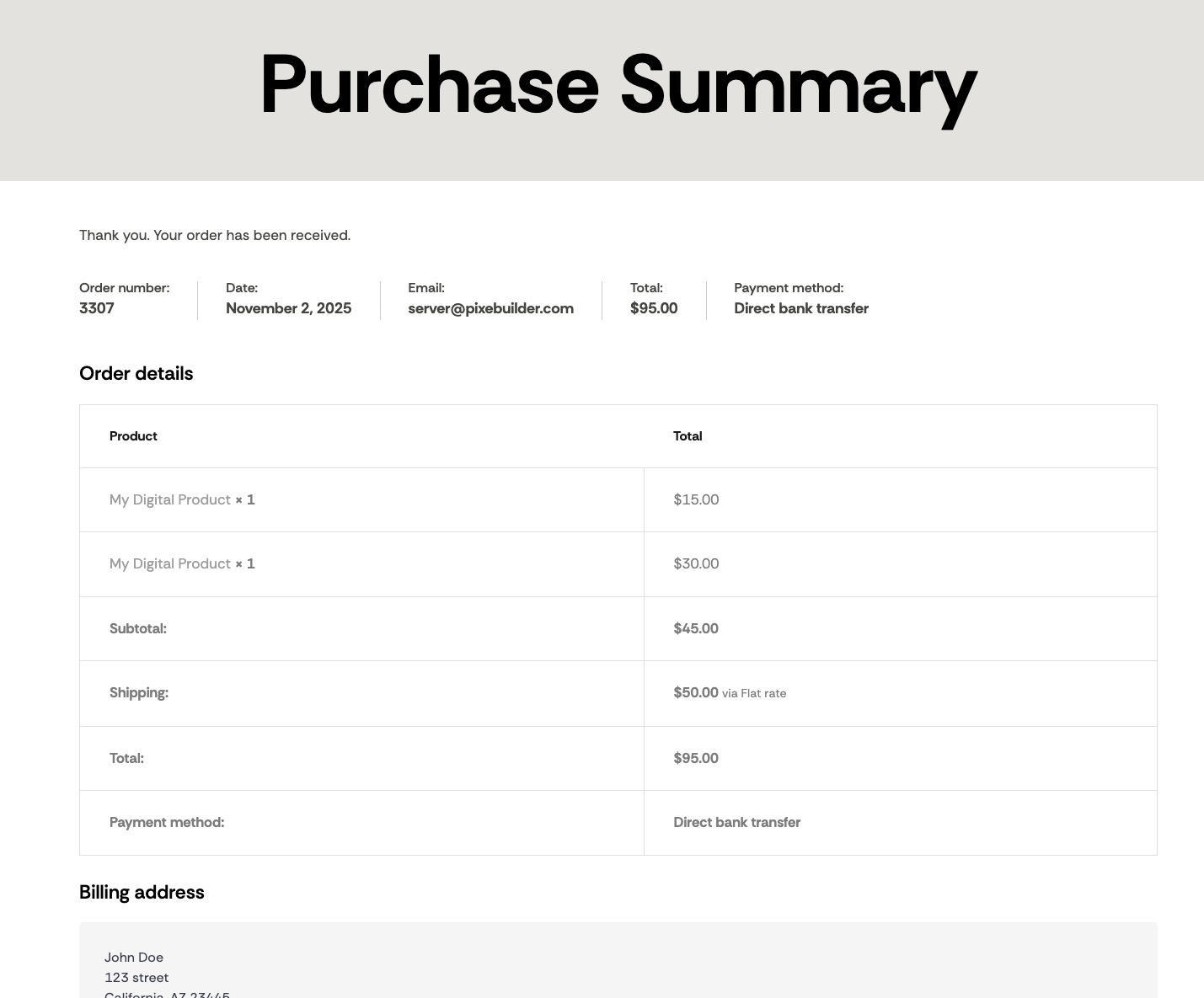
The Purchase Summary element displays the order confirmation that customers see on the WooCommerce Order Received (Thank You) page after they complete checkout. It automatically pulls the real order data — just drop it onto your Thank You page template and style it to match your brand.
What it displays
- A thank-you message confirming the order was received
- An overview row — order number, date, email, total, and payment method
- An order details table — each product with quantity and price, plus subtotal, shipping, total, and payment method
- The billing and shipping address
Note: Because the element renders live order data, it only shows real values on an actual order-received page. In the editor it displays sample placeholder content so you can design the layout.
Styling the Purchase Summary
Select the element and use the floating toolbar to fine-tune its appearance. Each icon opens a dedicated panel:
Divider
Set the Divider Width and Divider Color for the lines that separate each section of the summary.
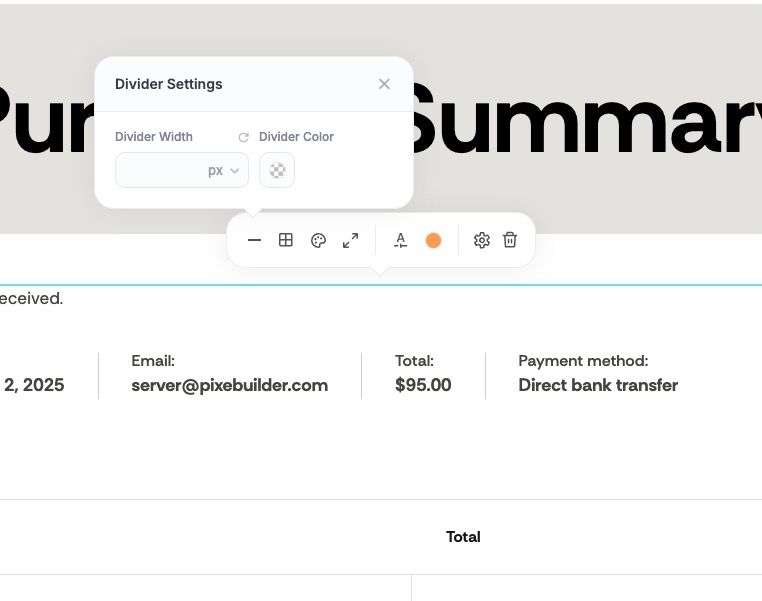
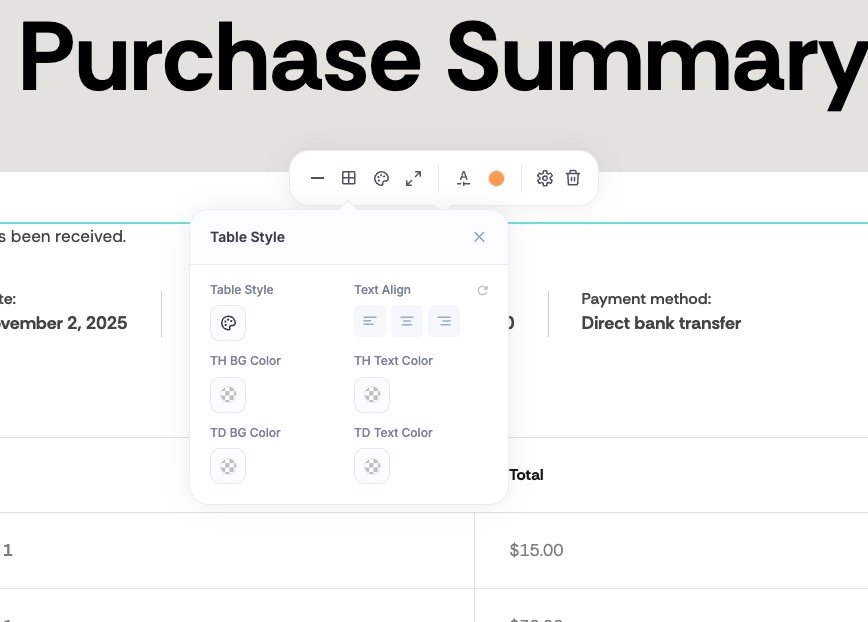
Table Style
Choose a Table Style and Text Align, then set the colors for the table header (TH BG Color / TH Text Color) and the table cells (TD BG Color / TD Text Color).
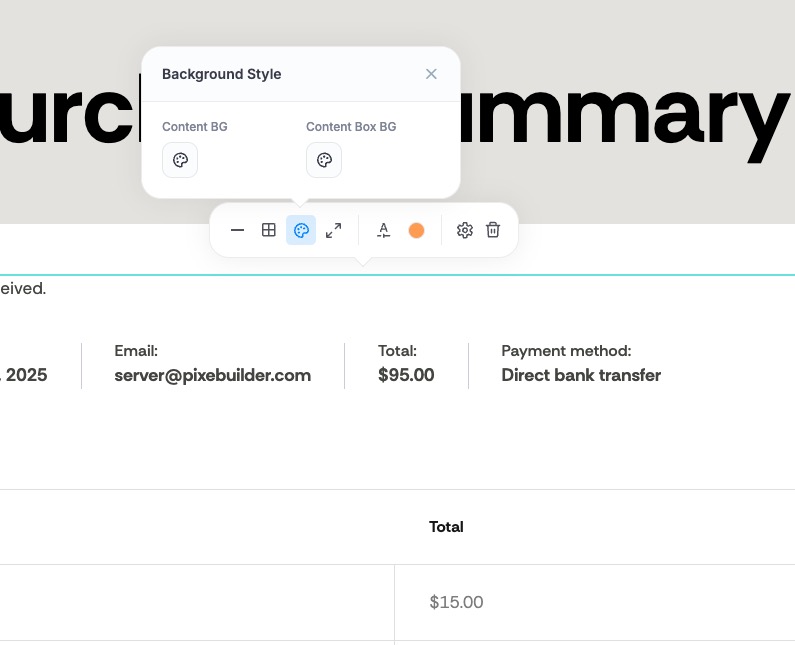
Background
Set the Content BG (the overall element background) and the Content Box BG (boxed areas such as the address block).
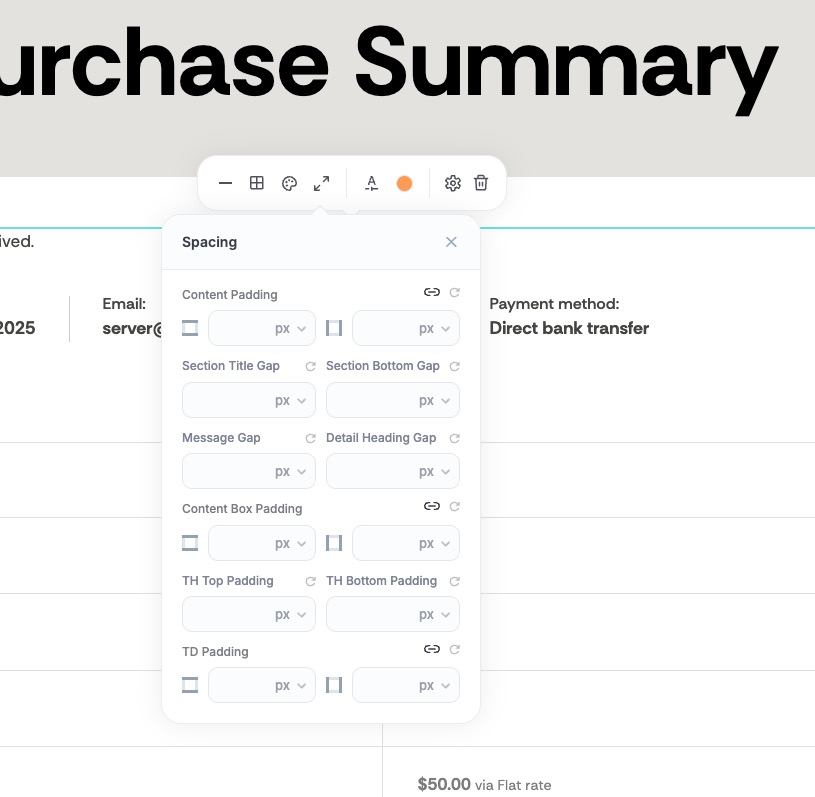
Spacing
Control every gap in the layout — Content Padding, Section Title Gap, Section Bottom Gap, Message Gap, Detail Heading Gap, Content Box Padding, and the table cell padding (TH Top/Bottom Padding and TD Padding).
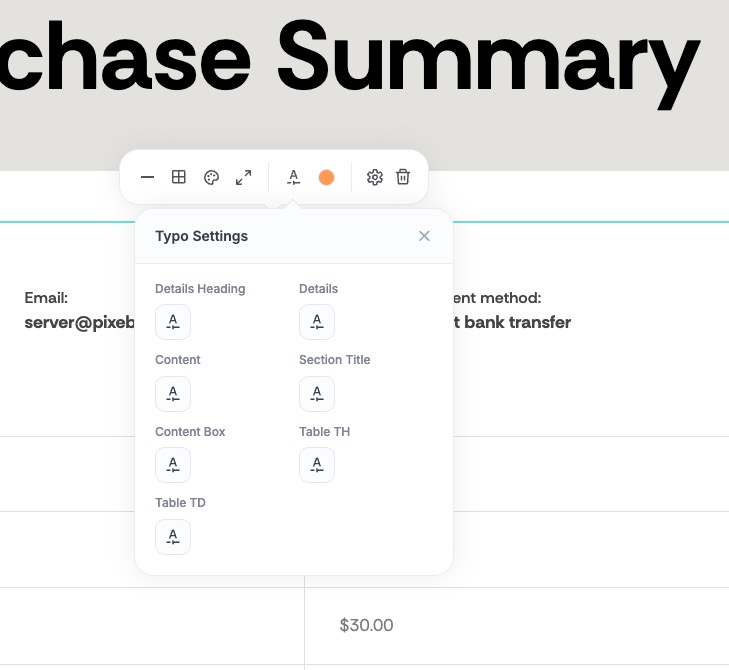
Typography
Set the font for each text role independently — Details Heading, Details, Content, Section Title, Content Box, Table TH, and Table TD.
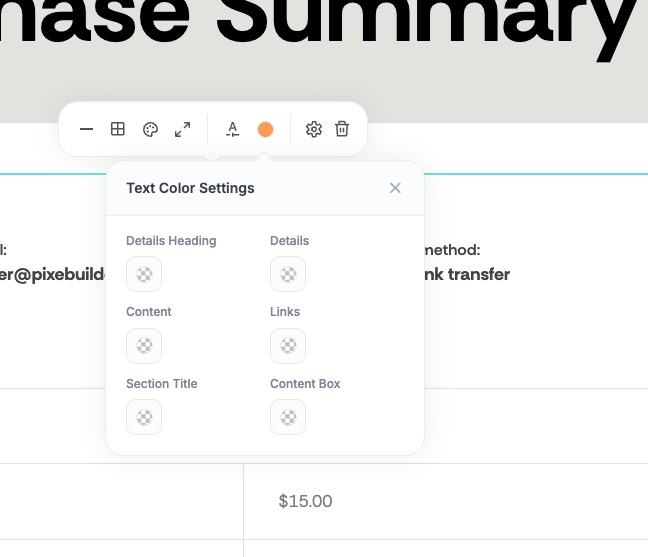
Text Color
Set the color for the Details Heading, Details, Content, Links, Section Title, and Content Box text.
For other store elements, see the WooCommerce Items guide.