
Scroll Motion turns any element into a scroll-driven animation. As visitors scroll, the element animates from a Start State to an End State — moving, rotating, scaling, fading, or blurring in sync with scroll position. Optional cursor-based tilt and a sticky pause state add extra polish. You'll find it in the Advanced tab of any element.
How It Works
You define a Start State and an End State (and optionally a Pause / Sticky State in between). Each state has a Trigger Position — a percentage of scroll progress relative to the viewport — plus a set of transform values. PixeBuilder smoothly interpolates between the states as the visitor scrolls through that range, using your chosen Easing. The size of that scroll range is set by Scroll Type (see Step 2).
Step 1 — Enable Scroll Motion
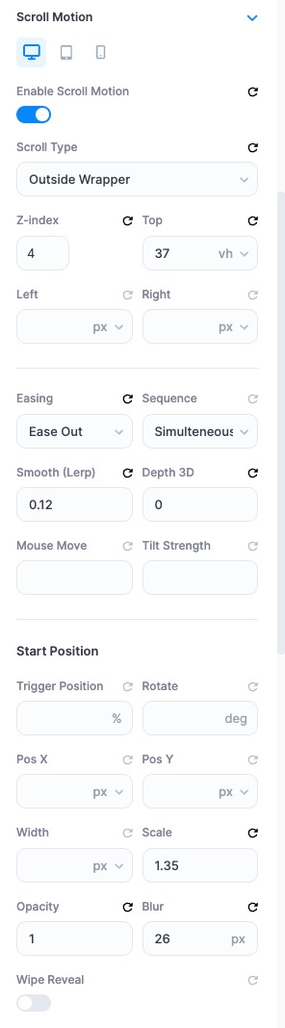
Select your element, open the Advanced tab, find Scroll Motion, and toggle Enable Scroll Motion on.
Step 2 — Choose the Scroll Type
Scroll Type decides how much page scroll the animation is mapped to — where the motion starts and stops relative to the section it sits in. It's one setting per element (not per device).
- Inside Wrapper (default) — the motion runs only while the section fills the screen: it starts when the section's top edge reaches the top of the viewport, and finishes when its bottom edge reaches the bottom. The element therefore completes its animation before the section begins sliding away, which can leave a visible pause at the end.
- Outside Wrapper — the range is stretched by one screen at each end: it starts the moment the section's top edge enters the bottom of the viewport, and ends only once the bottom edge has left the top. Because the range now covers the section entering and leaving, the element keeps animating while the section slides away — the two move together instead of one waiting for the other.
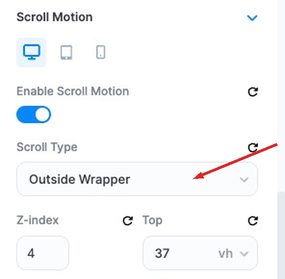
When to use Outside Wrapper: choose it whenever the element's end state is still on screen as the section leaves — a hero that keeps scaling and blurring on its way out, a parallax plane, or a horizontal reel that should keep travelling. Pair it with an End State Trigger Position of 100% so the motion uses the full extended range.
Keep Inside Wrapper when a value must land exactly as the section finishes — for example a plate that fades to fully opaque to hand off to the next section; with Outside Wrapper it would still be semi-transparent as the section leaves. The last section on a page should also stay on Inside Wrapper, because the page stops scrolling before the extended range can reach 100%.
Step 3 — Set the Start State
Under Start Position, set the Trigger Position (the scroll point where motion begins, e.g. 0%) and the element's initial values: Rotate, Pos X, Pos Y, Width, Scale, Opacity, and Blur.
Step 4 — Set the End State
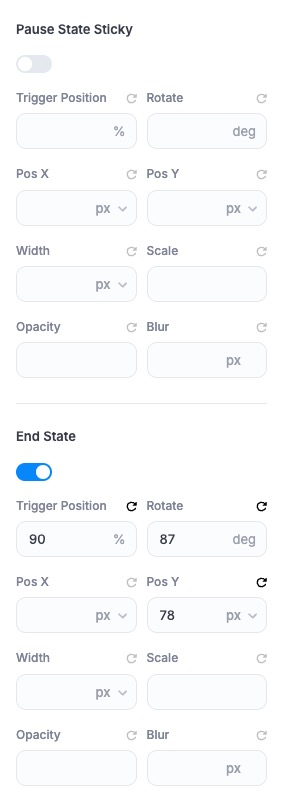
Toggle End State on and set its Trigger Position (e.g. 90%) and target values. The element animates from the Start State to the End State across that scroll range.
Step 5 (Optional) — Pause State Sticky
Enable Pause State Sticky to hold the element at a fixed state for part of the scroll before it continues to the End State — useful for pinning an element briefly while the page scrolls behind it.
Motion Behaviour Controls
- Easing — the interpolation curve: Linear, Ease Out, or Ease In Out.
- Sequence — the order the element moves along each axis: Simultaneous (X and Y together), X Then Y, or Y Then X.
- Smooth (Lerp) — adds fluid lag so the motion feels smooth rather than rigid.
- Depth 3D — adds a sense of three-dimensional depth to the movement.
- Mouse Move / Tilt Strength — the element tilts and parallaxes in response to the visitor's cursor.
- Wipe Reveal — reveals the element with a wipe mask effect.
Positioning
Z-index, Top, Left, and Right control the element's stacking order and offset — handy when the element is pinned in place during the motion.
State Properties (Reference)
Within each state you can animate the following properties:
- Trigger Position (%) — the scroll point (relative to the viewport) where the state applies.
- Rotate (deg), Pos X / Pos Y (px), Width, Scale, Opacity, and Blur (px).