
The Post Archives feature in PixeBuilder allows you to create custom-designed layouts for WordPress archive pages, such as search results, category listings, and date-based archives. This feature provides complete control over how your list of posts is displayed to your visitors across various taxonomies.
Prerequisites
Before setting up a Post Archive, you must first create a Post Template: Design an individual post item layout using the Post Template feature to define how each single entry in your archive list will appear.
Instructions for this feature can be found here: https://docs.pixebuilder.com/post-template/
You can have a header and footer built and ready to be used on the Archives. Here's how to build them:
https://docs.pixebuilder.com/header-builder/
https://docs.pixebuilder.com/footer-builder/
The default header and footers can be used if you don't need a custom header on your Archives.
Building the Archive Layout Template
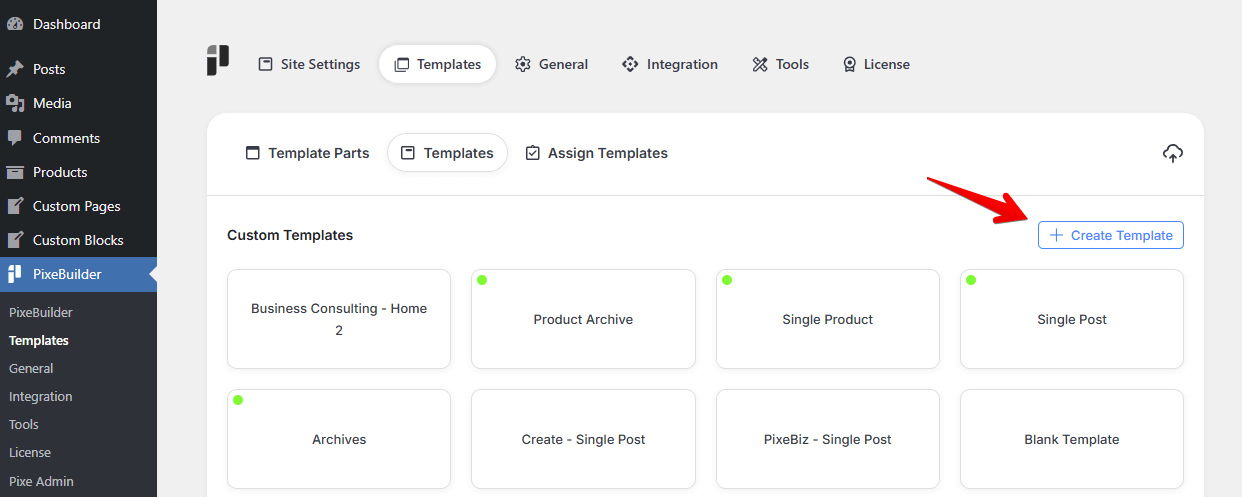
Navigate to the Templates tab in PixeBuilder and click + Create Template to build the main container for your archive content.
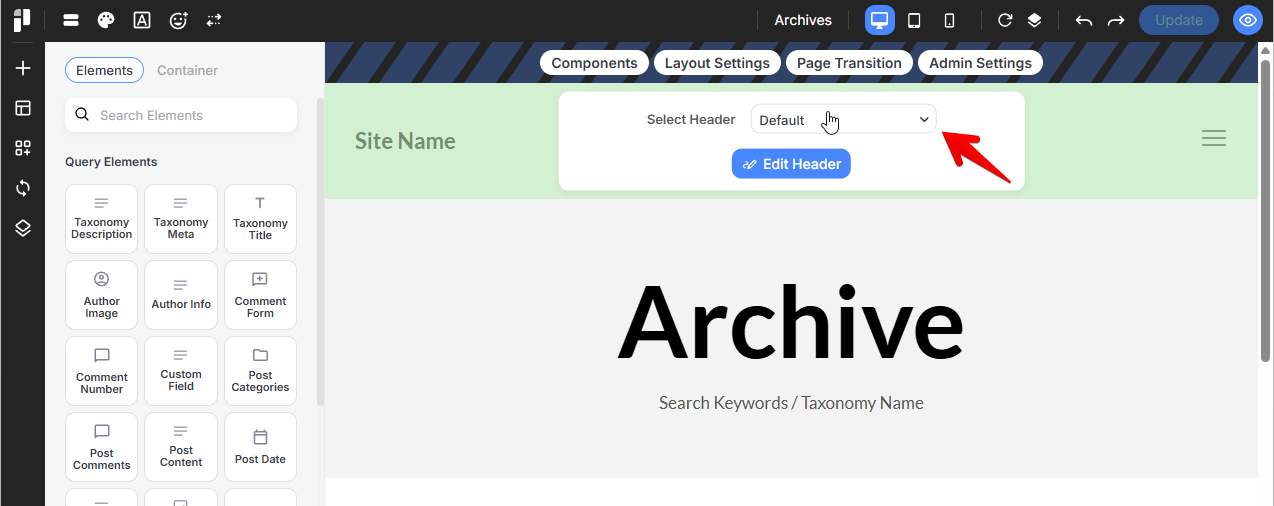
Assign Components: Within your template, assign your desired Header and your Footer.
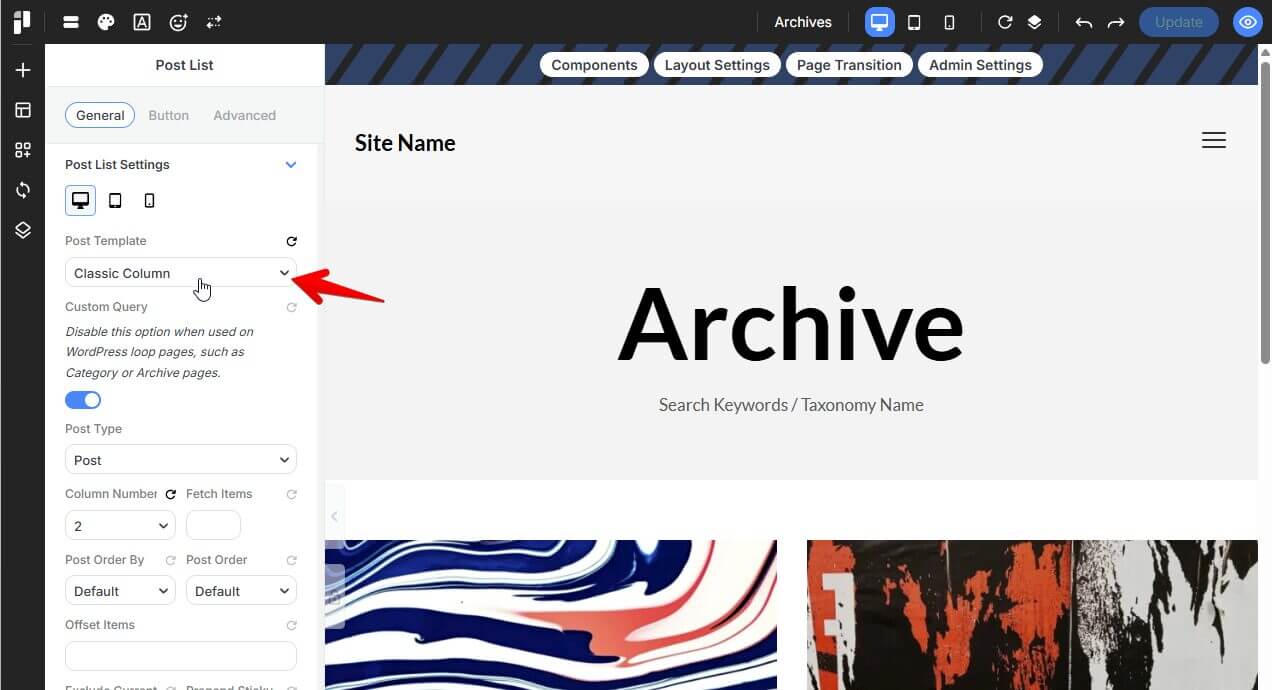
Post Template: Add a Post List element from the left sidebar and select your pre-designed Post Template.
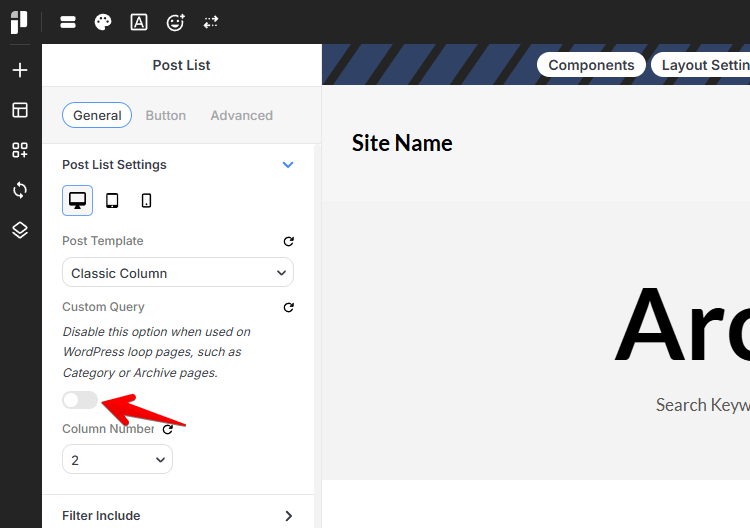
Disable Custom Query: In the Post List Settings, you must ensure the Custom Query toggle is disabled. Disabling this option allows the template to automatically call the default WordPress query for that specific page, such as your category or search result loop.
You can also use elements like Title to display a static title(for example, 'Search Results' or 'Archives') and use Query elements like Query Var to show the search keywords or category name on the Archive page.
Assigning Archive Templates
Once your template is designed, you must assign it to the correct archive type in the Assign Templates dashboard.
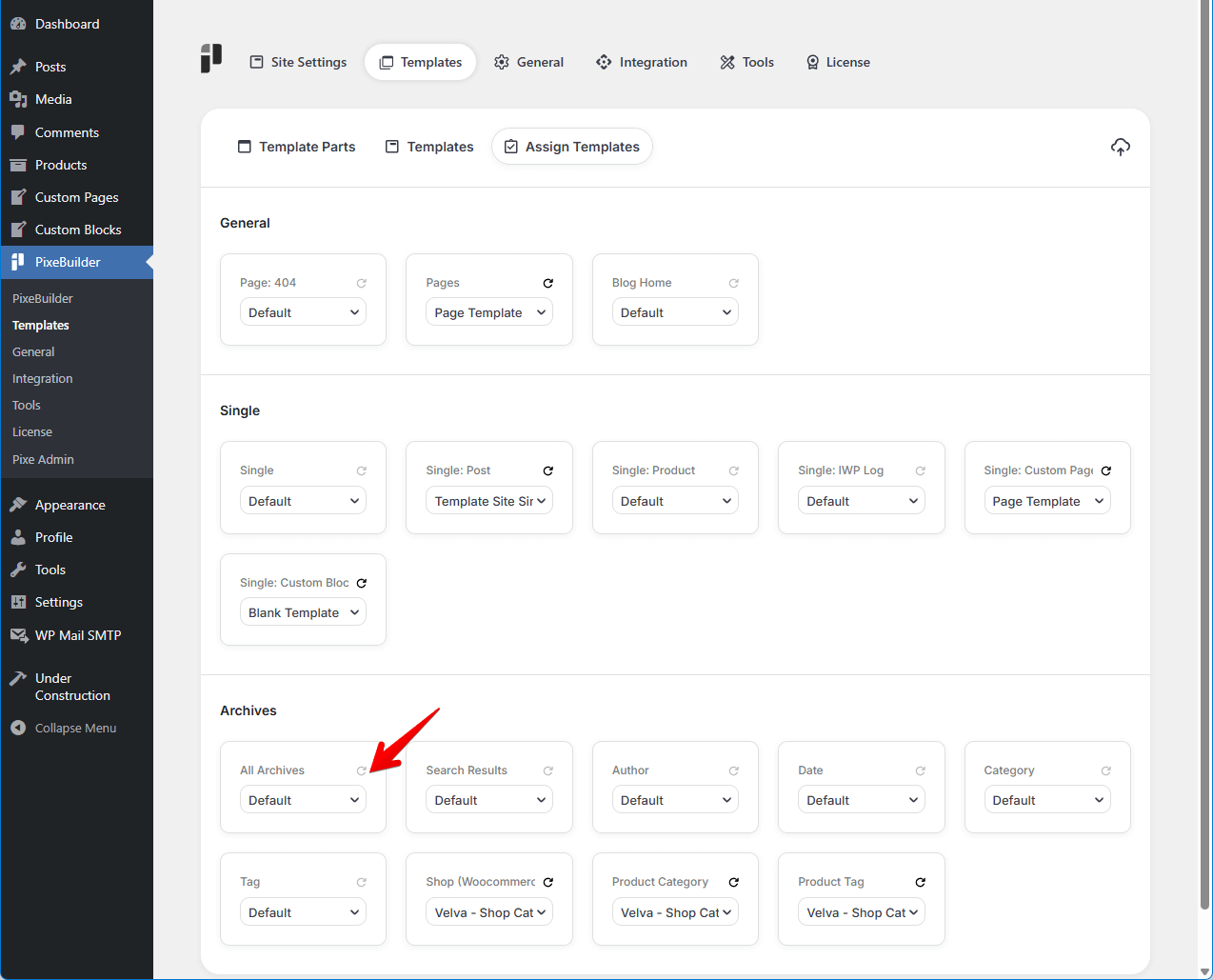
All Archives: This serves as the "parent" template. If you assign a template here, it will be applied to all archive results unless a more specific template is defined.
Specific Taxonomies & Results
You can create and assign unique templates for specialized results to provide a more tailored user experience:
-
Search Results: Customize the look of your site's search page.
-
Author Archives: Create a specific layout for posts filtered by a specific author.
-
Date Archives: Design how posts appear when filtered by year, month, or day.
-
Category & Tag: Assign templates specifically for individual category or tag result pages.
-
E-commerce (WooCommerce): Dedicated assignments for Shop, Product Category, and Product Tag archives are available if WooCommerce is active.