
The AI Image Generator in PixeBuilder allows you to create high-quality, custom images directly within the editor using artificial intelligence. This feature eliminates the need for manual uploads or external stock searches, enabling you to generate specific visuals tailored to your site's content in seconds.
To use AI generation, you must first configure your API key. For detailed instructions, please refer to the AI Integration & API Key Management guide.
Adding an AI Generated Image
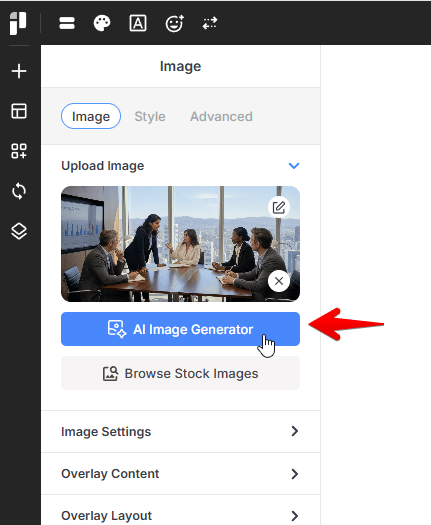
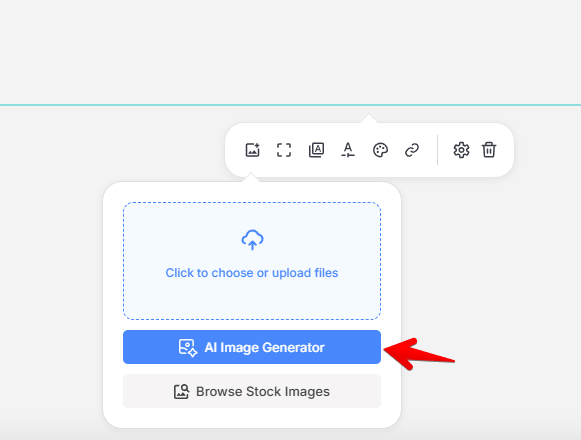
The AI Image Generator button is integrated into all elements that support image selection:
-
Standalone Elements: Image and Gallery.
-
Background Settings: Column Background, Container Background, Slider Background, and Carousel Background.
To access the tool, select a compatible element and click the AI Image Generator button located in the sidebar settings or the image selection popup.
Configuring and Generating Your Image
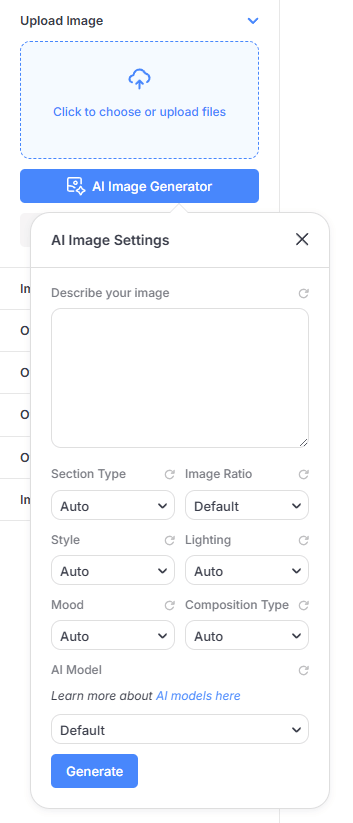
Once the AI Image Settings window opens, you can fine-tune your generation request:
-
Describe your image: Enter a detailed text prompt describing the visual you want to create.
-
Section Type: Choose the context for the image.
-
Image Ratio: Select the desired aspect ratio (e.g., Default, 1:1, 16:9).
-
Style, Lighting, Mood & Composition: Use these dropdowns to set the artistic direction, illumination style, and emotional tone of the image.
-
AI Model: Select your preferred generation model from the available options.
After configuring your settings, Click the Generate button. The generated image will be automatically imported into your WordPress Media Library and applied to your element.
Content Guidelines
The AI Image Generator creates original, illustrative images for your website. To keep generated images safe and free of rights issues, it will not create:
- Real, identifiable people such as celebrities, public figures or politicians. Any people in generated images are fictional.
- Brand logos, trademarks or copyrighted characters from films, cartoons, comics or games
- Sexual, nude or adult content, or children in any suggestive or unsafe context
- Hate symbols, graphic violence, gore or illegal activity
If your description asks for any of these, the image will be generated without them, or your AI provider may decline the request. Google Gemini and OpenAI also apply their own content policies. Please make sure you have the right to use an image before publishing it.