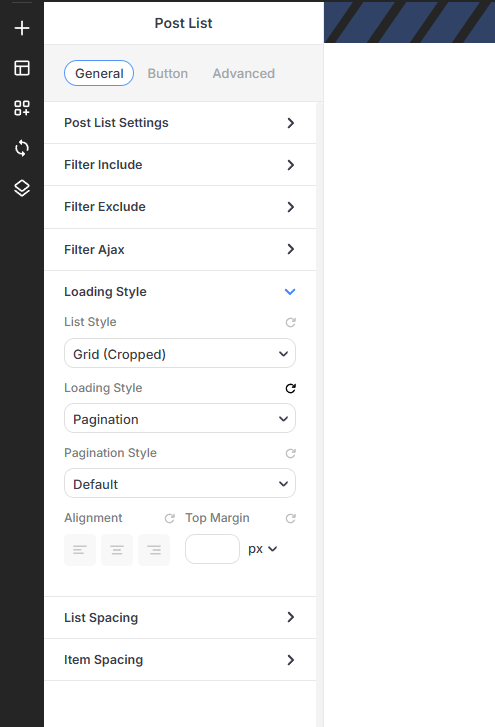
Pagination Presets allow you to create and save custom navigation styles for multipage content.
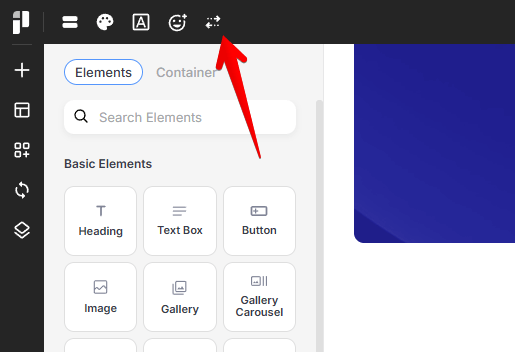
The Pagination Preset manager can be accessed from the left corner of the top bar:
Selecting or Creating Pagination Presets
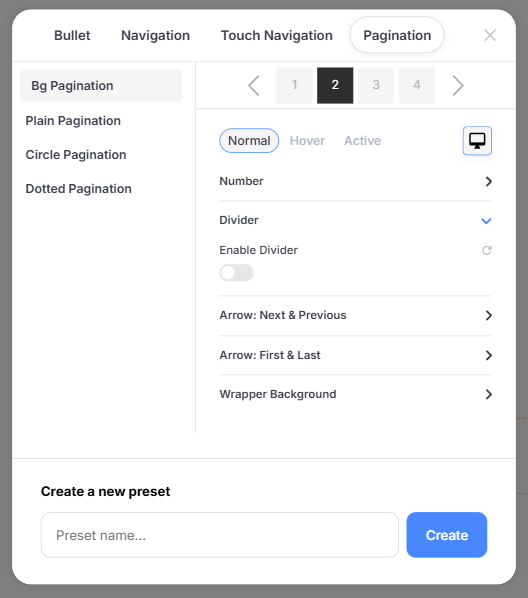
You can choose from a library of built-in presets or build your own from scratch.
-
Built-in Presets: Choose from classic pagination styles like Plain, Circle or Dotted.
-
Creating a New Preset:
1. At the bottom of the Pagination Manager, locate the Create a new preset section.
2. Enter a unique name in the Preset name... field.
3. Click the Create button.
Your new preset will now appear in the list for further customization.
Styling and Configuration
Once a preset is active, you can customize its appearance across different states (Normal, Hover, and Active) and devices.
Number Styling
Adjust the core look of your page numbers:
-
Typo Settings: Define the font family, size, and weight for the numbers.
-
Space: Set the horizontal distance between individual numbers in pixels.
-
Background Style: Control the Width, Height, Border Width, and Border Radius of the individual number containers.
-
Color: Set specific colors for the Number, Background, and Border.
Dividers
Add a visual separator between your pagination items:
-
Divider Width/Height: Adjust the height and width of the dividers.
Divider Radius: Change the border radius of the dividers.
Divider Skew: Transform the dividers on X and Y planes.
Divider Color: Change the color of the dividers.
Navigation Arrows
Fine-tune the icons used for moving between pages:
-
Next & Previous: Control the icons for sequential navigation.
-
First & Last: Manage the icons that jump to the start or end of the list.
-
Customization: For both arrow types, you can:
-
Enable or disable the arrows entirely.
-
Select custom Icons or Images from your library.
-
Set the Arrow Size and manage its Background Style (width, height, borders, and colors).
-
Wrapper Background
Apply a styling container to the entire pagination bar:
-
Toggle Enable Wrapper BG to style the overall pagination area.
-
Adjust the Padding, Border Width, Border Radius, and Background Color for the entire pagination wrapper.
Responsive Design
Like all PixeBuilder features, Pagination Presets are fully responsive. Use the Device Toggle icons to optimize your navigation for Desktop, Tablet, and Mobile viewports. This is particularly useful for increasing Arrow Size or Number Space on mobile devices to create better touch targets.
Using Pagination
Pagination can be enabled on elements with multipage content like Post List and Taxonomy List.