
PixeBuilder integrates directly with Pexels.com, allowing you to browse and insert high-quality stock photography into your website without needing to upload files manually. This feature streamlines your design workflow by providing millions of royalty-free images directly within the editor.
API Setup Required: To use this feature, you must first connect your site to the Pexels API. For step-by-step instructions on obtaining and entering your key, please refer to the Pexels API Setup Guide.
Using Browse Stock Images
The Browse Stock Images option is available in any element that supports image selection:
-
Standalone Elements: Image and Gallery.
-
Background Settings: Column Background, Container Background, Slider Background, and Carousel Background.
Searching and Inserting Images
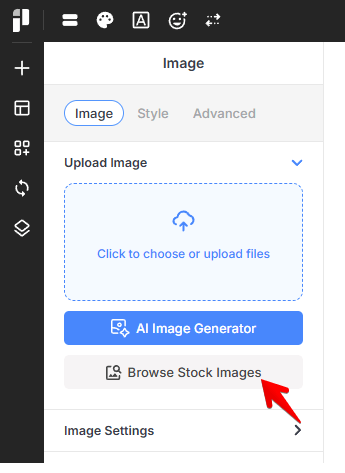
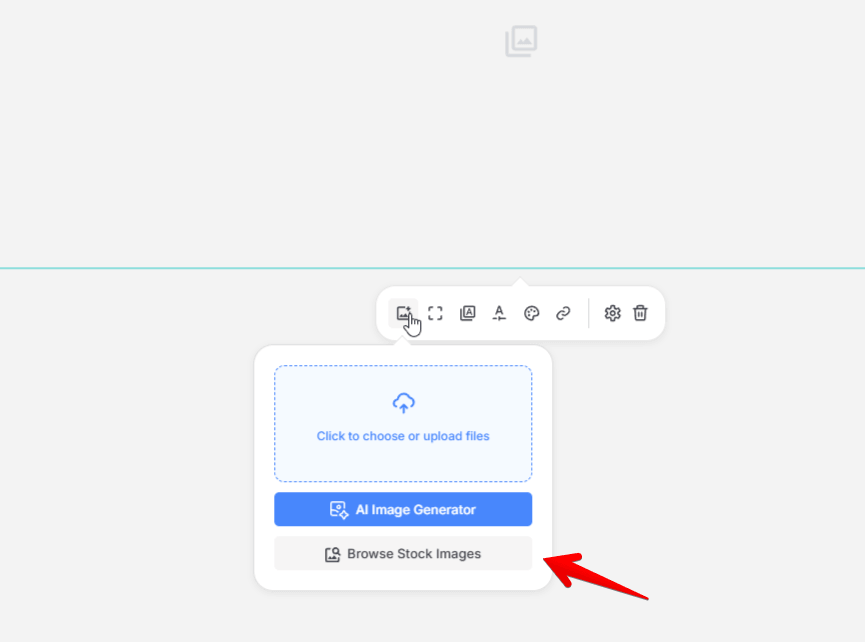
Select an element that uses an image.
-
In the element settings, locate the image selection area.
-
Click the Browse Stock Images button at the bottom of the selection box.
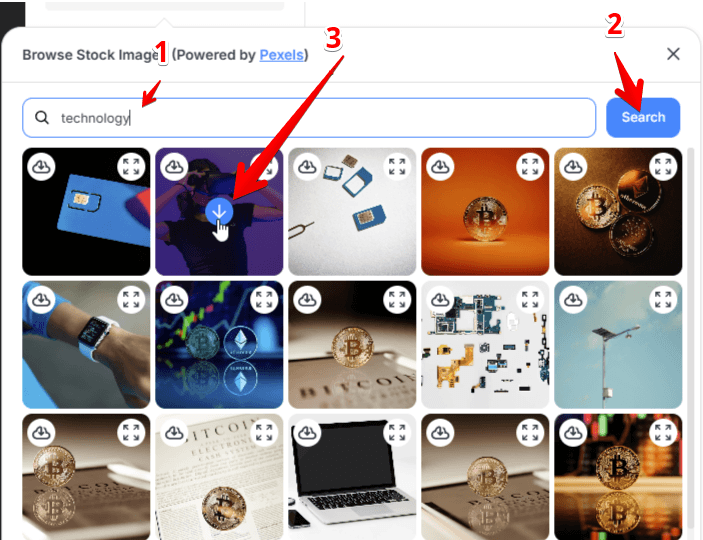
Once the stock library window opens, you can quickly find the perfect visual for your site:
-
Search: Enter keywords (e.g., "nature," "technology," or "cat") into the search bar and press the Search button.
-
Use the Insert icon to add an image to your Media Library and element simultaneously.
You can also click Expand icon for a larger preview or select the Download icon to save the image to your Media Library without adding it to the page.
Special Case: Gallery Item
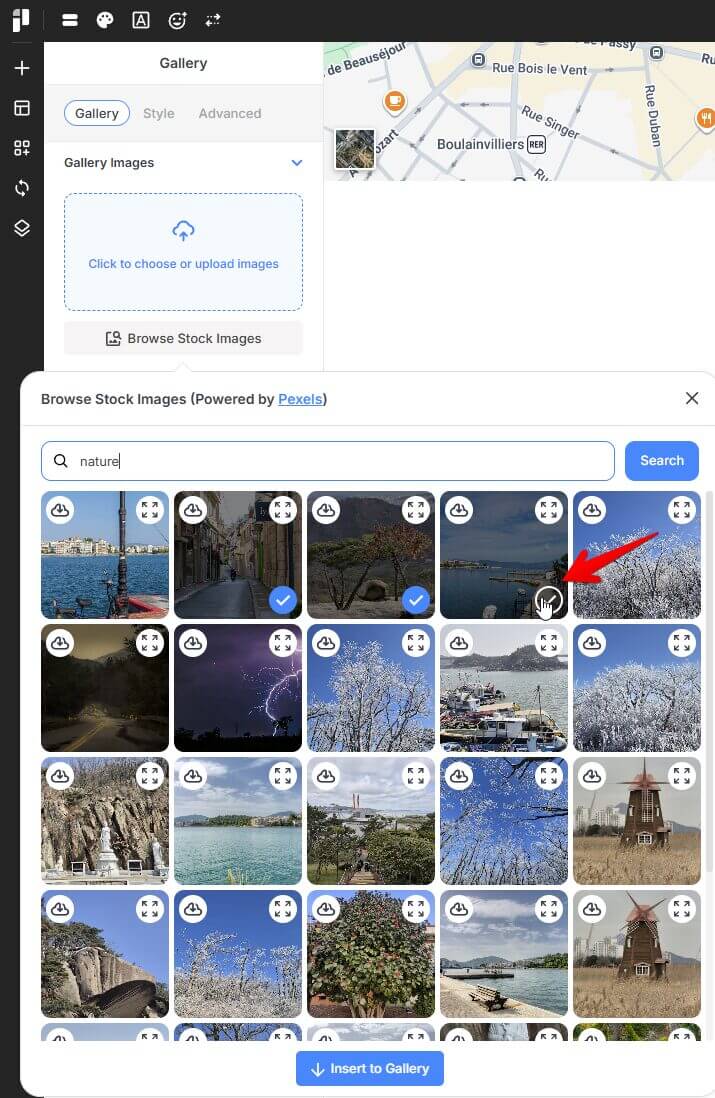
Using stock images with the Gallery element is slightly different, as it supports bulk insertion:
-
Open the Browse Stock Images window from the Gallery element settings.
-
Perform your search.
-
Multiple Selection: Instead of clicking one image, click the checkmark icon on every image you wish to include and click the Insert to Gallery button.
-
Selected images will be imported and added to your gallery collection simultaneously, allowing you to build complex visual grids in seconds.