
Scroll Video lets your visitors drive a video with the scroll wheel. While a container is pinned to the screen, scrolling down plays the video forward and scrolling up plays it backwards. On top of the video you can place text, cards, buttons and a live number that appear and leave at exact moments of the film.
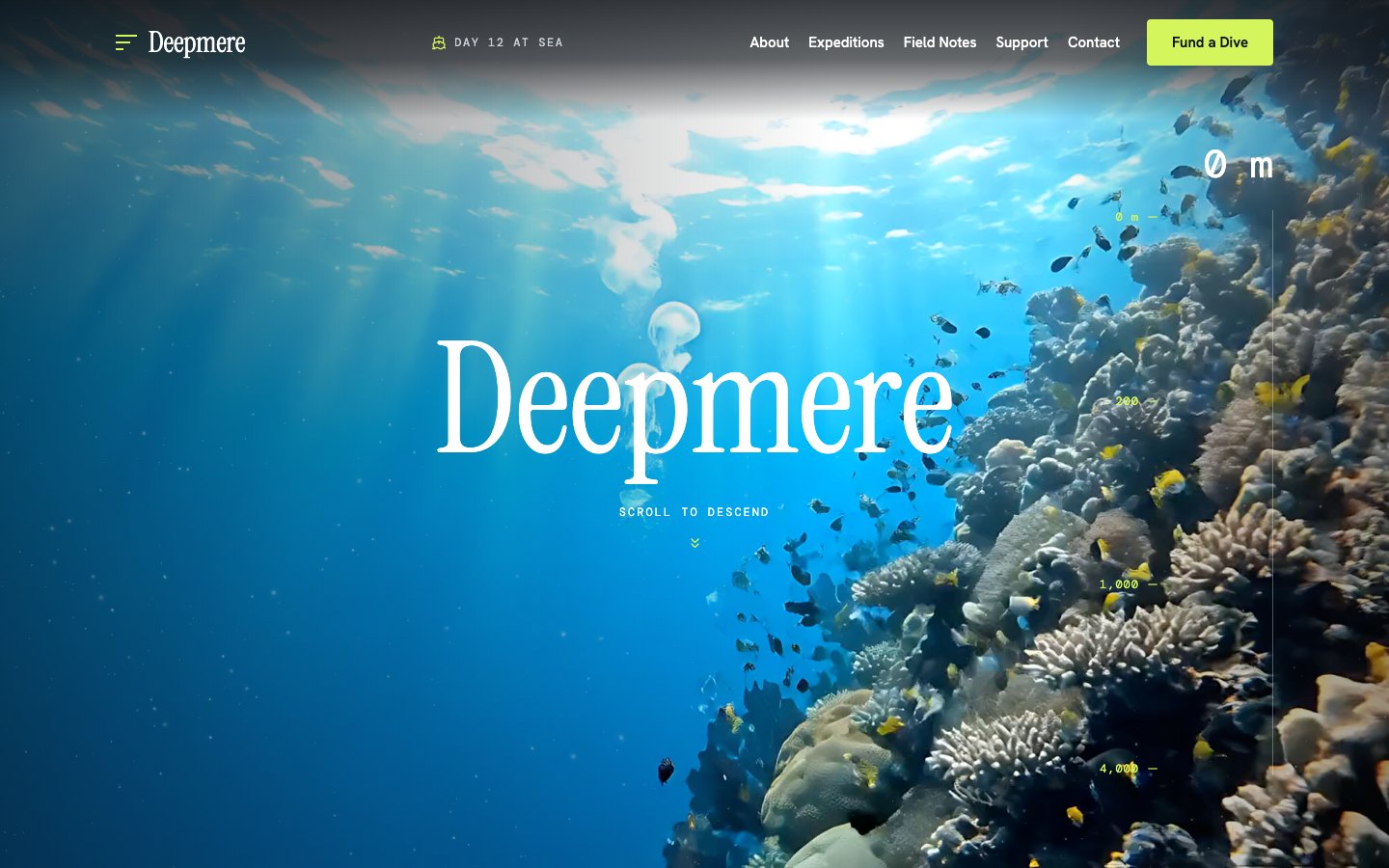
You set it up in a container’s Background › Scroll tab. Throughout this guide we use Deepmere, a deep-sea demo page, as the worked example: a 15.6-second dive from the sunlit reef down into the dark, with information cards that appear while the video pauses.
Before you start: this is an advanced feature
- Scroll Video has more moving parts than any other PixeBuilder feature. The video file, the timeline, the pinned layers and their timing all have to agree. Please read 1. Plan before you build and 2. The big picture before you build your first scene. It will save you a lot of trial and error.
- The scroll video background is part of PixeBuilder (free), version 1.1.x or newer. The text layers on top of the video use Scroll Motion, and the moving number uses the Scroll Counter. Both are PixeBuilder Pro features.
- The editor is not the front end. The video does not play in edit mode, and the layers are laid out differently there. Always check the real page in another tab (see 8. The editor vs the front end).
1. Plan before you build
A scroll video is planned like a short film. Before you open the editor, decide three things: the video, the files (one per device) and the script (what happens at each moment). Ten minutes of planning here saves hours of nudging percentages later.
The video
- Keep it short. At the default speed, every second of video becomes half a screen of scrolling. A 15-second clip is already 7.5 screens of scrolling, before you add any pauses.
- Calm, steady movement works best. Slow camera moves look smooth when they are scrubbed. Fast cuts look jumpy.
- No audio. A scroll video is always silent. Remove the audio track so the file is smaller.
One file per device
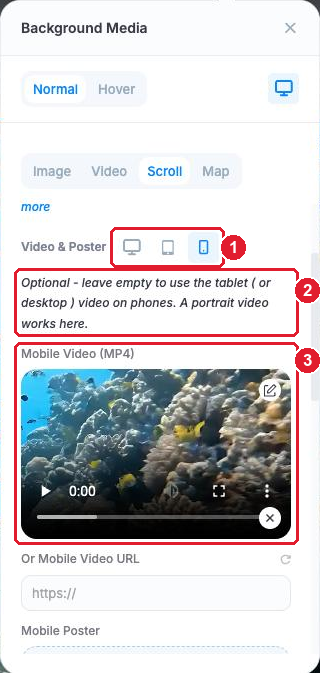
You can give each device its own file, so phones get a portrait video instead of a tiny letterbox. Deepmere uses three files:
Device | Shape and size | Deepmere file | If you leave it empty |
Desktop (required) | 16:9, 1920 px wide | 1920 × 1080, 14 MB | — |
Tablet (optional) | 16:9, 1280 px wide | 1280 × 720, 7.4 MB | Uses the desktop file |
Mobile (optional) | Portrait 9:16 | 720 × 1280, 5.9 MB | Uses the tablet file, or the desktop file |
- All files must have exactly the same length. The timeline is written in seconds and it is shared by every device. If the lengths differ, the editor warns you in the badge (see section 4).
- By default, phones are screens up to 767 px wide and tablets up to 999 px wide. The page switches files when the screen size changes, without jumping to another moment of the video.
Export settings: a keyframe every 6 frames, and faststart
A normal MP4 stores a full picture (a keyframe) only every few seconds. The frames in between store only what changed. When the scroll jumps to a random moment, the browser has to rebuild that frame from the last keyframe, and that is what makes a scroll video stutter. So export every file with:
- a keyframe every 6 frames, so any frame can be shown quickly,
- faststart (called Web Optimized in HandBrake), so the browser can read the file information right away,
- no audio, and the same length for every device file.
If a file breaks one of these rules, the editor tells you in the badge (see section 4).
With HandBrake (free, handbrake.fr):
- Open your video in HandBrake.
- In the Summary tab, set Format to MP4 and tick Web Optimized.
- In the Dimensions tab, set the width: 1920 for desktop, 1280 for tablet. For mobile, start from a portrait (9:16) source, for example 720 × 1280.
- In the Video tab, choose the H.264 (x264) encoder, Framerate Same as source with Constant Framerate, and a quality of about RF 20.
- Still in the Video tab, in the extra options text box under the encoder settings (labelled More Settings or Advanced Options, depending on your version), type: keyint=6:min-keyint=6:scenecut=0
- In the Audio tab, remove every audio track.
- Click Start Encode. Then save these settings as a preset (Presets › Save New Preset) and reuse it for the tablet and mobile files, changing only the size.
With ffmpeg, one line does the same (change 1920 to 1280 for the tablet file, and use your portrait source with 720 for mobile):
ffmpeg -i input.mp4 -an -c:v libx264 -crf 20 -preset slow -pix_fmt yuv420p -vf scale=1920:-2 -g 6 -keyint_min 6 -sc_threshold 0 -movflags +faststart desktop.mp4
-an removes the audio, -g 6 puts a keyframe every 6 frames, and -movflags +faststart makes the file web optimized.
Write the script
Now write the “script”: a short table of what the video does, row by row, and what text appears in each row. There are only two kinds of rows:
- Play — play the video from one time to another (in seconds), at a chosen speed.
- Hold — keep the frame still for a number of screens of scrolling, while your text and cards move. Holds are where you put content people should read, because the video is not competing with it.
Here is Deepmere’s script. The maths in the third and fourth columns is explained in section 6, so don’t worry about it yet.
Row | Scroll length | Scene % | What appears |
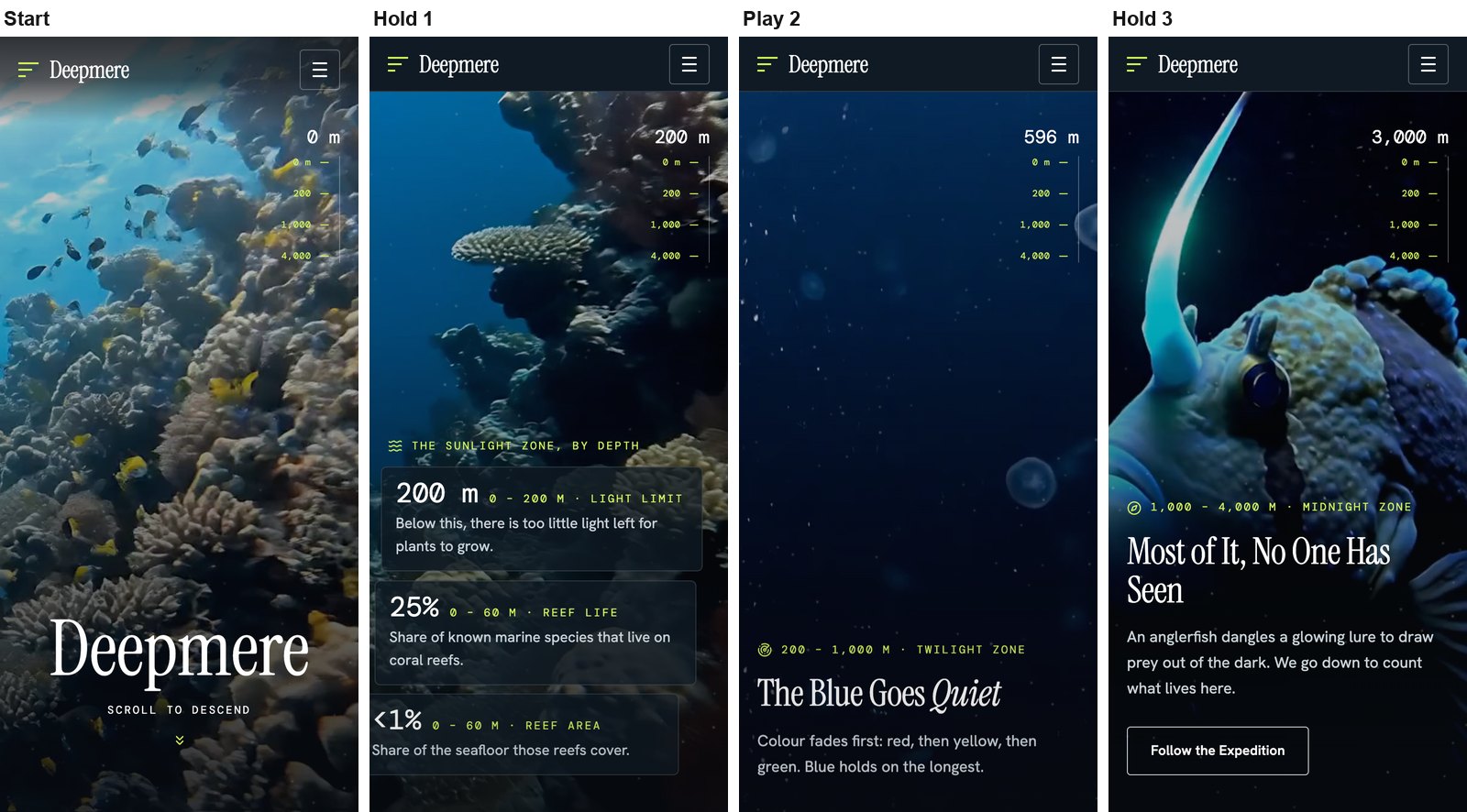
Play 1 · 0 → 7 s · Normal | 7 × 0.5 = 3.5 screens (350vh) | 0 – 23.8% | The “Deepmere” title and “Scroll to descend”, which fade away. The depth counter counts 0 → 200 m. |
Hold 1 · 3 screens | 3 screens (300vh) | 23.8 – 44.2% | “The sunlight zone, by depth”: a heading and three cards, entering one by one. |
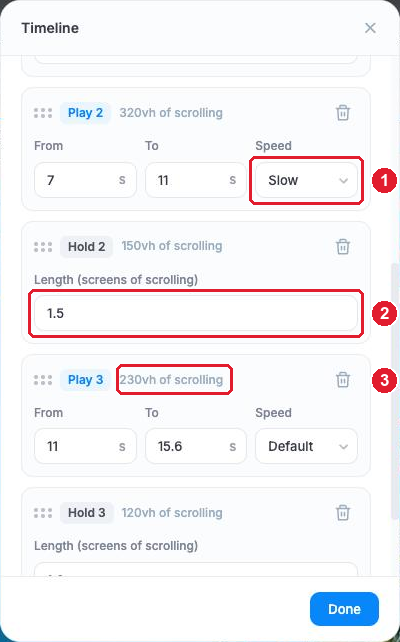
Play 2 · 7 → 11 s · Slow | 4 × 0.8 = 3.2 screens (320vh) | 44.2 – 66.0% | “The Blue Goes Quiet”. The counter counts 200 → 1,000 m. |
Hold 2 · 1.5 screens | 1.5 screens (150vh) | 66.0 – 76.2% | “Below the light”: three more cards. |
Play 3 · 11 → 15.6 s · Normal | 4.6 × 0.5 = 2.3 screens (230vh) | 76.2 – 91.8% | “Most of It, No One Has Seen”. The counter counts 1,000 → 3,000 m. |
Hold 3 · 1.2 screens | 1.2 screens (120vh) | 91.8 – 100% | The last frame rests before the page carries on. |
Total: 14.7 screens of scrolling, so the scene is 100vh + 1,470vh = 1,570vh tall.
2. The big picture
The easiest way to understand Scroll Video is to think of a theatre. Each part of the feature has one job on the stage:
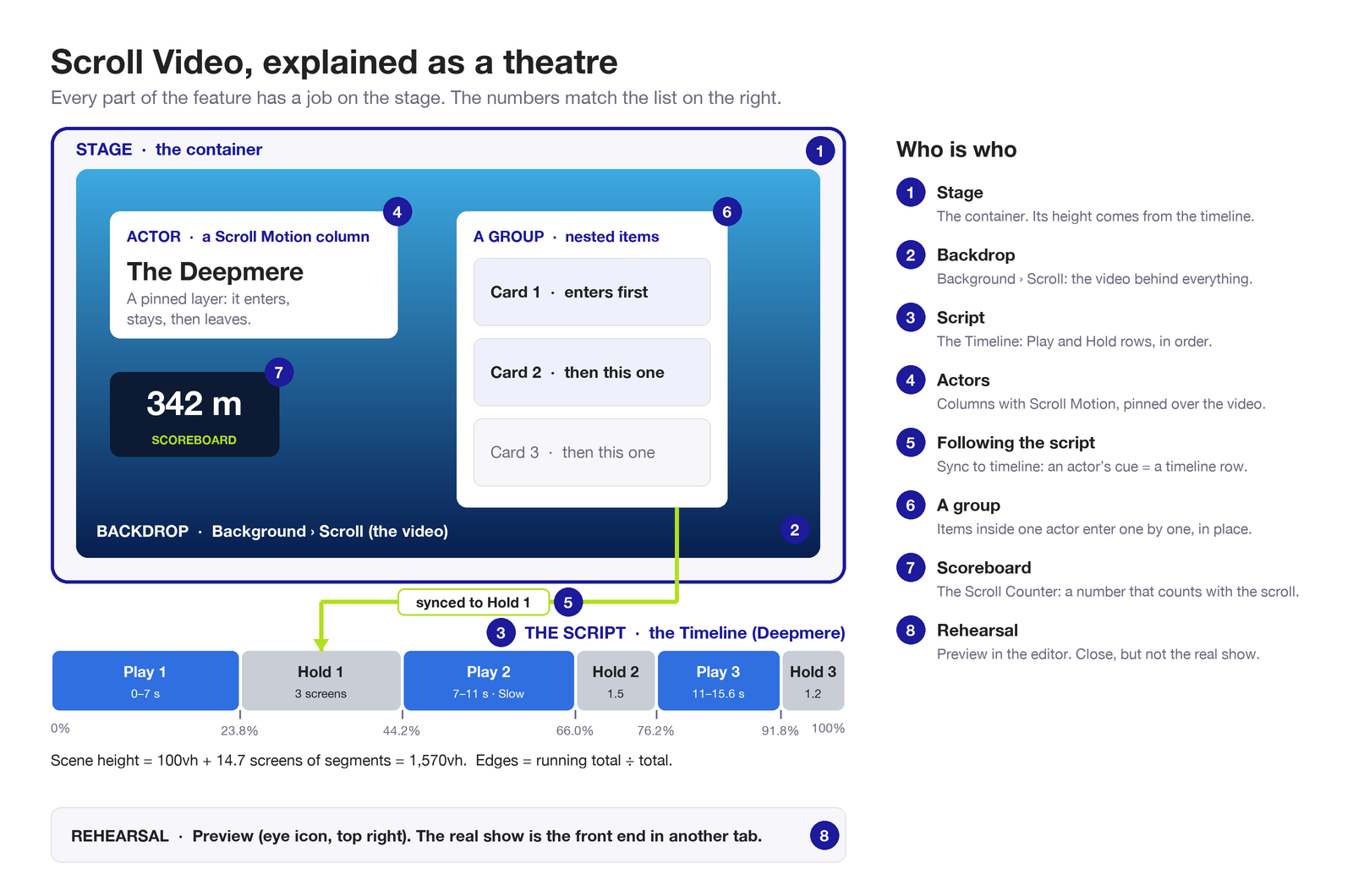
- The stage = the container. Its height comes from the timeline, not from the Height option.
- The backdrop = Background › Scroll. The video behind everything.
- The script = the Timeline. The Play and Hold rows, in order.
- The actors = columns with Scroll Motion. They enter, stay on the stage, and leave.
- Following the script = Sync to timeline. An actor’s cue is a timeline row, so it always comes on at the right moment, even when you change the script.
- A group entering one by one = nested items. Cards inside one actor that come on one after another.
- The scoreboard = the Scroll Counter. A number that counts with the scroll, such as Deepmere’s depth.
- The rehearsal = Preview. Close to the real show, but the real show is the front end.
What happens when someone scrolls: when the top of the container reaches the top of the screen, the stage pins. From then on, scrolling moves the visitor through the script row by row. Play rows scrub the video, Hold rows freeze it, and your layers come and go on their cues. After the last row, the stage unpins and the page scrolls on as normal.
3. The layering concept
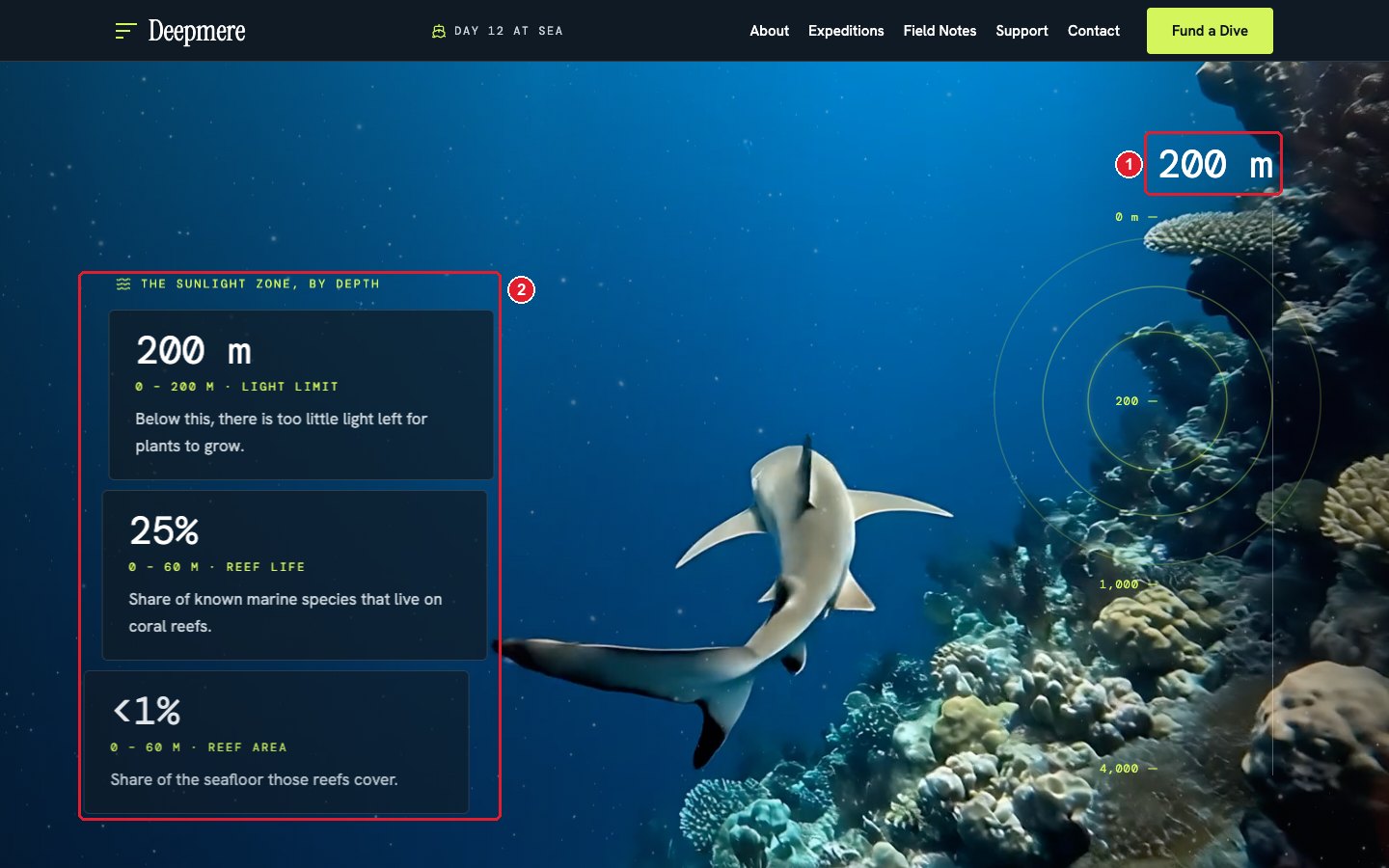
Everything you put on top of the video is a layer: a column or an item with Scroll Motion turned on. Where you place it decides how it behaves. The rule is automatic; there is no option to pick.
- A column with Scroll Motion directly inside the container is a pinned layer. It is taken out of the normal page flow and placed on the screen-sized stage, using the Top, Left and Z-index from its Scroll Motion panel. Think of it as a sticker stuck on the screen.
- An item (or column) with Scroll Motion inside a pinned layer animates in place. It stays where the layer’s layout puts it and animates with the same scroll progress. Its Top and Left are ignored, but its Z-index still works. Think of it as a stack inside a box.
Layout A: separate layers (stickers)
Each piece of content is its own pinned layer with its own Top and Left. Use it for free placement: a title in one corner, a caption in another, a decoration drifting across.
Tip: Left can’t be a calculation such as “half the screen minus 640 px”. To line a layer up with the rest of your page (for example a 1280 px box with side padding), make the layer a full-width column at Top 0 and Left 0, and let a boxed column inside it hold the text. The box keeps the text on the same line as the rest of the page.
Layout B: a group
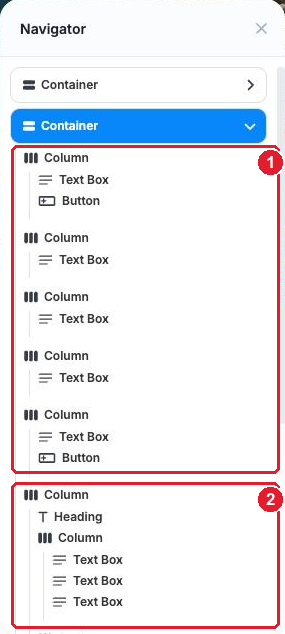
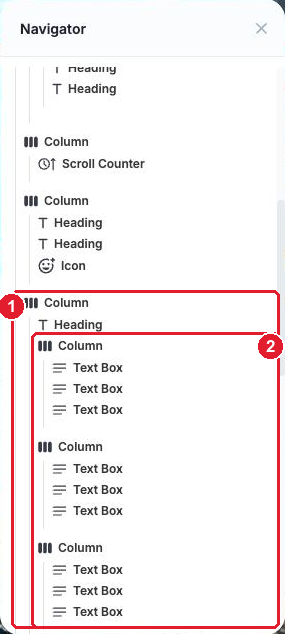
One pinned layer column holds a heading and several card columns. Each card has its own Scroll Motion, so the cards enter one by one inside the layer. Use it for vertical stacks and whenever the text must be easy to edit and reflow on tablets and phones. Deepmere’s cards use layout B.
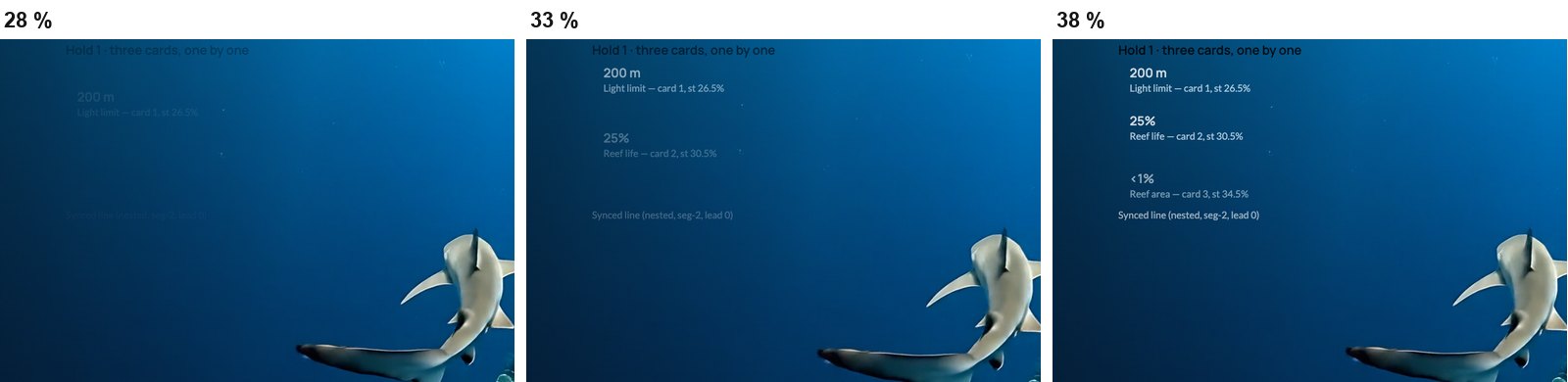
Stacking order (Z-index)
The video is always at the bottom. Above it, give your layers a Z-index in this order:
- Decoration (particles, rings, glows): the lowest, for example 1.
- Text and cards: higher, for example 2 or 3.
- Buttons and links: the highest, so nothing covers them.
Invisible layers don’t take clicks. A layer whose opacity is below 0.05 lets clicks pass through, so a faded-out layer never blocks a button underneath. A visible layer on top of a button still does, so check the Z-index.
4. The editor labels
Because the video doesn’t play in edit mode, the editor shows labels that tell you what will happen on the front end. They never appear in Preview or on the live page.
The Scroll background badge
At the top-left of the container you’ll see a badge like Scroll background · 15.6 s · Normal · height 1,570vh · 39–62 frames/screen ⚠ may look choppy. Part by part:
- 15.6 s — the length of the desktop video, read from the file.
- Normal — the main Speed (see section 5).
- height 1,570vh — the scene height: 100vh plus the length of the timeline.
- 39–62 frames/screen — how many video frames you get per screen of scrolling. It is a range when rows have different speeds. Deepmere’s video has 31.2 frames per second: 31.2 ÷ 0.5 (Normal) = 62, and 31.2 ÷ 0.8 (Slow, in Play 2) = 39.
- ⚠ may look choppy — shown when a row gets fewer than 40 frames per screen. Use a faster speed for that row, or a video with more frames per second.

Below the first line, the badge lists problems with your files:
- keyframe every ~188 frames, re-export with a keyframe every 6 frames — the file will stutter. Re-export it (section 1).
- not web optimized (export with faststart) — tick Web Optimized in HandBrake.
- Tablet: 15.20 s, desktop is 15.61 s (for example) — the device files have different lengths.
- Can’t read the video length — usually a Video URL on another website that doesn’t allow it (CORS). Upload the file to your media library instead. Without the length, the scene height can’t be set.
In edit mode, a strip at the top of the container is kept free for the badge, so it never covers your layers.

The Scroll Motion pills
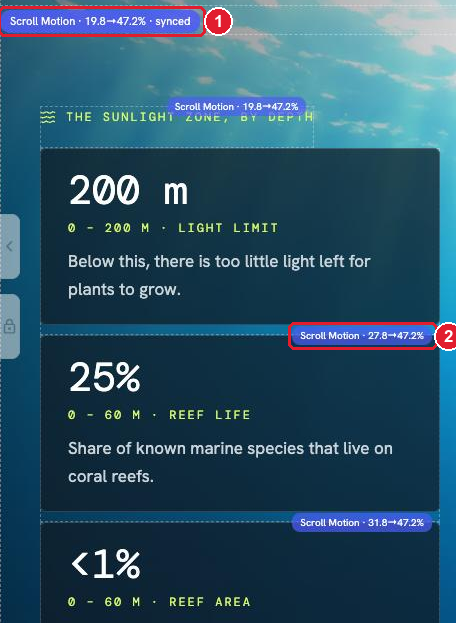
Every layer and nested item with Scroll Motion shows a small pill such as Scroll Motion · 19.8→47.2% · synced:
- 19.8→47.2% — where it starts and ends, as a percentage of the scene.
- synced — its timing comes from a timeline row (section 7). Without it, the timing is manual.
- The pills fade when you hover or select the element, so they don’t hide your content. They are hidden in Preview and on the front end.
5. The Background › Scroll panel, field by field
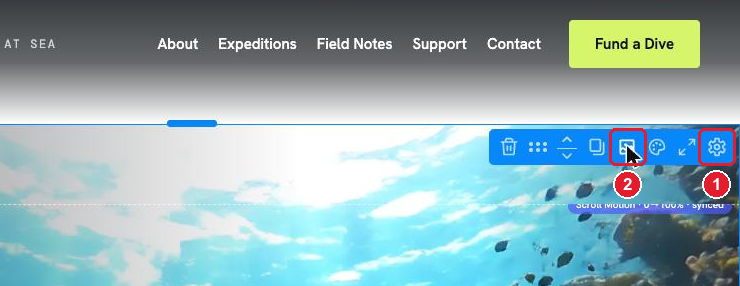
Select the container. In its toolbar, the Background icon (2) opens Background Media. (The gear (1) opens the container settings.)
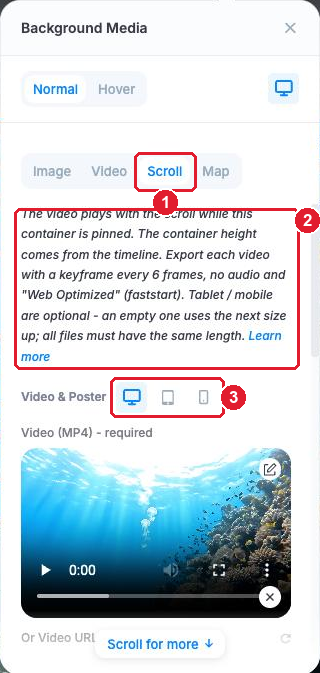
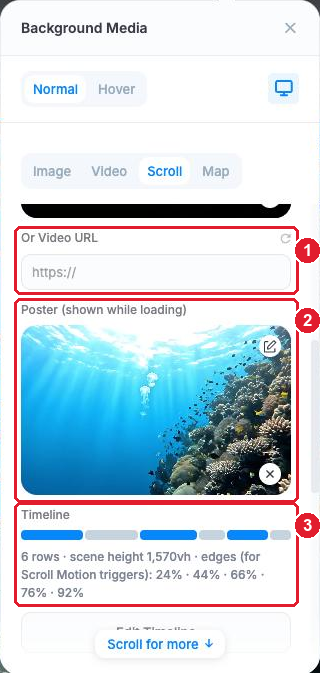
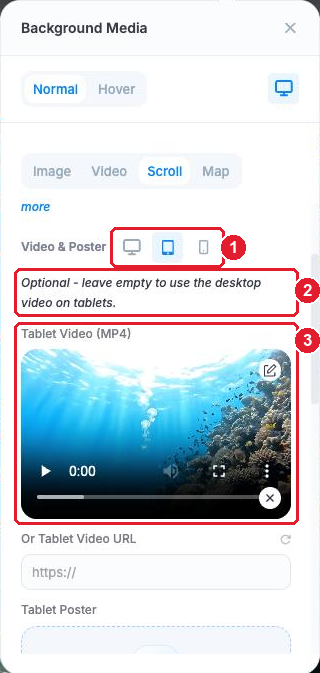
Open the Scroll tab (1). The short description (2) sums up the rules and links back to this page. Video & Poster has a device switch (3): it only changes which device’s files you are editing in the panel, not the editor view.
Video and poster
- Video (MP4) - required — the desktop file. Upload it to your media library.
- Or Video URL (1) — a link to an MP4 instead of an upload. If it is on another website, that website must allow it (CORS), or the editor can’t read the length.
- Poster (shown while loading) (2) — an image shown until the video is ready. Use the first frame of the video, so the switch is invisible.
- Timeline (3) — a preview of the timeline bar and its summary. More in section 6.
Switch the device to tablet or mobile to add their files. Both are optional: an empty tablet file uses the desktop video, and an empty mobile file uses the tablet (or desktop) video. Each device can have its own poster too.
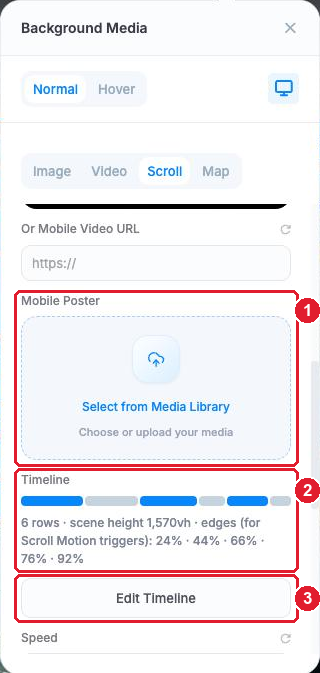
Timeline, speed and motion
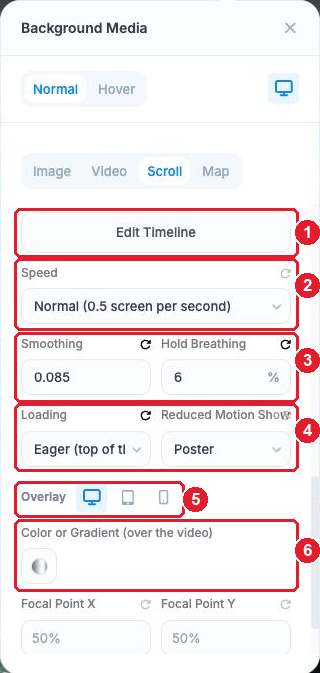
- Edit Timeline (1) — opens the Timeline popup (section 6).
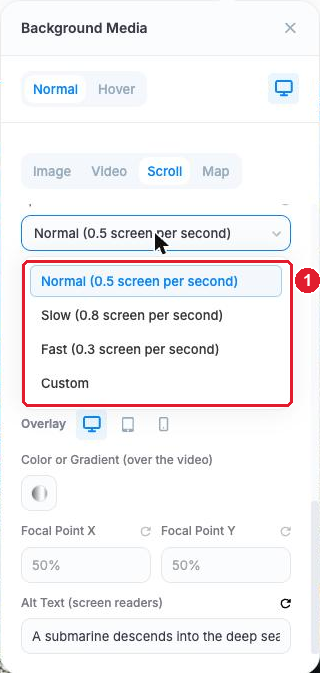
- Speed (2) — how many screens of scrolling one second of video takes. Normal (0.5 screen per second) is the default, Slow (0.8 screen per second) and Fast (0.3 screen per second). A bigger number means more scrolling per second, so the video moves more slowly. Custom lets you type your own value (0.1 to 3). Each Play row can override it.
- Smoothing (3) — the video glides towards the scroll position instead of jumping. The default is 0.085. Lower is smoother but lags a little more; 0 turns it off.
- Hold Breathing (3) — during a Hold, the frame slowly zooms in and back out by up to this amount, so a still frame still feels alive. From 0 to 10%, the default is 6%. Set 0 for a perfectly still frame.
- Loading (4) — Lazy (when close to the screen) is the default and loads the video only when the visitor gets near it. Eager (top of the page) loads it at once; use it when the scene is at the top of the page, like Deepmere. Either way, the whole file is downloaded before scrubbing, so scrolling never waits for the network.
- Reduced Motion Shows (4) — visitors who asked their device to reduce motion see a still image instead: the Poster (default), the First Frame or the Last Frame.
Overlay, focal point and alt text
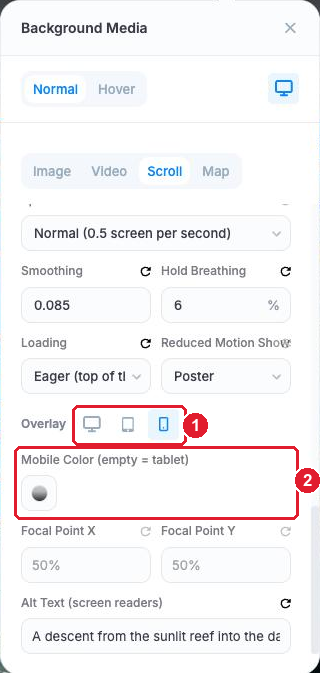
- Overlay (5, 6) — a colour or gradient over the video, so your text stays readable. It has its own device switch: the tablet colour falls back to desktop, and the mobile colour falls back to tablet. Deepmere darkens the left side on desktop, where the text sits, and the bottom on mobile.
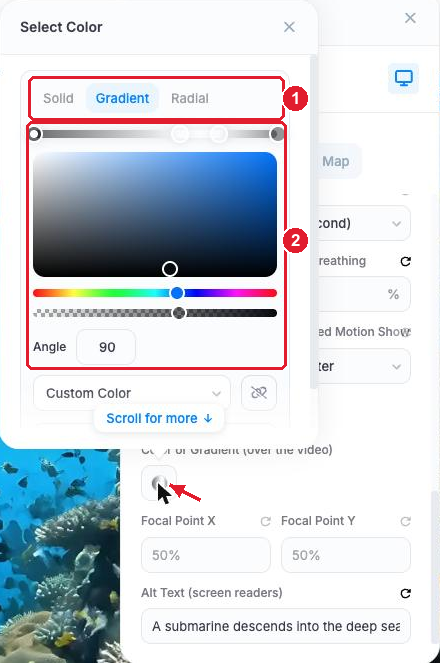
- The colour picker offers Solid, Gradient and Radial, with colour stops.
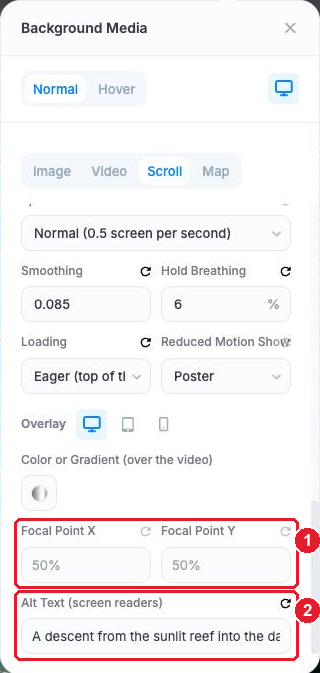
- Focal Point X / Y — which part of the video stays in view when the screen shape crops it. The default is 50% / 50% (the centre).
- Alt Text (screen readers) — a short description of the video for visitors who use a screen reader.
About the container Height option
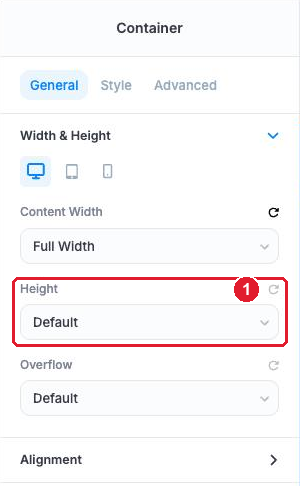
The container’s General tab still shows Height: Default. You can ignore it: with a Scroll background, the scene height comes from the timeline and always wins.
6. The Timeline popup
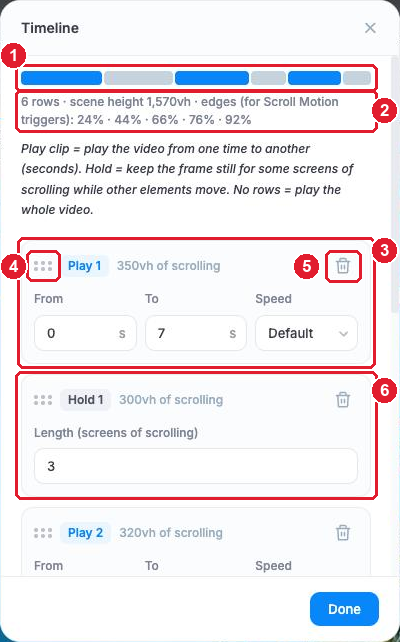
Click Edit Timeline to open the popup. This is where you type in your script.
- The bar (1) — blue segments are Play rows, grey segments are Hold rows. Each segment is as wide as its share of the scrolling.
- The summary (2) — for example 6 rows · scene height 1,570vh · edges (for Scroll Motion triggers): 24% · 44% · 66% · 76% · 92%. The edges are where each row ends, as a percentage of the scene.
- A Play row (3) — From and To in seconds, and a Speed (Default = the main Speed, or Slow, Normal, Fast). Its header shows how much scrolling it takes, such as “350vh of scrolling”.
- The drag handle (4) and the trash icon (5) — reorder or remove a row.
- A Hold row (6) — Length (screens of scrolling), from 0 to 10. Empty means 1.
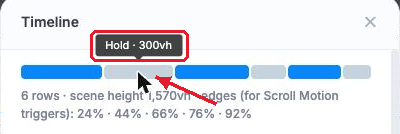
Hover a segment of the bar to see which row it is and how long it scrolls.
Add, remove and reorder rows
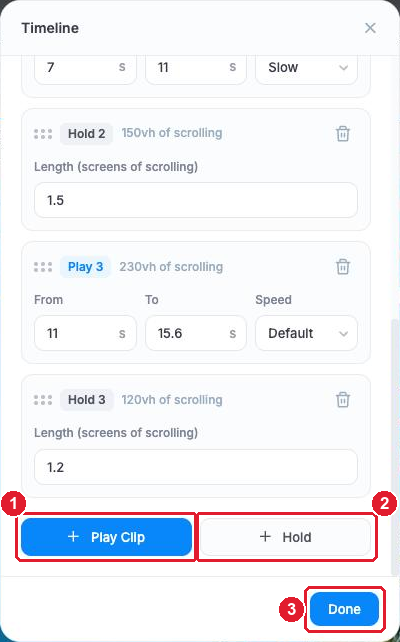
- + Play Clip (1) adds a Play row, + Hold (2) adds a Hold row, and Done (3) closes the popup.
- Remove a row with its trash icon.
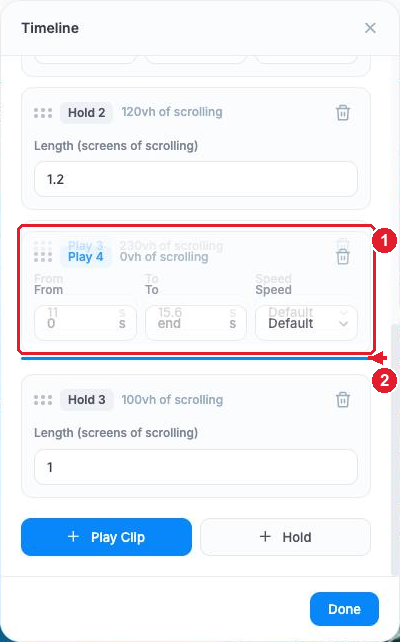
- Drag a row by its handle to move it. A blue line shows where it will drop. Layers and counters that are synced to the row move with it (section 7).
- No rows at all means “play the whole video once” at the main speed.
Empty fields: continue and to the end
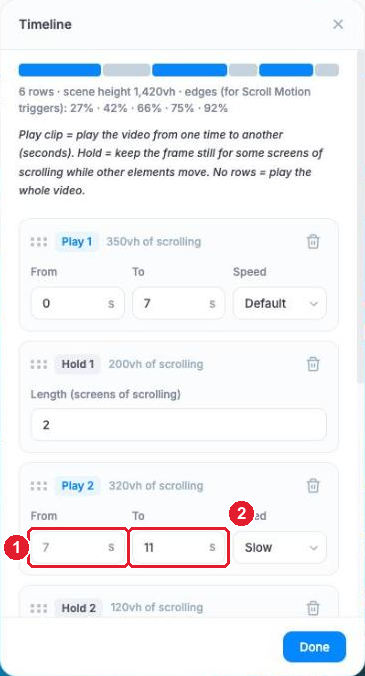
- An empty From means “continue from where the previous Play row ended” (or 0 for the first row). The box shows that time in grey, so you can see it (1).
- An empty To means “to the end of the video”.
The maths
- A Play row scrolls for (To − From) × speed screens. Speeds are Slow 0.8, Normal 0.5 and Fast 0.3 screens per second.
- A Hold row scrolls for its number of screens.
- Scene height = 100vh + the sum of all rows (1 screen = 100vh). The extra 100vh is the screen that is pinned.
- Edges = the running total ÷ the total. A row that ends after 3.5 of 14.7 screens ends at 3.5 ÷ 14.7 = 23.8%.
Example 1 — no rows. A 10-second video at Normal: 10 × 0.5 = 5 screens. Scene height = 100vh + 500vh = 600vh.
Example 2 — one pause. Play 0 → 4 s (4 × 0.5 = 2 screens), Hold 2 screens, Play 4 → 10 s (6 × 0.5 = 3 screens). Total 7 screens, so the scene is 800vh. Edges: 2 ÷ 7 = 28.6% and 4 ÷ 7 = 57.1%. The Hold runs from 28.6% to 57.1% of the scene.
Example 3 — Deepmere. 3.5 + 3 + 3.2 + 1.5 + 2.3 + 1.2 = 14.7 screens, so the scene is 1,570vh. Edges: 23.8%, 44.2%, 66.0%, 76.2% and 91.8% (the popup rounds them to 24 · 44 · 66 · 76 · 92).
7. Sync to timeline
Normally you time a Scroll Motion layer by typing Trigger Positions (in % of the scroll). Inside a container with a Scroll background you don’t have to: open the layer’s Advanced › Scroll Motion panel and use Sync to Timeline.
- Manual — the default. You type the Trigger Positions yourself.
- Whole scene — the layer runs from 0% to 100% of the scene.
- A timeline row — each row is listed with its seconds or screens and its %, for example Hold 1 · 3 screens (23.8–44.2%).
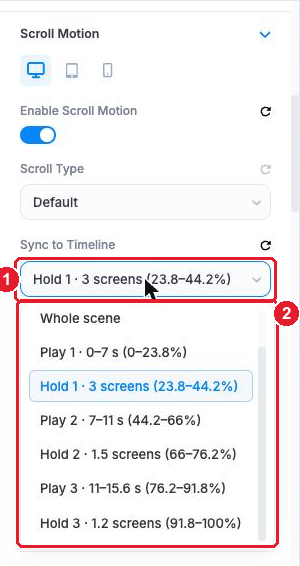
When you choose a row, the timing is worked out for you:
- Start = the row’s start minus the Lead-in (default 4%), so the layer begins to appear just before the row.
- Pause = the row’s end (used when Pause State Sticky is on).
- End = the row’s end plus the Lead-out (default 3%), so the layer leaves just after it.
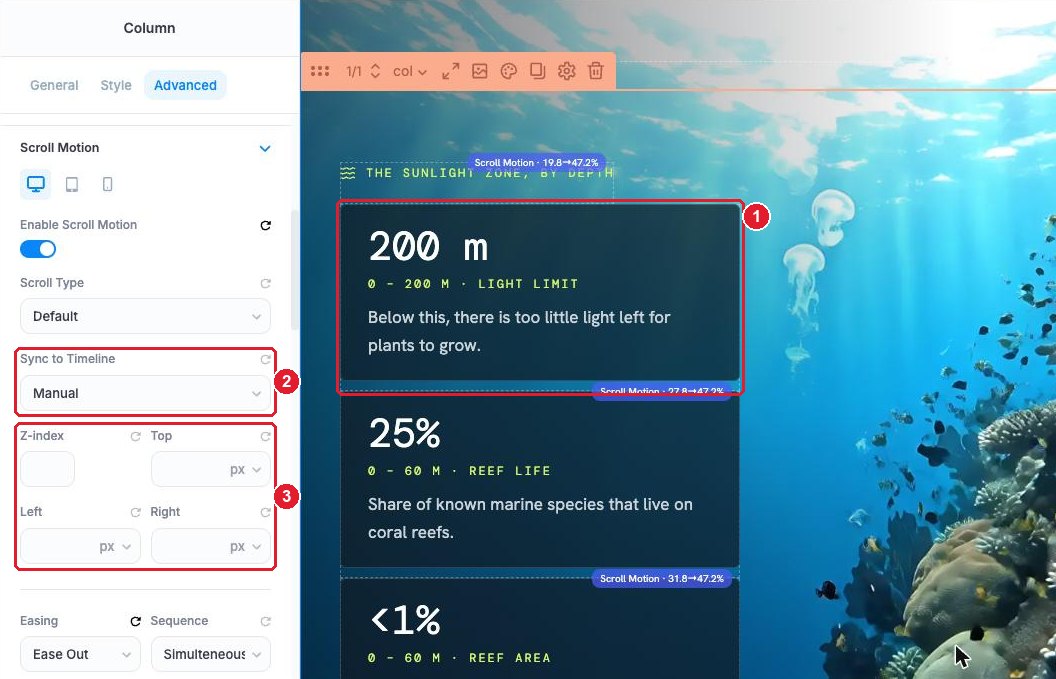
For Deepmere’s Hold 1 (23.8–44.2%), that gives Start 19.8%, Pause 44.2% and End 47.2%. While a layer is synced, its start, pause and end percentages are shown greyed and read-only: they are computed from the timeline.

When you change the timeline
- You change a row’s length — synced layers follow automatically.
- You drag rows into a new order — each synced layer stays with its row.
- You delete a row — layers synced to it switch to Manual, keeping their last percentages, and a notice tells you.
- All of this is one undo step: undo the timeline change and the layers come back with it.
- Sync works for columns and items in the same container as the Scroll background. The Scroll Counter can use timeline rows in the same way.
When to stay on Manual
- Hand-off layers that must be gone before an edge. A synced layer leaves after its row ends (the Lead-out). If a title must be fully gone before the next row starts, keep it on Manual and type an End before the edge.
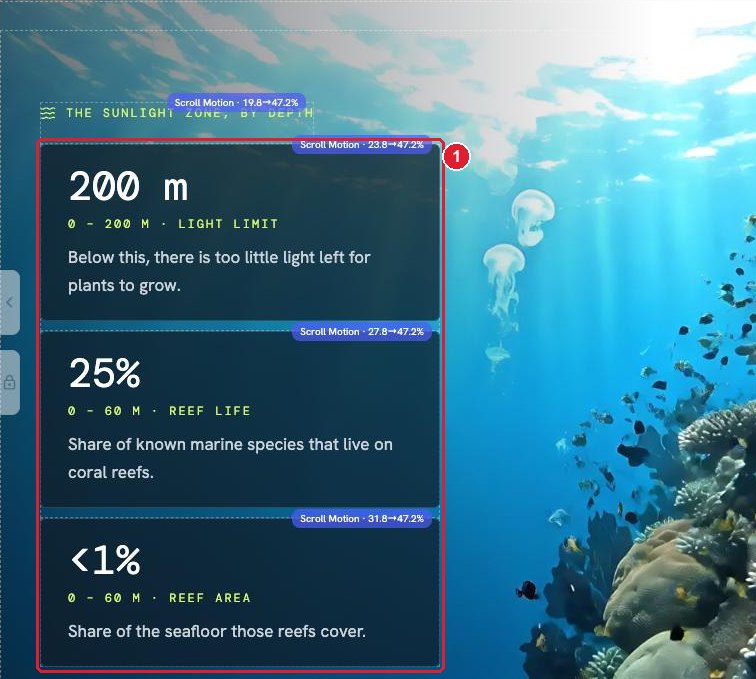
- Staggered nested items. Deepmere’s cards sit inside a layer synced to Hold 1, but each card is Manual, with starts 4% apart (23.8%, 27.8%, 31.8%), so they enter one by one.
8. The editor vs the front end
The editor is not what your visitors see.
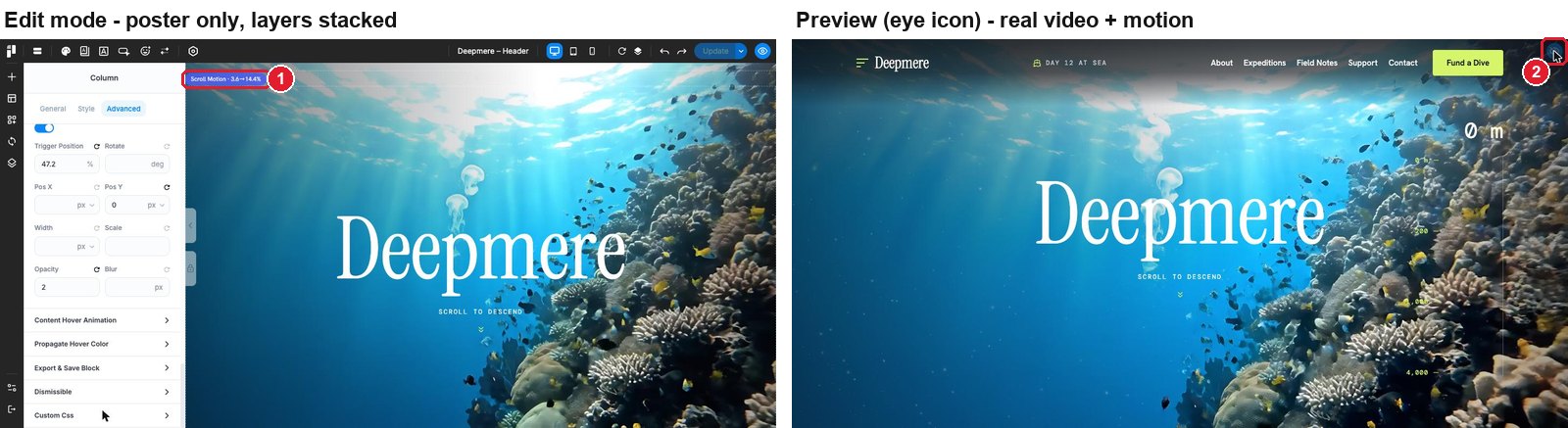
- In edit mode the video does not play.
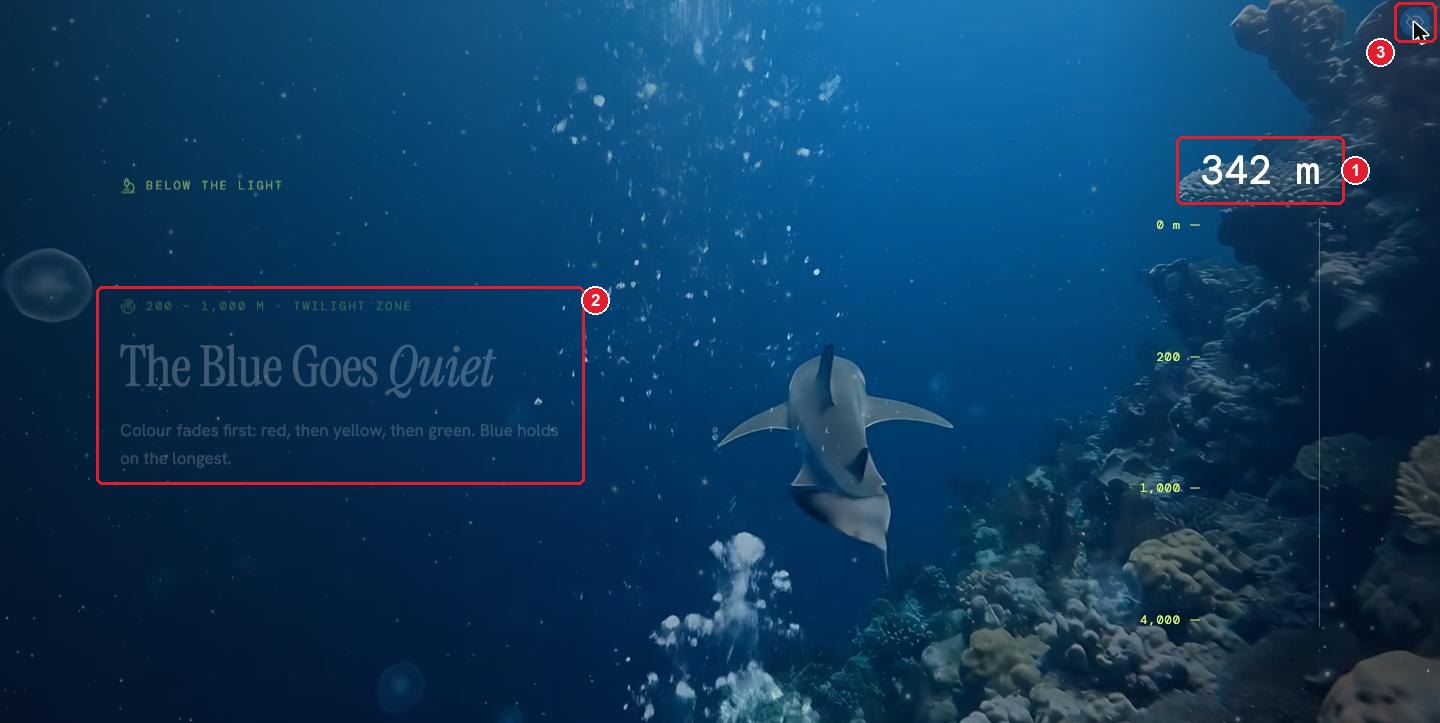
- Preview (the eye icon, top right) plays it, but it may stutter.
- The best check is always the real front end in another tab, and then a real phone.
Edit mode
- The video doesn’t play: you see the poster.
- The layers are stacked in normal flow, one under another, instead of pinned on top of each other. That way you can click and edit every card.
- There is no scene height: the container is only as tall as its layers.
Preview
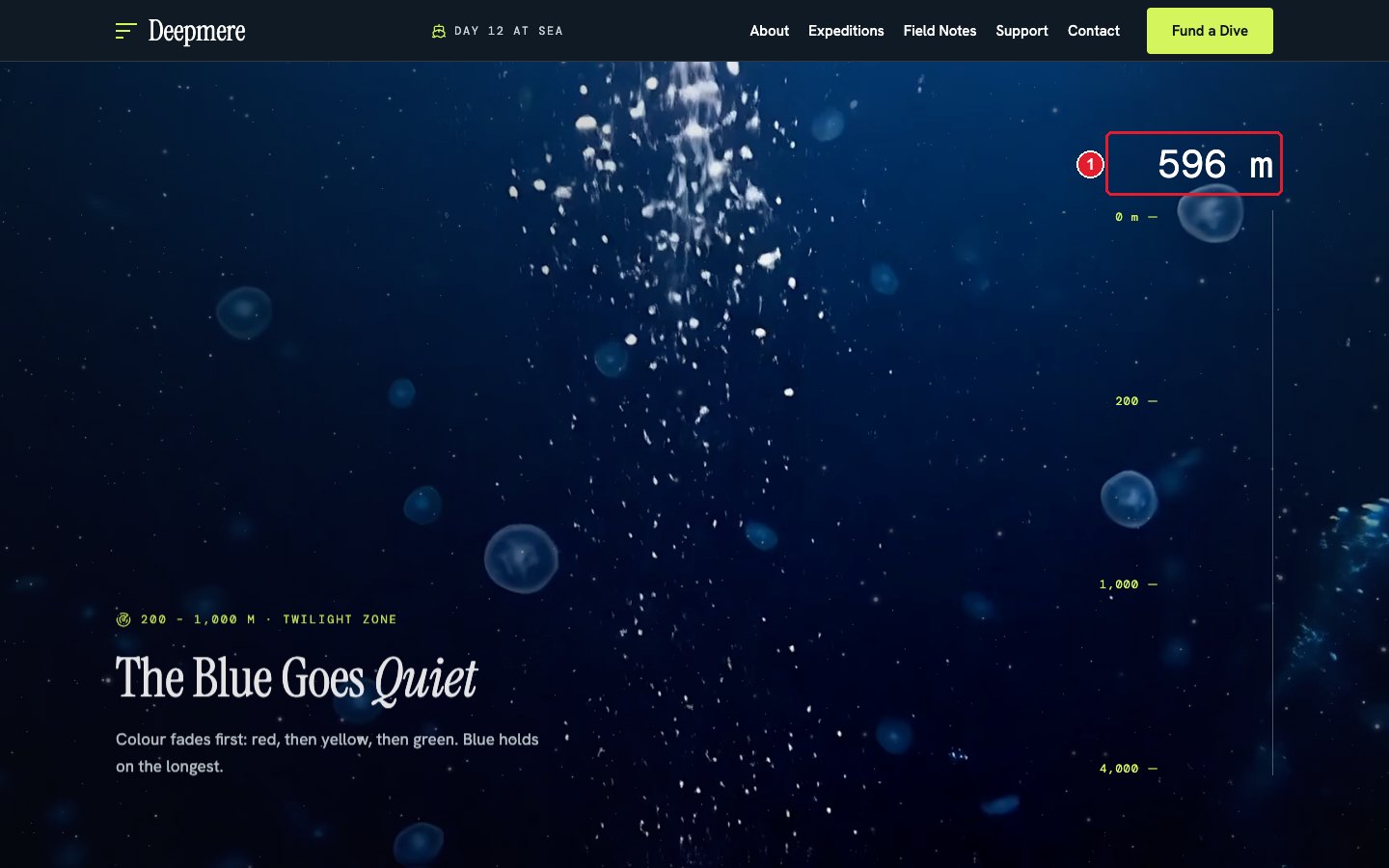
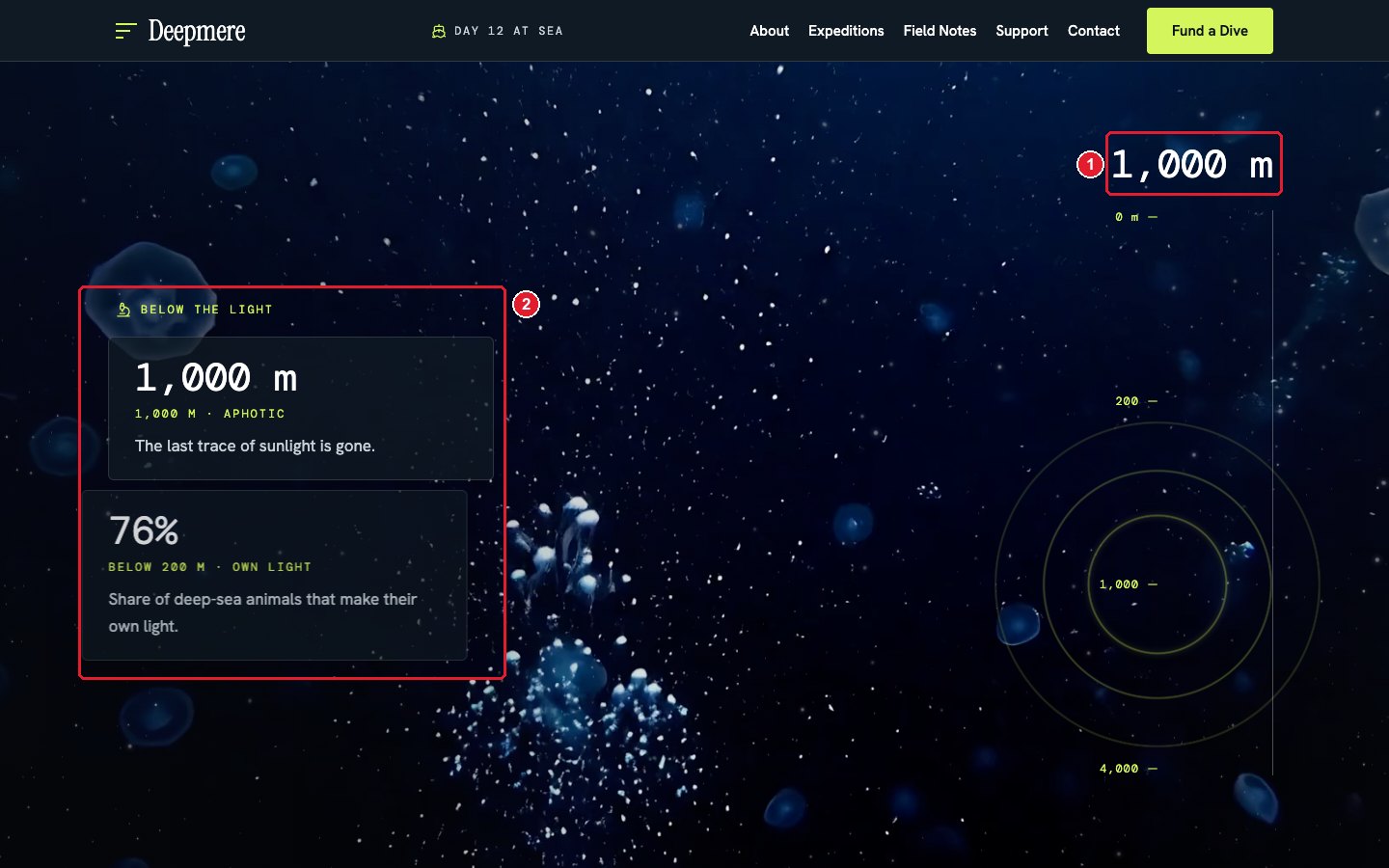
- Click the eye icon at the top right (or press Cmd+E on Mac, Ctrl+E on Windows). You get the real scene height, the real video and the real motion of layers, nested items and counters, with no labels.
- Close Preview to go straight back to edit mode. Nothing is saved.
- The editor is a heavy page, so the video may stutter in Preview even when the front end is smooth.
- Pick the device before you open Preview (desktop, tablet or mobile in the top bar). The editor toolbar is hidden during Preview, and Preview uses that device’s video file.
The front end: the real check
- Keep the live page open in a second browser tab.
- After each change, click Update in the editor, then reload the live tab.
- Scroll through the whole scene, down and back up.
- Test on a real phone, not only a narrow browser window. In Safari on iPhone, if the video doesn’t move at first, tap the screen once and scroll again.
9. Step by step: build your first scene
With your files exported and your script written, here is the whole build from start to finish.
Step 1 — Open the container background
Add a container to your page (or use an existing one) and select it. In its toolbar, click the Background icon.
Step 2 — Choose the Scroll tab
In Background Media, click Scroll.
Step 3 — Upload the videos and posters
Upload the desktop video and its poster. Then use the device switch to add the tablet and mobile files and posters, if you have them.
Step 4 — Type in the timeline
Click Edit Timeline. Add your rows with + Play Clip and + Hold, following your script, then click Done.
Step 5 — Check the badge
Look at the badge at the top-left of the container. Check the length and the height, and make sure there is no keyframe, faststart or length warning. If there is, fix the file before you go on.
Step 6 — Add a layer
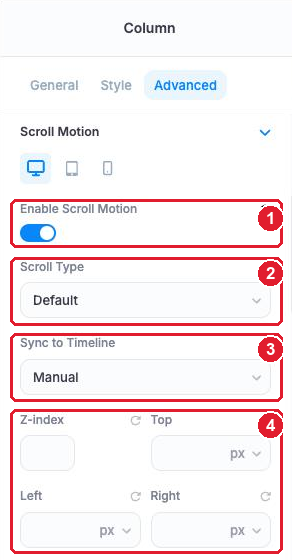
Add a column directly inside the container and put your text in it. Select the column, open Advanced › Scroll Motion, turn on Enable Scroll Motion (1), and set its Z-index, Top and Left (4). See the Scroll Motion guide for every field.
Step 7 — Sync the layer to a row
In Sync to Timeline, pick the row the layer belongs to. Then set the look of each state, for example:
- Start Position: Opacity 0, Pos Y 40 px (hidden, a little lower).
- Pause State Sticky: on, Opacity 1, Pos Y 0 (fully visible, in place).
- End State: on, Opacity 0, Pos Y −40 px (fades out upwards).
The Opacity sliders go from 0 to 1: drag 0 → 1, where 0 is invisible and 1 is fully visible.
Tip: you can also type a value above 1, for example 2. Opacity blends across the whole Start → Pause range, so a Pause opacity of 2 makes the element fully visible about halfway through that range instead of only at its end. Cards that should look solid for most of a Hold use Pause opacity 2; Deepmere’s Hold cards do this. See the opacity tip in the Scroll Motion guide.
Step 8 — Add nested cards (optional)
To make cards enter one by one, add card columns inside the layer column (1). Give each card its own Scroll Motion, keep Sync on Manual (2), and give each card a slightly later Start trigger than the one before. Top and Left (3) are ignored for nested items, because they animate in place.
Step 9 — Preview
Choose the device in the top bar, then click the eye icon at the top right. Scroll through the scene. Remember that Preview may stutter.
Step 10 — Check the front end
Click Update, open the live page in another tab, and scroll through the whole scene. Then check it on a real phone.
10. Troubleshooting
The video is choppy or stutters.
- Look at the badge. A keyframe warning means the file must be re-exported with a keyframe every 6 frames (section 1).
- If the frames/screen number is below 40, use a faster speed for that row, or a video with more frames per second.
- Make sure the file is web optimized (faststart).
- Check on the front end, not in Preview: the editor can stutter on its own.
I switched the background to Image or Video, and my layers disappeared.
The layers are pinned on the stage, and the stage’s height came from the timeline. Without the Scroll background, the container has no scene height, and the layers start at opacity 0, so there is nothing to see. Switch back to Scroll, or turn off Scroll Motion on the layers and give the container a normal height.
A button can’t be clicked.
A visible layer is on top of it. Give the button’s layer the highest Z-index. Faded-out layers (opacity below 0.05) don’t block clicks.
The video doesn’t play on my phone.
- In Safari on iPhone, tap the screen once, then scroll.
- Check that the mobile (or tablet) file is an MP4 exported with the same settings as the desktop file.
- If the phone is set to reduce motion, it shows the still image chosen in Reduced Motion Shows. That is on purpose.
The scene doesn’t pin, or the page scrolls sideways.
- Pinning stops working inside anything with overflow: hidden. If you added custom CSS like that to the container or a parent, remove it (or use overflow: clip). PixeBuilder’s own page wrapper already handles this.
- The container’s Overflow option doesn’t clip pinned layers. If a layer’s End State moves it past the right edge of the screen, the page can scroll sideways. Keep every state inside the screen.
My text is covered or hard to read.
Check the Z-index order (decoration < text < buttons) and add an Overlay colour or gradient behind the text area.
On tablet or phone, the video is replaced by an image, or nothing.
The Scroll tab exists only for desktop, and the tablet and mobile videos live inside it. If you set an Image, Video or None background for tablet or mobile in Background Media, it replaces the scroll video on that device, and the scene height goes with it. Remove that override.
A Video URL shows no length, and the scene has no height.
The file is on another website that doesn’t allow PixeBuilder to read it (CORS). Upload the file to your media library instead.
11. Limits and what is not supported
- Containers only. A scroll video is a container background. There is no Scroll Video element, and a scroll video inside a column (for a split layout) is not available yet.
- MP4 files only. YouTube and Vimeo links can’t be scrubbed.
- One scroll video per container. For a second film, use a second container.
- Sync is per container. Only layers and counters in the same container as the Scroll background can sync to its timeline.
Related guides: Scroll Motion · Scroll Counter